

 By
By 
In this article, we will learn about how to develop a Copilot for Microsoft Teams in just a few minutes with a few clicks and without writing any codes. In my previous tutorial, I showed how to set up Copilot Studio and how to create your first Copilot project using the SharePoint site as a data source.
As Microsoft Copilot is one of the new trending AI-based tools, there will be many questions in your mind about this tool. Here I have covered all frequently asked questions and their answers about Microsoft 365 Copilot or Copilot Studio, so it is highly recommended to go through these questionnaires and answers before you start exploring the Copilot Studio tool.
Top 30 Microsoft 365 Copilot FAQ: Your Questions Answered
Develop Copilot for Microsoft Teams
Let’s get started on how to develop Copilot for Microsoft Teams step by step.
Step 1: Login to Copilot Studio. If you don’t have your trial subscription for Copilot, create one by referring to the above getting started with Copilot article.

Once, get into the above page, click on the “+ New copilot” link.
Enter the Copilot name, and for the time being, keep the web site URL box empty.

Click on the “Create” button.
Then, we can see the copilot setting up screen.

After sometimes, we can see our copilot.

Set up your generative AI for Microsoft Teams CopilotThen, from the Set up your generative AI section, click on the “Add files” button. Before that, you should have a descriptive document that should contain your needs. For example, for this test, I have a document that explains the SharePoint and Power Platform.
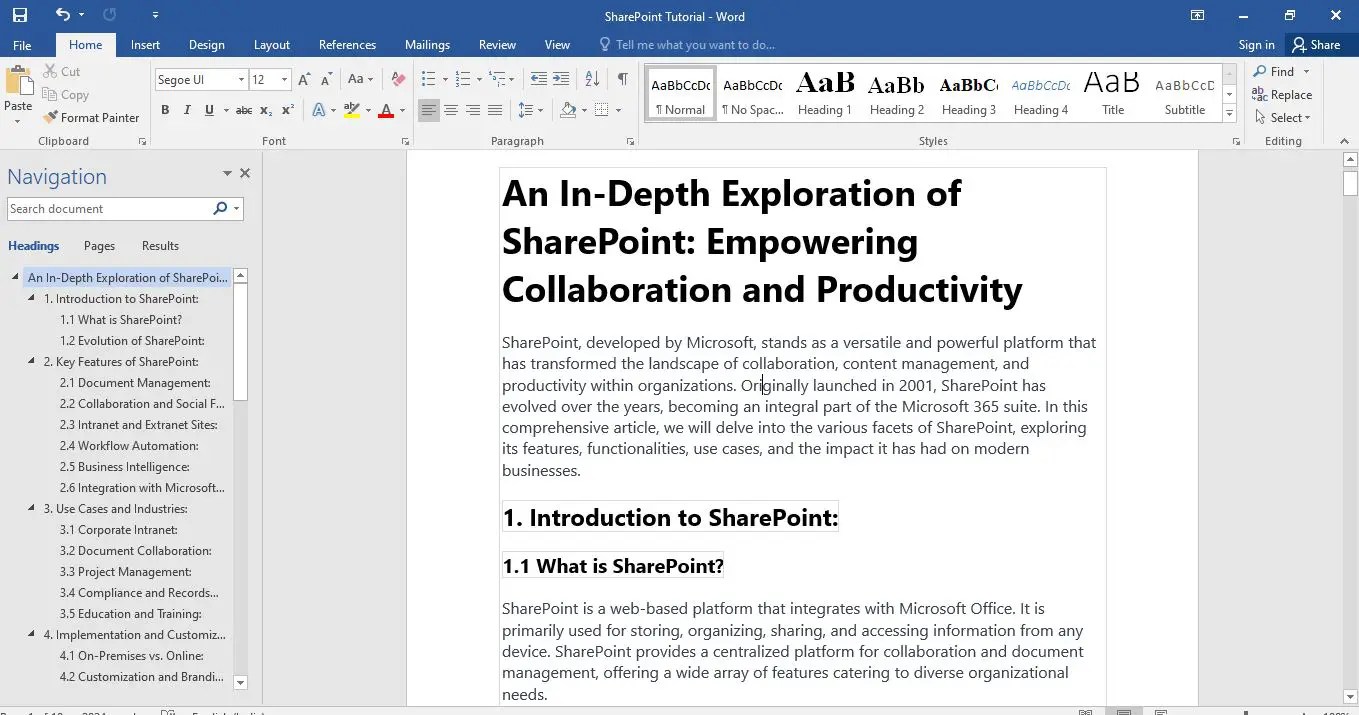
Let’s upload this document in your copilot project as a data source. From the upload document section, click on the drag and drop files or click to files link, and then upload your data source file.

We can see that file has been uploaded successfully.

Note:
- Files are uploaded here and stored in the Microsoft Dataverse.
Then, we need to configure the authentication for the Copilot you have created. To do that, follow the below navigation.
Click on the “Security” link from the settings section.

Click on the “Authentication” link and make sure your authentication selection is “only for Teams and Power Apps”.

Note:
- To configure the data source as a SharePoint Online site, you need to select the authentication type as “manual (for a custom website). Refer to my previous article on how manual authentication works for the SharePoint Online site.
Now, let’s publish this Copilot chatbot. Click on the Publish link from the left-side menu, then click on the publish button.

Now, let’s test Chatbot.
Open your copilot and type, “What is SharePoint?” The copilot will construct the answer and reply to it as a live chat.

Note:
- Here you need to send the prompt as per your data sources and what it contains. My data source contains data about the SharePoint tutorial, so I have typed the question as “What is SharePoint?”
Now, let’s publish the Copilot chatbot in the Microsoft Teams channel.
Publish Copilot in Microsoft Teams
To publish a copilot in Microsoft Teams channel, follow the below steps:
- Click on the settings menu from the left side panel.
- Click on the channels link.
- Click on the Microsoft Teams icon.

Excited to make your bot available for others to use in Microsoft Teams? Review how your bot will appear. Select Edit details to modify. Once you are ready, select Availability options to continue.
Click on the “Open bot” icon.

For different types of availability options, you can click on the “Availability Options” button.

Make your bot available to users in Microsoft Teams so they can find and use it.
Once we click on the “Availability options” we can see the below the screen:

Let’s click on the “Open bot” icon.
Then, from the “Microsoft Teams” opening screen, click on “Download the Windows app” (if you don’t have the Teams app installed) or “Use the web app instead.”

I have clicked on the “Use the web app instead” button.
Click on the “Add” button.

Note:
- If your bot is already installed, you will get the “Open” button instead of the “Add” button.
Then, once your chatbot is added to your team, you can ask some questions about SharePoint, and the Copilot chatbot will answer you accordingly from your data source file. For example, when I asked what SharePoint and SharePoint Online were, I got an answer automatically from the Copilot chatbot. This chatbot I have developed in just 5 to 10 minutes without writing any codes. How nice, isn’t it?

Copilot Studio Chatbot Challenges with Microsoft Teams
If you select the authentication type as “Only for Teams and Power Apps” in Copilot Studio, then after integration with Microsoft Teams, if you ask any questions related to your files and documents stored in the SharePoint Online site, it works fine, but if you ask something from Microsoft Teams about any of your SharePoint pages, it doesn’t answer. This is the limitation in Microsoft Teams after integrating the Copilot Chatbot with “Only for Teams and Power Apps” authentication method.
However, if you ask questions about pages, documents, or files from the SharePoint site in the Copilot Studio Designer, it works fine. To overcome this challenge, you need to configure the authentication type as “Manual (for a custom website). Refer to this article on how to configure custom authentication in Copilot Studio using the manual (for custom website) authentication method.
Summary: Develop Copilot for Microsoft Teams
Thus, in this article, we have learned how to develop a copilot for Microsoft Teams without writing any codes where users can get their needed content on a chat basis, like human-based chat instead of traditional search-based content, which will speed your productivity.
Extend Copilot Studio Trial License after 30 days
Once you complete 30 days with your trial licence in Copilot Studio, it will expire automatically, but don’t worry, there is a way to extend the Copilot Studio Trial Licence without paying anything for your learning. For this, refer to this article: How To Extend Copilot Studio Trial License: Your Microsoft Copilot Studio Trial Has Expired
See Also: Artificial Intelligence Articles
You may also like the following artificial intelligence articles:
- Quickly create your own chatbot in PowerApps step by step
- Beyond ChatGPT: 50+ Must-Try Free AI Tools and Websites
- ChatGPT or Google Bard: Which AI Language Model Wins?
- ChatGPT and Power Automate: Boost Your Power Automate Productivity with ChatGPT Integration
- ChatGPT and SharePoint: The Top 5 Ways ChatGPT Can Improve Your SharePoint Workflow
If you found this article helpful and enjoyed it, please consider sharing it with your friends and colleagues. Please don’t forget to subscribe to our site to receive our latest articles directly in your inbox. 🙂
YouTube Video on Copilot Studio Full Tutorial End to End
A Complete Showdown on Copilot Learning, a best ever complete walkthrough on Copilot:
About Post Author

Discover more from Global SharePoint
Subscribe to get the latest posts sent to your email.