

 By
By 
In this “Create Folder Using Copilot Agent” article, we will learn how to create a folder in the SharePoint Online Document library dynamically on the fly and upload multiple files in that folder, all using the Copilot Studio tool and Agent instructions configuration without using the Power Automate flow.
In my previous article, I showed how to upload files in the SharePoint Online Document Library predefined folder, but here I will handle this folder creation dynamically on the fly using the Copilot AI.
In this case, I will ask my Copilot agent to create a folder in my document library’s root level; if the folder does not exist, it will create a new folder in the root location. Then, the user will be asked to upload files to the newly created folder, and the user can upload multiple files into that folder one by one.
Now, let’s get started with the article.
Dynamically Create Folder Using Copilot Agent And Upload Multiple Files
In the below sections, I will explain the article on how we can dynamically create folders and upload files dynamically.
Pre-requisites for dynamic folder creation and files upload
Before coming to your Copilot Studio, you should have a SharePoint Online site and document library. This is my site and document library.

Tools to add in your Copilot Agent
For my use case, I have added the following tools in my Copilot agent:
- Get files (properties only)
- Create new folder
- Create file

Now I will explain the each tool configuration one by one.
Get files (properties only)
Copilot agent uses this tool to get all properties of a list or document library. Here, I have used this tool to check whether the folder exists or not before creating a new folder.
In the “Get files (properties only) tool, configure only the below inputs from the inputs section; keep the rest all as is:
- Site URL: It should be your SharePoint Online site URL.
- Library Name: It should be your Document Library name.
Note: For both the site URL and document library, you can select from the dropdown list.

Create new folder
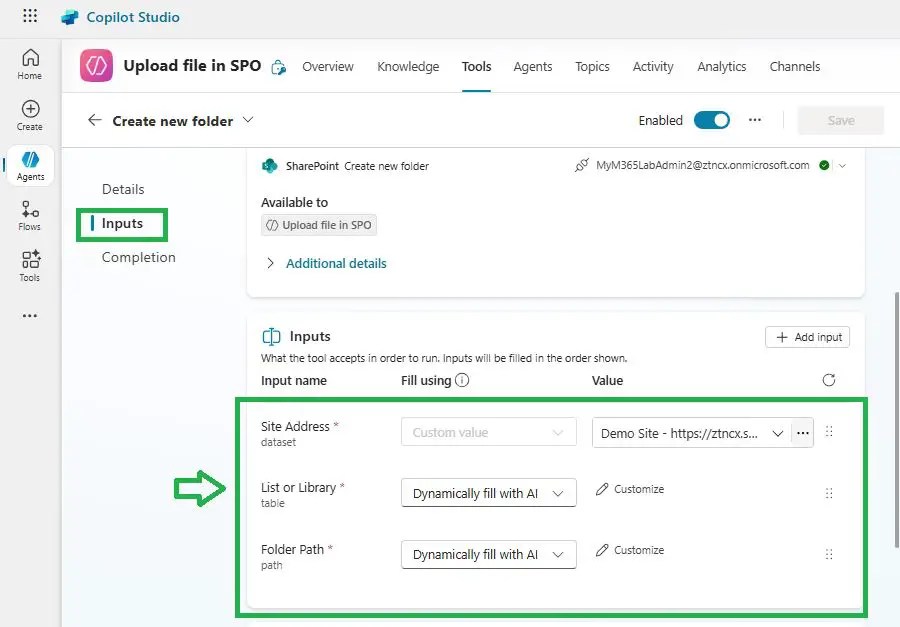
Using the “Create new folder” option, my agent creates a new folder if the folder does not exist. Here, we need to configure the following input parameters from the inputs section:
- Site URL: It should be your SharePoint Online site URL.
- List or Library: Keep the default value “Dynamically fill with AI”
- Folder Path: Keep the default value “Dynamically fill with AI”
Create file
This is the main tool using this my agent uploads documents to the SharePoint Online document library in my desired folder path (the folder that I created using the above create folder tool) automatically.
In the “Create file” tool, configure the below inputs from the inputs section; keep the rest all as is:
- Site URL: It should be your SharePoint Online site URL.
- Folder Path: Keep the default value “Dynamically fill with AI”
- File Name (Custom value): First(System.Activity.Attachments).Name
- File Content (Custom value): First(System.Activity.Attachments).Content

Instructions configuration
Below is my instructions configuration for my agent:
Pre-requisite Inputs (used in the below steps):
-
Site URL:
Configure your site URL -
Document Library Display Name:
Documents -
Document Library Internal Name:
Shared Documents -
Root Folder Path:
/ -
Folder Path for Upload:
Shared Documents/{The folder you create}
File Upload Process:
-
Prompt the User for Folder Name
Ask the user:
“Please enter the name of the folder where you’d like to upload your file.” -
Check if the Folder Exists in the Root Path
-
Use the “Get files (properties only)” tool to check the existence of the folder inside the
Shared Documentslibrary root. -
If the folder exists: Proceed to use it.
-
If it doesn’t exist:
-
Create the folder using the “Create new folder” tool.
-
Use this newly created folder path for the next steps.
-
-
-
Prompt the User to Upload a File
Ask the user to attach a file. When handling the attachment:-
In the “Ask a question or describe what you need” input box, pass this text dynamically:
"Upload this file"
(The user doesn’t need to type it manually.)
-
-
Upload the Received File to SharePoint
Once the user uploads a file:-
Use the “Create file” tool with these parameters:
-
Site URL:
Configure your site URL -
Library Name:
Shared Documents -
Folder Path:
Shared Documents/{UserFolder} -
File Name: Use the original file name, e.g.,
First(System.Activity.Attachments).Name -
File Content:
First(System.Activity.Attachments).Content
-
-
-
Confirm the Upload
After the file is uploaded:-
Generate the direct file link (SharePoint link).
-
Send a success message to the user with the uploaded file’s link.
-
-
Repeat the Upload Until the User Says “No”
Ask the user:
“Would you like to upload another file to the same folder?”-
If the answer is Yes, repeat from Step 3.
-
If No, end the conversation with a thank-you or confirmation message.
-

Basically, in the above instructions or prompts, my agent is doing the following tasks:
-
First, it asks the user to enter the name of the folder where they want to upload their file.
-
Next, it checks if that folder already exists in the root of the SharePoint document library:
-
If it exists, it will use that folder.
-
If it doesn’t, it will create the folder first.
-
-
Then, it asks the user to upload a file. The agent automatically uses the text “Upload this file” behind the scenes, so the user doesn’t need to type anything.
-
After that, when the user uploads a file, the agent uploads it to SharePoint inside the folder (new or existing) the user selected.
-
Once the file is uploaded, it shares the direct file link with the user as confirmation.
-
Finally, it asks the user if they want to upload another file. If they say yes, the process repeats. If they say no, the upload session ends.
Demo: Create Folder Using Copilot Agent And Upload Multiple Files in SharePoint Document Library
In your Copilot agent pass the below prompt:
Upload all my project files in this folder, the folder name is "PROJECT003", it should be created at the root of the "Documents" library.
Now your agent will search in your document library root folder for whether the “PROJECT003” folder exists; if it doesn’t exist, this will create a folder for you and instruct you to upload files one after another until you are done with your file uploading process.

After executing the above prompt, I was asked to upload a file to the newly created folder and followed the instruction of the agent. Then, finally, I was able to upload all three files in my SharePoint Online document library’s newly created folder, as you can see below:

Note:
While you are dealing with the file upload process to SharePoint from the Copilot Studio agent, I highly recommend you read this Microsoft article for the limitations: Quotas and limits for Copilot Studio
YouTube Video Demo
Summary: Create Dynamic folder in SharePoint and Upload Files
Thus, in this article, we have learnt these: how to use Get files (properties only), how to use the Create new folder tool, and how to use the Create file tool in Copilot Studio to automate file uploads to SharePoint Online. We explored a step-by-step method where the Copilot agent dynamically interacts with users, checks for folder existence in SharePoint Document Library, creates folders if needed, and uploads multiple files while preserving their original names.
This tutorial is especially useful for those looking to build a no-code SharePoint file upload solution using Microsoft Copilot Studio, enhancing productivity through AI-powered automation. Whether you’re a beginner or an advanced user, this Copilot Studio SharePoint integration guide helps streamline your document management workflows efficiently.
About Post Author

Discover more from Global SharePoint
Subscribe to get the latest posts sent to your email.