

 By
By 
In this “Foreach Loop in Copilot Studio” article, we will learn how to loop through or iterate through a collection variable in Copilot Studio. This is a new feature in Copilot Studio; earlier, we couldn’t iterate through the variable straightaway through the action; for that, we had to use the Power Fx formula to loop over the collection variable that was complicated.
I will explain this tutorial step by step.
Foreach Loop in Copilot Studio: How to Iterate Through Collection Variable in Copilot Studio Agent
In the below section, I will explain each step for my article:
SharePoint List as Data Source
I will use my leave management list in my Copilot agent, where I will read and display the title column value from this list using the Copilot Studio loop through a list action.

Add Get items tool to your agent
Then, you need to add the “Get items” tool in your agent and pass the site URL and list name. Below is my “Get items” tool, where I have passed my site URL and SharePoint list.

Create custom topic for your agent
Next, you need to create a custom topic for your agent. Here I have created the below “Loop Execution Demo” custom topic to handle the loop over the collection variable.

In the first node, in the topic, I have added my “Get items” SharePoint tool. To add your SharePoint plugin tool, follow this navigation: Add a node -> Add a tool -> Tool -> Select your tool.


Store the output of “SharePoint Get Items” in a variable.
Then, add a “Loop through a list” action. To add this, follow the below navigation:
Add node -> Variable management -> List management -> Loop through a list.

Once you have added the “Loop through a list” action, pass the outcome variable of the “SharePoint Get Items” tool for the “Items to loop over” parameter.
Note:
-
The other list management items are modify list, skip to next item in a loop and end loop.
The loop value variable will be created automatically; you can retain the same or rename it.

Then, I added a message node inside the loop to display each title from my SharePoint leave management list.
In the formula box, type “Topic.LoopValue1”; then, type a dot, you will get to see all columns from your SharePoint Online list, and then you can select the one which you need.

Note:
-
In this example, I have just shown the example of SharePoint as a data source; however, it could be any data source, and then you can loop over the collection variable.
Demo: Loop in Copilot Studio Agent
Now I have triggered my custom topic; then it displays all my leave titles from the SharePoint Online leave management list.

If your SharePoint list has more data, then you may encounter the below error:
“Error Message: The request is resulting in too much data to handle, please evaluate the amount of data being returned by your actions”
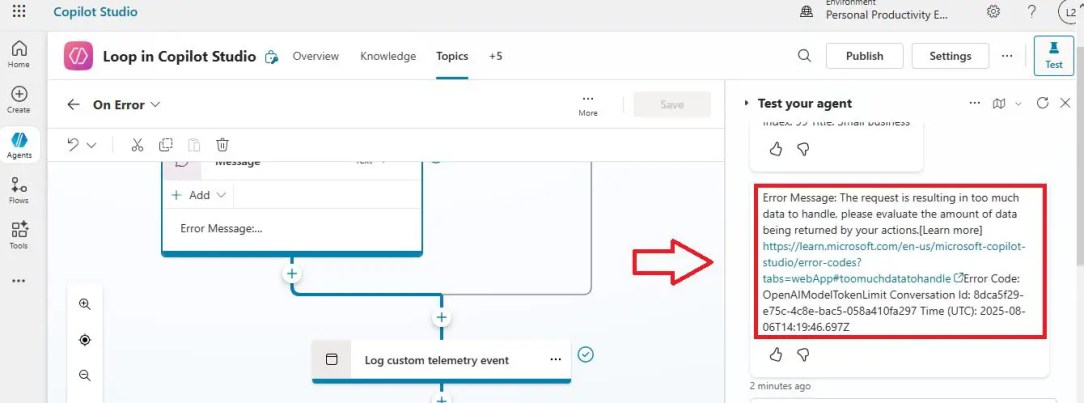
To fix the above error refer to this Microsoft article: Understand error codes – Too Much Data To Handle
Summary
Thus, in this article, we have learnt how to use loop control or loop through a list action in Copilot Studio, which iterates through each item from a collection variable.
About Post Author

Discover more from Global SharePoint
Subscribe to get the latest posts sent to your email.