

 By
By 
In this “SharePoint File Upload Using Copilot” article, we will learn how to upload a file in the SharePoint document library using the Copilot Studio agent’s create file tool without the Power Automate flow. Here, you will also learn how to upload multiple files one by one through your Copilot Agent bot. So, let’s get started with the tutorial.
SharePoint File Upload Using Copilot: How To Upload File in SharePoint Using Copilot Agent Step by Step
In the following steps, we will learn how to upload a file in the SharePoint Online document library using the Copilot Studio agent without the Power Automate flow.
Prerequisites for file upload to SharePoint
You should create a folder in your SharePoint Online site document library where all files from the Copilot agent will be stored. Here, I have created this folder “Files Uploaded From Copilot Agent” for my demo.

Add the Create File Tool to Your Copilot Agent
From your agent’s tools menu, click on the “Add a tool” button.

Click on the “SharePoint” connector.

Then, click on the “Create File” action or tool.
Configure the Create File Tool in Copilot Agent
Configure only the “Inputs” section from the Create File tool; the details and completion sections are optional. However, you can configure them as well.
For the inputs section, configure the below parameter:
- Site URL: Select your SharePoint site URL
- Folder Path: Select your folder where you want to upload your file from your document library.
- File Name: See the value below
- File Content: See the value below.

Configure Create File Tool in Copilot StudioFile Name:
First(System.Activity.Attachments).Name

Note:
- The above file name formula ensures this will retain the original file after file upload.
File Content:
First(System.Activity.Attachments).Content

Instructions or prompts configuration
Configure the below instructions for your agent from the agent overview menu instructions section:
When the user wants to upload a file to SharePoint, follow these steps:
- Prompt the user to upload their file. Once the user provides the file, call the tool and upload it to the “Documents” library of the connected SharePoint site.
- Save the file in the folder path: Ask the user to provide the folder path.
- Ensure the uploaded file retains its original filename.
- Confirm the upload is successful by providing the user with the file link and a success message.
- Once the first file upload is completed, please enquire if the user would like to upload the next file; continue this process until they say “No.”
Basically, to enable users to upload files to a SharePoint Online document library using a Copilot Agent or automation, follow a structured and interactive process. First, prompt the user to upload their file. Once the file is received, utilize the Create file tool to store the file in the “Documents” library of the connected SharePoint site. Before uploading, ask the user to provide the target folder path where the file should be saved. Ensure that the uploaded file retains its original filename for consistency and traceability.
After the upload is completed, confirm the success by sharing the file link along with a success message. To support multiple uploads in a session, follow up by asking the user if they wish to upload another file. Continue this loop until the user responds with “No,” thereby allowing a seamless and user-guided file upload experience.
Demo: Upload files in SharePoint Document library Using the Copilot Studio Agent
Open your agent and test with this prompt:
“Upload all my files in this folder; the folder name is “TEST0002,” and it should be created at the root of the “Documents” library.”
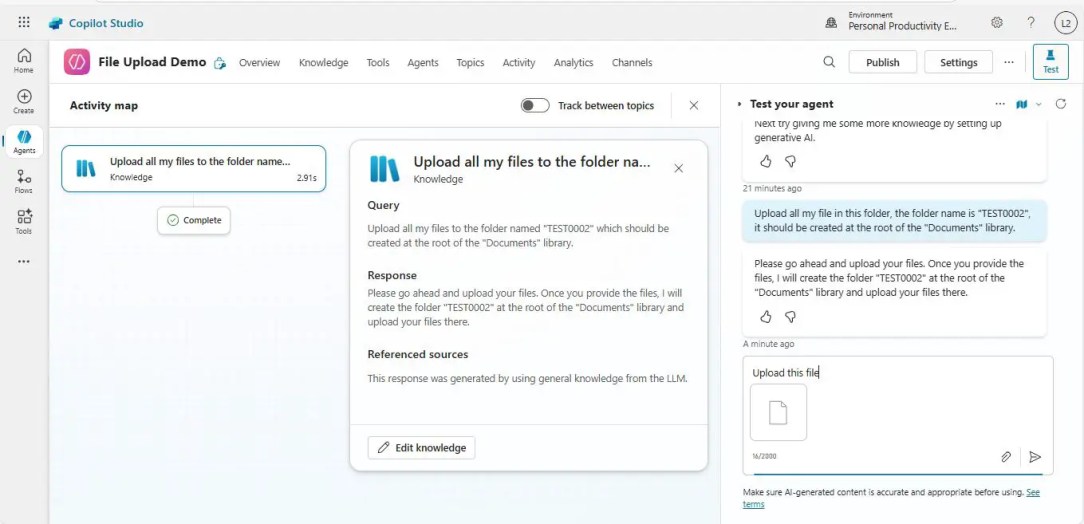
You will be asked to upload your file one after another until you say no.
This how my Copilot agent has uploaded these files to my SharePoint Online document library:

Watch this detailed demo from our YouTube channel:
Summary
Thus, in this article, we have learnt how to upload or create a file in the SharePoint Online document library using the Copilot Studio agent create file tool step by step. Here, we have not used Power Automate flow at all through the agent configuration.
This article provided a step-by-step walkthrough on how to upload or create a file in a SharePoint Online document library using the Copilot Studio agent’s Create file tool. We explored how to interactively prompt users, capture their file input, specify folder paths, and ensure successful uploads—all within a guided and automated Copilot experience.
This approach eliminates the need for Power Automate flows, streamlining file management directly through conversational AI.
Read Also:
About Post Author

Discover more from Global SharePoint
Subscribe to get the latest posts sent to your email.