

 By
By 
In this Copilot Studio article, we will learn how to upload multiple files to SharePoint instantly at once using the Copilot Studio Create File tool without using any Power Automate flow.
Uploading files to SharePoint Online is a common task for organizations using Microsoft 365. However, the default method often forces users to upload files one at a time, which can be frustrating and time-consuming.
Thanks to a recent Microsoft Copilot Studio update, you can now upload multiple files to SharePoint instantly without writing any code or building complex Power Automate flows. This is possible using the Loop Through a List action in combination with the Create File tool.
In this guide, I’ll show you step-by-step how to upload multiple files in one go to a SharePoint Online Document Library using Copilot Studio’s Create File tool.
Why Automate File Uploads to SharePoint?
Manually uploading files one-by-one is not only slow but also prone to errors. Automating the process can:
- Save time for your team
- Reduce human error
- Improve productivity
- Ensure files are stored in the correct location
- Support bulk processing for recurring tasks
Tools & Features Used
For this tutorial, we will use:
- Microsoft Copilot Studio – The AI-powered automation and conversation platform within Microsoft 365
- Loop Through a List – New action in the List Management module
- Create File Tool – Uploads files to a SharePoint Document Library
- SharePoint Online – Cloud-based file and document management system
Step-by-Step: Upload Multiple Files to SharePoint Using Copilot Studio
In the below section, I will explain how to upload multiple files to SharePoint at once step by step using the Copilot Studio Agent:
Step 1: Prepare Your SharePoint Document Library
Before you start, ensure you have:
- Access to a SharePoint Online site
- A target Document Library (e.g., “Documents” or a custom one)
- Necessary upload permissions
Below is my document library and folder inside it in my SharePoint Online site. Below are documents I have uploaded at a time using my Copilot Studio tool. In the below section, I will show you how I have developed it.

Step 2: Add a create file tool and configure it
You need to add a create file tool to your agent. Then, you need to pass the parameters for your Create file tool.
In the inputs section, you need to pass the below parameters:
- Site Address: Pass your SharePoint Online site
- Folder Path: Pass your SharePoint folder path where you want to upload your files.
- File Name: “Global.LoopValue1.Name”
- File Content: “Global.LoopValue1.Content”

Note:
-
In the above create file tool configuration, “File Name” and “File Content” parameters are crucial; they must be the global variable. I will explain where these are coming from in the below section.
Step 3: Create Custom Topic and configure it
Create a custom topic in your Copilot Agent.
Then, create a custom variable and set the value as “Activity.Attachments”; this will get from the system variable tab.

Step 4: Add Loop through a list action
After the set variable action, add a “Loop through a list” action (you will get from this navigation: Add node -> Variable management -> List management)
For the items to loop over, pass the variable you have just created in the above step.
For the loop value variable, change the variable scope usage from topic-based to global. This is a critical step in this; it took me a lot of effort to figure this out. Here I am sharing my experience with you, which I gained through a lot of hard work.

Step 5: Add Plugin action or Create tool inside the Loop
Then, inside the “Loop through a list” action, add your “SharePoint create file tool” (you will get it from this menu: Add node -> Add a tool -> Tool tab)

Step 6: Configure instructions for your agent
Then, configure the below instruction for your agent:
- When a user wants to upload multiple files, ask them to upload their files at one go.
- When a user uploads or attaches files, you must execute this topic, “Handle Multiple File Uploads”.
- After uploading each file, return the file link URL to the user.

That’s it; your configuration is done. Now you can upload multiple files at once from a local drive to the SharePoint Online document library.
Step 7: Test Your File Upload Process
- Run the Copilot Studio topic or flow.
- Select multiple files from your local device.
- Watch as all files are uploaded instantly to your SharePoint library without repetitive manual uploads.
I have triggered the agent topic and uploaded three files at once to SharePoint using my Copilot Studio agent. As you can see, the URLs of each file are after the successful upload in SharePoint.
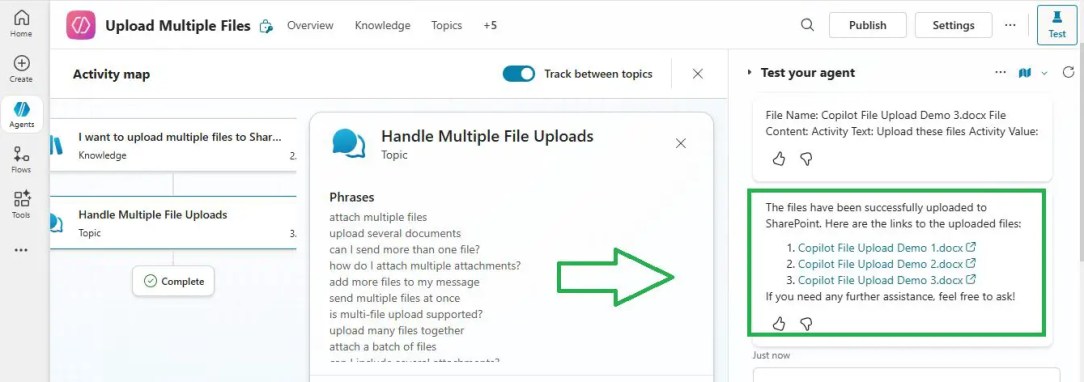
The below files have just been uploaded to the SharePoint TEST folder using my above Copilot agent demo:

Note:
-
While you are dealing with file uploads to SharePoint, you must be aware of the quota and limitations in Copilot Studio as well, so I recommend you have a look at the Microsoft Quotas and Limits for Copilot Studio article.
YouTube Video Demo
Conclusion
Thus, in this article, we have learnt how to upload multiple files at a time to the SharePoint Online document library using the Copilot Studio create file tool step by step, where you don’t need to use any Power Automate flow.
With Copilot Studio’s Create File tool and Loop Through a List action, uploading multiple files to SharePoint has never been easier. This no-code solution is perfect for organizations looking to streamline file management and improve efficiency within Microsoft 365.
If you’re still uploading files one-by-one, it’s time to upgrade your process with this fast and automated method.
FAQs: Uploading Multiple Files in SharePoint Online
Q1: Can I upload multiple files to SharePoint Online without Power Automate?
Yes. With Microsoft Copilot Studio’s Create File tool and Loop Through a List action, you can upload multiple files to SharePoint instantly without building a Power Automate flow.
Q2: What is the Loop Through a List action in Copilot Studio?
The Loop Through a List action allows you to process multiple items (such as files in a collection variable) one-by-one in an automated workflow.
Q3: Does this work in all SharePoint Online document libraries?
Yes, as long as you have the correct permissions, you can bulk upload to any SharePoint Online Document Library.
Q4: Do I need coding skills for this method?
No coding is required. Copilot Studio is a no-code solution that uses built-in tools to automate file uploads.
Q5: Is Copilot Studio available for all Microsoft 365 users?
Copilot Studio is available to organizations with the proper Microsoft 365 licensing. Check with your Microsoft admin to confirm availability.
About Post Author
