

 By
By 
In this “Custom Connector in Copilot” article, we will learn how to call a custom connector in Copilot or how to add actions to Copilot using Connector. For this demo, already I have created a custom connector in Power Automate that calls the Currency Conversion Third Party API of Currency Beacon, which will convert any “from” currency to “to” currency with the live data.
Custom Connector in Copilot: Add Actions to Copilot Using Connector
It is a two-step process; first we need to create a custom connector in Power Automate, then we need to add that custom connector as an action in Copilot Studio. Let’s get started with the demo.
Create Custom Connector in Power Automate
Below is my list of custom connectors I have created in my Power Platform environment. For this demo, I will refer to the below “Currency Beacon 3” custom connector in my Copilot Studio Topic.
I would recommend you go through my previous article on how to create a custom connector in Power Automate from scratch, where I have explained how I have created the below Currency Beacon Third Party API custom connector.

Add Custom Connector in Copilot Topic
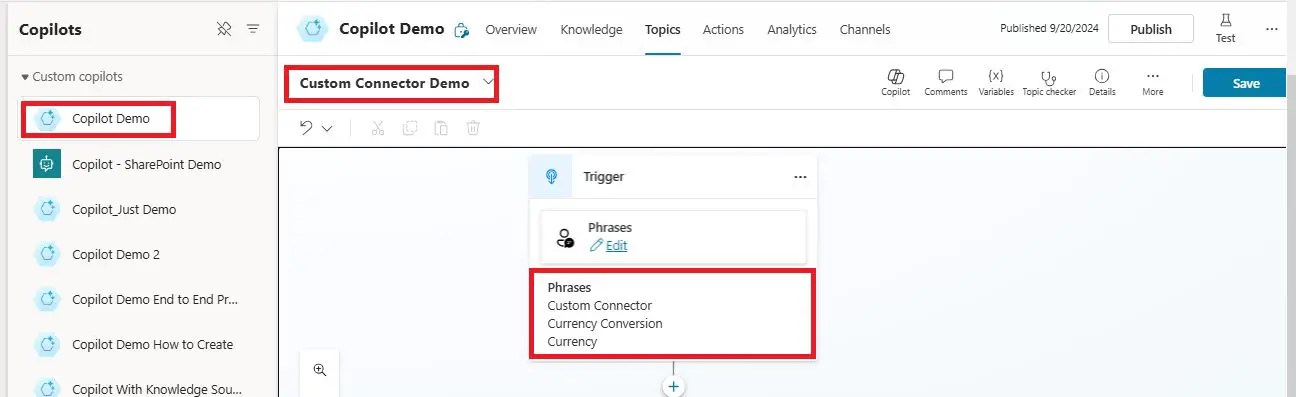
Login to the Copilot Studio portal and create a custom topic where you add a few phrases as per your topic and API or Custom Connector requirement. As my custom connector API is related to currency conversion, to trigger my topic, I have added the below phrases:
- Custom Connector
- Currency Conversion
- Currency
Then, add an “Ask with adaptive card” node.

Click on the three dots (ellipsis menu), then click on “Properties”.

Replace the default JSON with the below JSON:
{

  "type": "AdaptiveCard",

  "body": [

    {

      "type": "TextBlock",

      "text": "Currency Conversion",

      "weight": "Bolder",

      "size": "ExtraLarge",

      "color": "Accent",

      "horizontalAlignment": "center",

      "spacing": "Large"

    },

    {

      "type": "TextBlock",

      "text": "Please enter the details below for currency conversion.",

      "wrap": true,

      "size": "Medium",

      "weight": "Lighter",

      "color": "Good",

      "spacing": "Medium"

    },

    {

      "type": "Input.ChoiceSet",

      "id": "fromCurrency",

      "label": "From Currency",

      "placeholder": "Select a currency",

      "isRequired": true,

      "errorMessage": "Please select a 'From Currency'.",

      "choices": [

        { "title": "USD - US Dollar", "value": "USD" },

        { "title": "EUR - Euro", "value": "EUR" },

        { "title": "GBP - British Pound", "value": "GBP" },

        { "title": "JPY - Japanese Yen", "value": "JPY" },

        { "title": "AUD - Australian Dollar", "value": "AUD" },

        { "title": "CAD - Canadian Dollar", "value": "CAD" },

        { "title": "INR - Indian Rupee", "value": "INR" }

      ],

      "style": "compact"

    },

    {

      "type": "Input.ChoiceSet",

      "id": "toCurrency",

      "label": "To Currency",

      "placeholder": "Select a currency",

      "isRequired": true,

      "errorMessage": "Please select a 'To Currency'.",

      "choices": [

        { "title": "USD - US Dollar", "value": "USD" },

        { "title": "EUR - Euro", "value": "EUR" },

        { "title": "GBP - British Pound", "value": "GBP" },

        { "title": "JPY - Japanese Yen", "value": "JPY" },

        { "title": "AUD - Australian Dollar", "value": "AUD" },

        { "title": "CAD - Canadian Dollar", "value": "CAD" },

        { "title": "INR - Indian Rupee", "value": "INR" }

      ],

      "style": "compact"

    },

    {

      "type": "Input.Number",

      "id": "amount",

      "label": "Amount",

      "placeholder": "Enter the amount to convert (e.g., 100.50)",

      "isRequired": true,

      "errorMessage": "Please enter an amount greater than 0.",

      "min": 0.01

    },

    {

      "type": "TextBlock",

      "id": "errorMessage",

      "text": "",

      "color": "attention",

      "weight": "Bolder",

      "isVisible": false,

      "horizontalAlignment": "Center"

    }

  ],

  "actions": [

    {

      "type": "Action.Submit",

      "title": "Convert",

      "data": {

        "fromCurrency": "{{fromCurrency}}",

        "toCurrency": "{{toCurrency}}",

        "amount": "{{amount}}"

      }

    }

  ],

  "$schema": "http://adaptivecards.io/schemas/adaptive-card.json",

  "version": "1.3"

}
Then, you can visualize your adaptive card like below:


You can design your adaptive card using the adaptive card designer tool.
Notes:
- It is not mandatory to call your custom connector; you need to create an adaptive card. You can even directly call your custom connector as an action and display the output in the message node.
- My demo is about currency conversion, which means the user needs to select “From” and “To” currency”, then need to enter an amount. Once the user clicks on the convert button, my custom connector will be called and executed, and then I will see the converted currency rate. It is a live system.
- In this adaptive card, I have considered the validation as well, like none of the fields the user can pass as empty; the source currency and target currency should not be the same. The amount must be greater than zero.
- I have passed these outputs “fromCurrency,” “toCurrency,” and “amount” to my custom connector action as input parameters.
Add custom connector as an action to Copilot
Click on the add node symbol, then click on the “Call an action” menu.
Go to the connector tab. Search your connector with “Currency” or whatever the name you created with.
Then, you will see a list your custom connectors that you have created in Power Automate. Select your custom connector action that you want to call. I have selected my currency conversion connector action, which will convert currency from source currency to destination currency, or “From currency” to “To currency.”.

Then, pass the from currency to currency and amount parameters from the adaptive card output.

If you notice, in the adaptive card, the amount output displays as a string; we need to convert this string to an integer. For that I have passed the amount as “Value(Topic.amount)” using the formula.

Convert the Custom Connector Output to Record
The output of the custom connector displays as any datatype, so we need to convert this “ConvertFromSourceToDestination” variable to Record Datatype.
For that, add a “Parse value” node from the add node, then the variable management menu.
For parse value input, pass the custom connector output variable.
Select datatype as “From sample data.”

Add Parse value node in Copilot studioClick on the “Get schema from sample JSON”.
Enter your sample JSON, I have entered my sample JSON in this box:

My sample is as below:
{

    "meta": {

        "code": 200,

        "disclaimer": "Usage subject to terms: https://currencybeacon.com/terms"

    },

    "response": {

        "timestamp": 1727448277,

        "date": "2024-09-27",

        "from": "USD",

        "to": "EUR",

        "amount": 1,

        "value": 0.89400618

    },

    "timestamp": 1727448277,

    "date": "2024-09-27",

    "from": "USD",

    "to": "EUR",

    "amount": 1,

    "value": 0.89400618

}
Click on the “Confirm” button. Then, click on “Save as” and create a new variable, and then automatically the datatype will be changed to “Record.”.

The final step is to add a message to display the result in the chatbot panel.
Add a message node to display the result.
Finally, I have added the below message node and passed the below text:
You have converted this amount “from” to “to,” and the converted value is this.
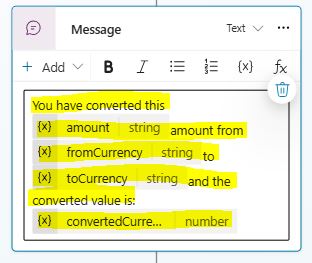
In the above message box, I have passed the from currency, to currency, and amount from the adaptive card output variables, and for converted value, I have extracted the value from the record variable using the below formula:

By now all setup is done for my Copilot topic. Let’s go with testing.
Test your Call Custom Connector Copilot Demo
I just typed the below text in my Copilot chatbot in test mode:
“I want to convert currency from USD to EUR, please help me, how can I do?”
And immediately custom topic got triggered, and I can see my currency conversion adaptive card.

I have selected source currency as “USD,” to currency as “EUR,” and amount as 10,000.
Then, once I click on the “Convert” button, I get the below message to connect with my custom connector for additional data permission.
“Additional permissions are required to run this action. To proceed, please select ‘Connect’, and review any missing connections. Once you have made these updates, please select ‘Retry’. You can also ask me anything else to go to a different topic.”

Click on the “Connect” button.
This will take you to your Copilot “Manage connections” page.

Select your connection, and click om the “Connect” button. Then, create or pick a connection you need.

Click on the submit button. Now, I can see my connection has been successfully established.

Note:
- This is a one-time setup.
Now, let’s go back to my Copilot chatbot panel and click on the “Retry” button, or you can start your fresh chat to convert your currency. Now, I can see my currency 10000 USD has been converted to EUR currency 8962.081699999999; this is a live conversion and correct as per current date and time.

Let’s verify this conversion with the Google system. Both the conversions look almost the same with a minor difference; that could be due to the sync of the backend system update.

YouTube Video Demo: How to Add and Call Custom Connector in Copilot Studio
Summary: Call Custom Connector in Copilot Studio to Convert Live Currency
Thus, in this article, we have learnt how to create a custom connector in Power Automate for currency conversion, how to add a custom connector in the Copilot topic as an action, how to design an adaptive card for the currency conversion app, how to call the custom currency conversion API connector in Copilot, and how to convert the currency from USD to EUR with live data.
I hope you enjoyed and liked this article and it helped you. Please consider subscribing to my site to get notifications for my future posts. 🙂
About Post Author

Discover more from Global SharePoint
Subscribe to get the latest posts sent to your email.