

 By
By 
In this “Send Email to SharePoint Group” article, we will learn about how to send email to a SharePoint group automatically using the Power Automate flow step by step. As we know, SharePoint groups don’t have email ID configuration; it is quite challenging to send emails to SharePoint groups using Power Automate flow. Here in this flow, I will show you how to send email to SharePoint Online site groups using Power Automate flow.
Power Automate (formerly Microsoft Flow) is a powerful tool that allows users to automate workflows and integrate with SharePoint, making tasks simpler and more efficient. Sending an email to a SharePoint group using Power Automate is one such task that can enhance collaboration and productivity. In this guide, we’ll walk through the process step by step.
Introduction to Power Automate and SharePoint Groups
Microsoft Power Automate is an automation platform that connects your favourite apps and services, including SharePoint, Outlook, Teams, and more. SharePoint Groups are a way to organize users for easy permission management and collaboration. Automating email notifications to these groups can save time, ensure timely communication, and streamline your business processes.
This guide is tailored to:
- SharePoint administrators and power users.
- Professionals seeking automation for group notifications.
- Individuals new to Power Automate but eager to learn.
What is SharePoint Group?
A SharePoint Group is a collection of users within Microsoft SharePoint that is created to simplify permissions management and facilitate collaboration. These groups are used to control access to SharePoint resources such as sites, lists, libraries, and documents. Instead of assigning permissions to individual users, permissions are assigned to groups, making it easier to manage access for multiple people at once.
Key Features of SharePoint Groups
- Centralized Management: Manage permissions for multiple users in one place.
- Role-Based Access: Define roles and assign specific permissions like Read, Edit, or Full Control.
- Custom Memberships: Add or remove users based on your organization’s needs.
- Collaboration-Friendly: Groups help ensure the right people have access to the right content.
Types of Users in SharePoint Groups
SharePoint Groups can include:
- Individual Users: People with Microsoft accounts who are part of your organization or external collaborators.
- Active Directory Groups: Security groups or distribution lists from your organization’s Active Directory.
- Visitors: Users with read-only access.
- Members: Users with contribute permissions (can add, edit, and delete content).
- Owners: Administrators of the group with full control over permissions and settings.
Default SharePoint Groups
When you create a SharePoint site, some default groups are automatically created to facilitate basic permissions management:
- Owners: Full control over the site and its settings.
- Members: Edit and contribute permissions.
- Visitors: Read-only access to view content.
Why Use SharePoint Groups?
- Simplify Permissions Management: Assign permissions to a group once instead of configuring permissions for each individual.
- Enhance Security: Ensure only authorized users access sensitive information.
- Improve Collaboration: Groups streamline teamwork by ensuring everyone involved has access to the necessary resources.
How to Create a SharePoint Group
- Navigate to the SharePoint site.
- Click on Settings (gear icon) > Site Permissions.
- Select Create Group.
- Enter the group name and description.
- Assign the appropriate permissions level (e.g., Read, Edit, Full Control).
- Add users to the group.
Example of how to create a group in SharePoint Online:

Common Use Cases for SharePoint Groups
- Project Teams: Provide team members with access to project documents and collaboration tools.
- Department-Specific Permissions: Assign permissions for HR, Finance, or IT teams based on their specific needs.
- External Collaborators: Grant external partners or clients temporary access to certain resources.
Benefits of SharePoint Groups
- Efficiency: Simplify permissions management for large teams or organizations.
- Scalability: Easily adjust group memberships as team compositions change.
- Accountability: Use audit logs to monitor access granted through groups.
Limitations of SharePoint Groups
- No Email Integration: SharePoint groups don’t have email addresses. To send emails, you need to retrieve individual user emails via Power Automate or other tools.
- Basic Management: More complex role-based access control may require integration with Active Directory or Microsoft 365 Groups.
Why Automate Emails to SharePoint Groups?
Sending emails to SharePoint groups manually can be repetitive and error-prone, especially for dynamic, large teams. Automating this process using Power Automate has several benefits:
- Efficiency: Automates repetitive tasks.
- Consistency: Ensures accurate and timely communication.
- Scalability: Handles large groups effortlessly.
Pre-Requisites for Creating the Flow
Before you begin, ensure the following:
- Access to Power Automate and SharePoint Online.
- A SharePoint group already created with valid members.
- Permission to use Power Automate and send emails via Microsoft Outlook or any other integrated email service.
Step-by-Step Guide to Send Emails to SharePoint Groups
Follow these steps to set up your flow.
Step 1: Log in to Power Automate
- Go to Power Automate.
- Log in with your Microsoft 365 credentials.
Step 2: Create a New Flow
- Click on Create in the left-hand menu.
- Select Automated Cloud Flow.
- Name your flow, e.g., “Notify SharePoint Group via Email.”
- Choose a trigger, such as:
- When an item is created.
- When a file is uploaded.
- Manually triggered flow (if you want to control when the flow runs).
Step 3: Set Up the Trigger
For example, if you select “When an item is created”:
- Connect to your SharePoint site by adding the URL.
- Select the specific list or library you want to monitor.
Step 4: Retrieve Members of the SharePoint Group
Power Automate doesn’t natively send emails to a SharePoint group directly. Instead, you’ll need to retrieve the group’s members.
- Add a new HTTP Action:
- Click New Step and search for “HTTP.”
- Configure the HTTP action as follows:
- Method:
GET - URI:
Replace
{yourSharePointSite}with your SharePoint site URL and{Group Name}with the group name. - Method:
- Headers:
- Add the following headers:
Step 5: Parse the Group Members
- Add a Parse JSON step to handle the HTTP response:
- Click + New Step and search for “Parse JSON.”
- Use the output of the HTTP action as the input.
- Add a JSON schema. Use the Generate from Sample feature by copying a sample output from the HTTP action.
Step 6: Loop Through the Members
Now, you need to loop through the retrieved members and send emails.
- Add an Apply to Each action:
- Use the value from the parsed JSON as the input.
- Inside the loop, add an Outlook – Send an Email action (or any email connector):
- Set the recipient’s email to the
Emailproperty from the parsed JSON. - Write your email subject and body.
- Set the recipient’s email to the
Step 7: Test the Flow
- Save your flow.
- Trigger it based on your selected event (e.g., create a new item in the SharePoint list).
- Check if emails are sent to all group members.
Send email to SharePoint Group demo
This is my demo flow which I ran successfully.

Here, I have chosen the trigger as “When an item is created” in SharePoint Online; however, you may use any other trigger that will suit your requirement.
Then, added a “Send an HTTP request to SharePoint” action.

Note:
- Your group must be added or available in your site groups.
Use the below REST API:
_api/web/siteGroups/getByName('Your SPO Group Name')/users
Then, Add a select operation.

For the “From” I have configured the below:
body('Send_an_HTTP_request_to_SharePoint')?['d']?['results']
For the “Map” I have configured the below:
item()?['Email']
Add a compose action, then configure the below:
join(body('Select'),';')

Finally, add a “Send an email” action to send email to all group members. For the “To”, pass the above compose action output as shown below:

Test your flow.

One of my SharePoint group members, received the below email from Power Automate.

Send email using SharePoint Utility REST API
We also can send email using SharePoint Utility REST API where pass the below parameters in the “Send an HTTP request to SharePoint”.
- Site Address: Your site address
- Method: POST
- Uri: /_api/SP.Utilities.Utility.SendEmail
- Headers: See below.
- Body: See below.
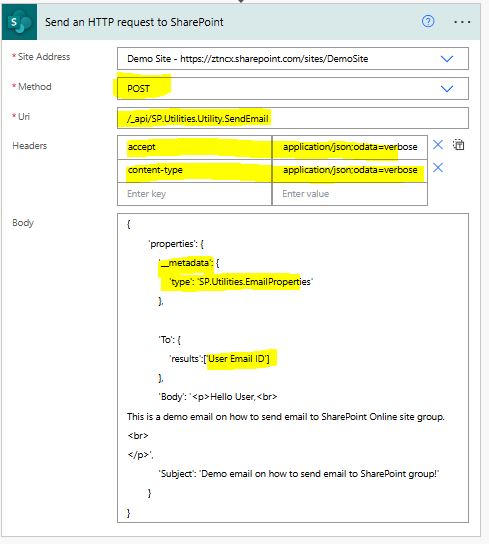
Headers:
{
"accept": "application/json;odata=verbose",
"content-type": "application/json;odata=verbose"
}
Body:
{
'properties': {
'__metadata': {
'type': 'SP.Utilities.EmailProperties'
},

'To': {
'results':['User Email ID']
},
'Body': '<p>Hello User,<br>
This is a demo email on how to send email to SharePoint Online site group.<br>
</p>',
'Subject': 'Demo email on how to send email to SharePoint group!'
}
}
Notes:
- In the above example, we can send email without using the send an email action in Power Automate.
- Instead of an email ID, if you pass your SharePoint group name, it will not throw any errors; even your flow will run successfully, but the email will not be sent. So, it has to be the user’s email, not the group.
- You can pass more than one user email, as this is an array.
- Refer to this Microsoft thread about the Retirement of the SharePoint SendEmail API
Example Scenario
Let’s say you manage a SharePoint list called Project Updates. When a new project update is added, you want all members of the Project Team SharePoint group to receive an email notification.
Your flow setup would:
- Trigger when a new item is added to the Project Updates list.
- Retrieve all members of the Project Team group.
- Send an email to each member, notifying them about the new update.
Common Issues and Troubleshooting
- Authentication Errors in HTTP Action:
- Ensure you have proper permissions to access the SharePoint site.
- Use an authenticated connection in Power Automate.
- Group Name Not Found:
- Double-check the group name in your URI. It must match exactly, including capitalization.
- Emails Not Sending:
- Verify the recipients’ email addresses in the SharePoint group.
- Check for any throttling limits on your Microsoft 365 tenant.
Advanced Tips
- Use Dynamic Content:
- Personalize emails by including dynamic fields such as the user’s name or the specific item details.
- Error Handling:
- Add a Configure Run After on the email action to handle failures gracefully.
- Scheduled Notifications:
- Instead of triggering on an event, you can schedule the flow to run daily or weekly, sending updates to the group.
- Integrate with Microsoft Teams:
- Send a message to a Teams channel in addition to emailing the SharePoint group.
Benefits of Automating Email Notifications
- Improved Team Communication: Ensures all team members are informed about important updates.
- Time-Saving: Reduces manual intervention in sending repetitive emails.
- Enhanced Workflow Management: Integrates seamlessly with other business processes.
Conclusion: SharePoint Groups and Power Automate
Thus, in this article, we have learnt how to send email to SharePoint group using Power Automate flow.
SharePoint Groups are an essential tool for managing access and fostering collaboration in a SharePoint environment. They provide a structured way to assign and manage permissions while ensuring scalability and security.
Automating the process of sending emails to SharePoint groups using Power Automate can transform your workflow. With the step-by-step guide provided here, you can set up a robust system that enhances communication, saves time, and ensures your team stays on top of important updates.
Start using Power Automate today to unlock the potential of SharePoint automation. With a little practice, you’ll master this tool and discover countless ways to simplify your daily tasks.
FAQs About SharePoint Groups
- What is the difference between a SharePoint Group and a Microsoft 365 Group?
- SharePoint Groups are used only within SharePoint to manage site permissions. Microsoft 365 Groups integrate across the Microsoft ecosystem, including Teams, Outlook, and Planner, providing more collaborative tools.
- Can I assign permissions to multiple SharePoint Groups at once?
- No, permissions must be assigned individually to each SharePoint Group. However, you can combine SharePoint Groups with Active Directory Groups to streamline permissions management.
- Can external users be added to SharePoint Groups?
- Yes, external users can be added if the SharePoint site allows external sharing. However, their access is limited to what you permit on the site or specific resources.
- How do I remove a user from a SharePoint Group?
- Go to Site Settings > Site Permissions, select the group, find the user you want to remove, and delete their entry. Changes take effect immediately.
- Are SharePoint Groups site-specific?
- Yes, SharePoint Groups are specific to the site they are created in and cannot be reused across different SharePoint sites. For broader access control, use Active Directory or Microsoft 365 Groups.
- Can SharePoint Groups have nested groups?
- SharePoint does not support nested SharePoint Groups. However, you can include Active Directory Groups within SharePoint Groups to mimic nested group functionality.
- What happens if a user is in multiple SharePoint Groups with different permission levels?
- SharePoint applies the most permissive level of access. For example, if one group grants “Read” and another grants “Edit,” the user will have “Edit” permissions.
- Can SharePoint Groups be used for workflows or automation?
- SharePoint Groups cannot directly trigger workflows. However, with tools like Power Automate, you can retrieve group members and use them in automation scenarios.
- How do I find out who is in a SharePoint Group?
- Go to Site Permissions and click on the group name. A list of members will be displayed, showing their names and emails.
- What is the maximum number of members a SharePoint Group can have?
- While SharePoint Groups don’t have a strict member limit, performance issues may arise if a group contains thousands of members. For large-scale scenarios, consider using Active Directory or Microsoft 365 Groups for better scalability.
- Can I send emails to multiple SharePoint groups in one flow?
Yes, you can repeat the HTTP action and Apply to Each loop for multiple groups. - Are there any limitations on the number of emails I can send?
Microsoft enforces email sending limits per user and per flow to prevent abuse. Review your tenant’s quotas. - Can I use other email services with Power Automate?
Yes, Power Automate supports various email connectors, including Gmail and third-party services.
About Post Author

Discover more from Global SharePoint
Subscribe to get the latest posts sent to your email.