

 By
By 
In this “Power Automate Scheduled Flow” article, we will learn how to move old documents in SharePoint online automatically to another site using the Power Automate scheduled cloud flow step by step (or move old documents in SharePoint automatically using scheduled cloud flow).
Power Automate Scheduled Flow
Power Automate, formerly known as Microsoft Flow, is a service that helps automate workflows between your favourite apps and services to synchronize files, get notifications, collect data, and more. One of the powerful features within Power Automate is the ability to create scheduled flows, which are workflows that run on a specified schedule.
What is a Scheduled Flow?
A Scheduled Flow is a type of flow in Power Automate that runs automatically at predefined intervals. This can be daily, weekly, monthly, or even at custom intervals based on specific needs. Scheduled Flows are ideal for tasks that need to occur regularly without manual intervention, such as sending periodic reports, cleaning up data, or performing routine maintenance tasks.
How Scheduled Flow Works
Creating and configuring a Scheduled Flow in Power Automate involves the following steps:
- Create a New Flow:
- Start by logging into Power Automate.
- Select “Create” from the left-hand menu.
- Choose “Scheduled cloud flow” from the options.
- Define the Schedule:
- You will be prompted to set the flow name and specify the schedule. This includes:
- Start Date and Time: When you want the flow to start.
- Recurrence: How often the flow should run (e.g., every day, week, month).
- Time Zone: The time zone for the start time.
- You will be prompted to set the flow name and specify the schedule. This includes:
- Add Actions:
- Once the schedule is set, you can add various actions to the flow. Actions are tasks that the flow will perform each time it runs. This could include sending an email, updating a database, creating a file, etc.
- Use the “Add an action” button to search for and select the desired actions from the wide range of connectors available in Power Automate.
- Configure Actions:
- After selecting the actions, configure them with the necessary details. For instance, if the action is to send an email, you would specify the recipients, subject, and body of the email.
- Save and Test the Flow:
- Once all actions are configured, save the flow.
- You can test the flow by manually triggering it (if necessary) to ensure it works as expected.
- Monitor and Manage the Flow:
- After the flow is saved and activated, it will run according to the defined schedule.
- You can monitor the flow’s performance, check run history, and troubleshoot any issues from the “My flows” section in Power Automate.
Example Use Cases
- Daily Report Generation:
- A flow that runs every morning at 8 AM to gather data from various sources and send a summary report via email to the team.
- Weekly Data Backup:
- A flow that runs every Friday at 6 PM to back up critical data from a database to a secure storage location.
- Monthly Invoice Processing:
- A flow that runs on the first day of every month to process and send invoices to customers.
- Routine Maintenance Tasks:
- A flow that runs every night to clean up temporary files from a server, ensuring optimal performance.
Benefits of Scheduled Flows
- Automation: Reduces the need for manual intervention in repetitive tasks, saving time and reducing errors.
- Consistency: Ensures tasks are performed consistently at the specified intervals.
- Efficiency: Frees up resources by automating routine tasks, allowing users to focus on more strategic activities.
- Scalability: Easily scalable to accommodate changing business needs and schedules.
Scheduled Flows in Power Automate are a powerful tool for automating repetitive tasks, ensuring consistency, and improving efficiency across various business processes. By leveraging this feature, organizations can streamline operations and enhance productivity.
Use Case: Move Old documents in SharePoint Online using Power Automate Scheduled Flow
In this demo, I will show how to move old documents from one site to another using the Power Automate Scheduled flow, step by step.
Login to your flow environment For an example: https://india.flow.microsoft.com/manage/environments/Default-8bde4d0e-9bbb-42a2-86ca-46884a08df50/flows
Click on the Scheduled cloud flow from the New Flow -> Build your own from blank navigation.
Then configure the below:
Name the flow name.
In the run flow configuration, configure the flow starting date and time.
For repeat, every, configure the second/minute/hours/day/week/month.
Click on the “Create” button.

Scheduled Cloud Flow – When to use scheduled cloud flow?
Stay on top of what’s important without the effort—you choose when and how often the flow runs.
Examples:
Automate team reminders to submit expense reports
Auto-backup data to designated storage on a regular basis
By now we have learned the purpose of the scheduled flow, and now we will learn how to develop this Power Automate Flow.
Here is our scheduled Power Automate Flow:

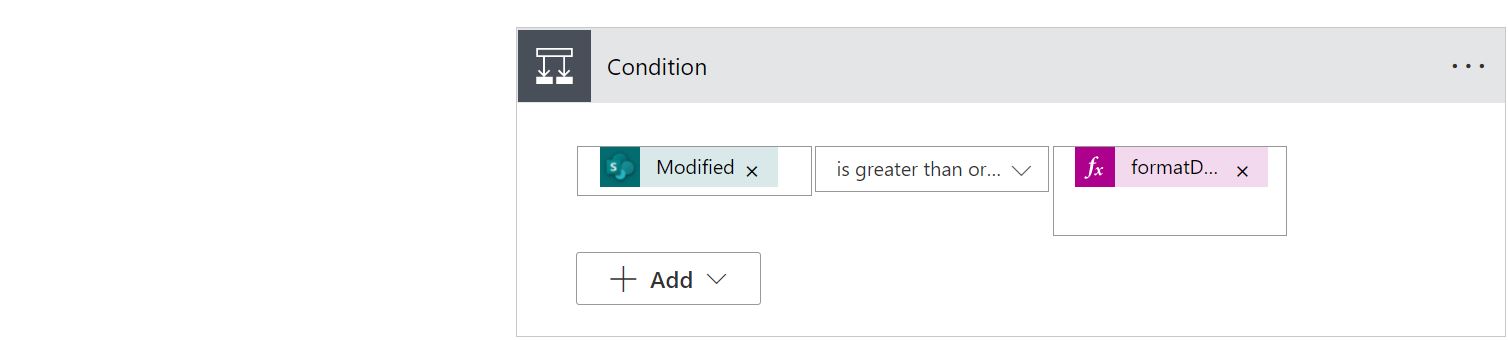

Now we will explain each action/step individually.
Recurrence or scheduler configuration in Power Automate
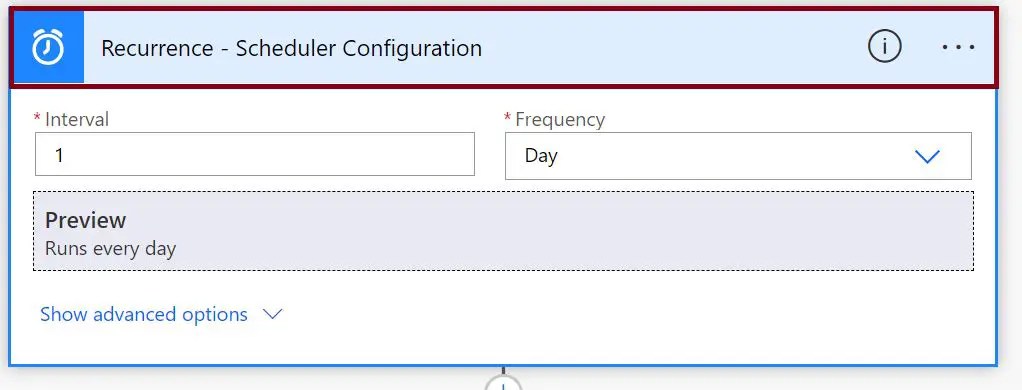
Get files (properties only) – from the source site library

Here we need to pass the below two parameters:
- Site Address: Source site address
- Library Name: Source site library display name
Apply to each – For each loop in the get file properties collection

Now onwards, whatever actions we are going to show will be inside for each loop.
Is Greater Than Equal To Condition in Power Automate For Each Loop
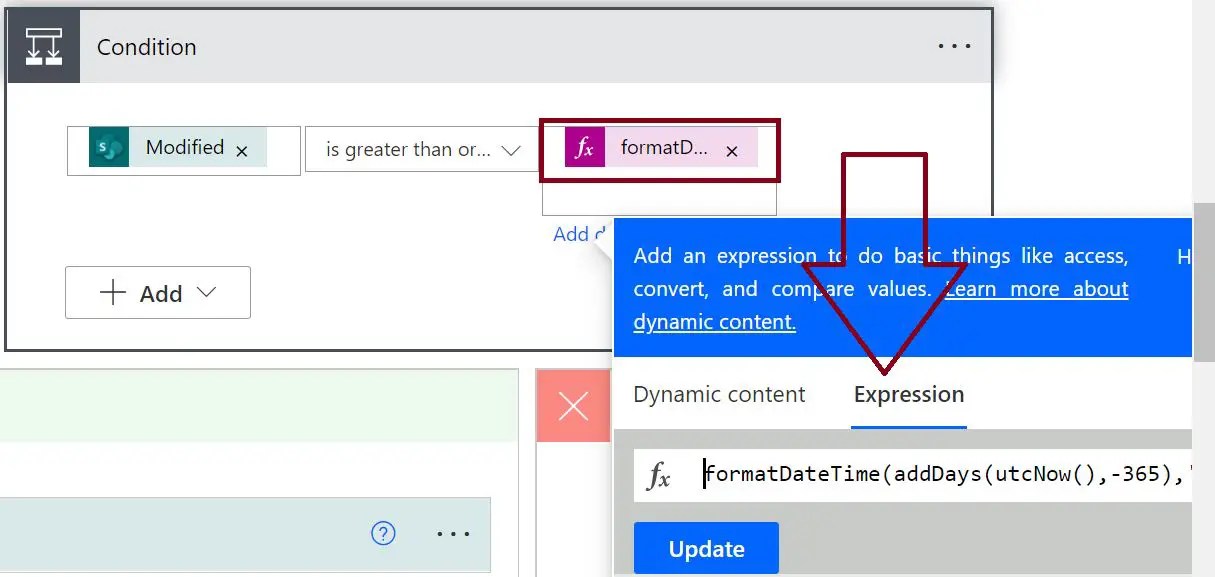
Here we are checking the condition when the file was created, for this example, we are all files that were created 365 days ago (one year ago), for this we have given the below condition for the modified column with the below expression:
formatDateTime(addDays(utcNow(),-365),'yyyy-MM-ddThh:mm:ssZ')
We can check the condition in other ways also.
The below condition will return the document created 60 days ago.
@lessOrEquals(items('Apply_to_each')?['Modified'],addDays(utcNow(),-60))
If you want to move the file from one library to another library (within the same site or a different site) when the file is older than 5 years, the conditional expression should be as below:
@lessOrEquals(items('Apply_to_each')?['Modified'], subtractFromTime(utcNow(), 5, 'Year'))
Get File Content Action in Power Automate inside for each loop
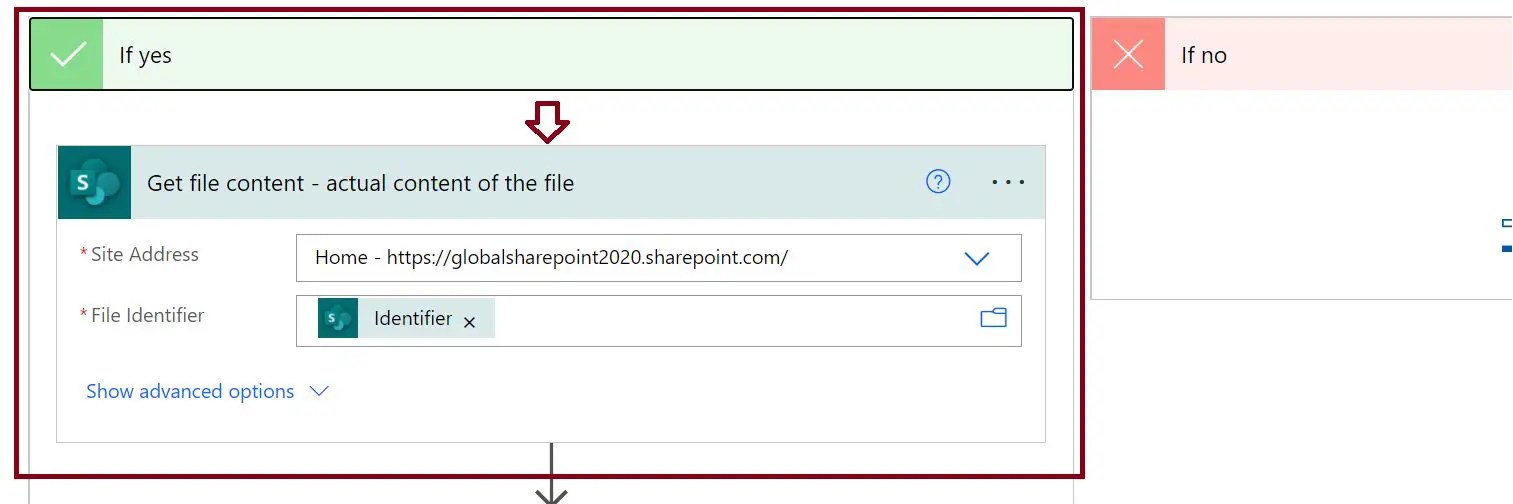
If the modified date condition returns the true value – this part of the flow will be executed otherwise it will go to the no section.
Using the get file content, we will get the actual file content for the source site.
Here we need to pass the below two parameters:
- Site Address: Source site address
- File Identifier: Identifier (unique id of the file) – this will get automatically from the dynamic content selection tab.
Move the file to another site in SharePoint using Power Automate
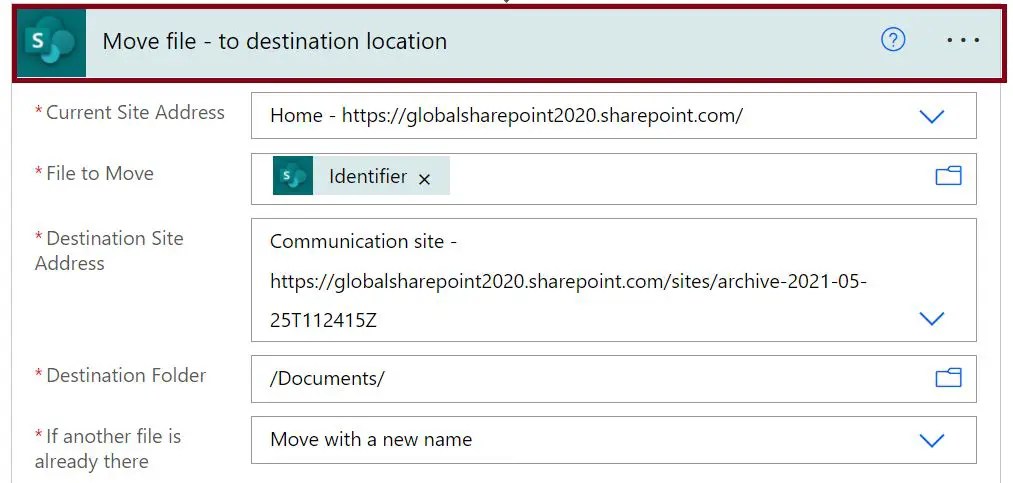
Here conditionally file will be moved to the destination site – in the move file action we need to pass the below parameters:
- Site Address: Source site address
- Destination Site Address: Destination/target site address
- Destination Folder: Folder path – here we have given the default documents library root path.
- If another file is already there: Dropdown selection – here we have selected “Move with a new name”
Other options in the “If another file is already there” dropdown list are:
We can see the below options in the “If another file is already there” move action:
- Fail this action
- Move with a new name
- Replace
- Enter custom value

How to delete a particular file using Power Automate in the SharePoint document library?
In this PoC, the delete file action is not relevant or needed but to showcase how to use delete the particular file conditionally in SharePoint using Power Automate flow, we have added this delete file action – you may ignore this action while you are referring to this article and trying moving older files to newer library location.

Here in the delete file action, we need to pass the below two parameters:
- Site Address: Source site address
- File Identifier: Identifier (unique id of the file) – this will get automatically from the dynamic content selection tab.
Scheduled Cloud Flow – Few-Recommendation
- Instead of passing the site URL and document library name directly to the action parameter – create a corresponding dynamic variable and pass the variable name to the actual action parameter. Here, we have just used the Site URL and Document library name as is direct to the flow action which is not recommended.
- While querying the file properties action – do not get all properties to value instead use the query count or camel query to limit the query result. If the query returns more than five thousand items, it will through a threshold limit error.
Disclaimer – Scheduled Cloud Flow
Do not use this flow (move or delete action) as is – first create this flow in your test environment, and if you find it is working as per your expectation, then you may deploy this flow to the production environment.
Summary: Power Automate Scheduler Flow
Thus in this article, we have learned the below with respect to Scheduled Cloud Flow using Power Automate:
- How to move older files to a different site in SharePoint Online based on the condition using Power Automate?
- How to delete older files in SharePoint Online using Power Automate?
- How to develop a scheduler flow in Power Automate which runs periodically?
- How to work with move file action in Power Automate?
- How to work with the delete file action in Power Automate?
See Also: Power Automate Tutorial
You may also like the below Power Automate tutorials:
- Trigger Power Automate (Flow) based on condition in SharePoint Online
- Power Automate: Difference between Send an email notification (V3) Send an email (V2)
- Learn HTML table formatting using Microsoft Power Automate step by step
- Power Automate: How to Export and Import Microsoft Team Flows across environment
- Run flows on a schedule
About Post Author

Discover more from Global SharePoint
Subscribe to get the latest posts sent to your email.