

 By
By 
In this “Postman Upload File to SharePoint using Graph API” article, we will learn how to upload a file to the SharePoint Online site document library using the Postman tool and Graph API step by step. Many times we will be in need of integrating the SharePoint site with other applications where SharePoint will be used as a document repository.
For instance, you can upload files to SharePoint from your .NET application, SAP, Dynamics CRM, Dynamics GP, and many more. For that, your calling application needs an API from the SharePoint end, so before you call SharePoint APIs from your application, you need to test the APIs from the Postman tool or Graph Explorer tool. So, let’s begin with this article.
Using Postman Upload File to SharePoint Step by Step
Let’s follow the below steps to upload a file to the SharePoint Online document library:
Step 1: App Registration in Azure
To register an app in Azure, refer to my previous article: App Registration in Azure: Quickly How Do I Register an Application Step by Step?
Your Graph API permissions should look like the below:

Step 2: Generate API Access Token from Postman
To generate a Graph API access token, refer to my previous article: Quickly 2 Ways Generate Azure Access Token Using Postman Tool Step By Step
API endpoint to generate access token:
Syntax:
https://login.microsoftonline.com/YourTenantID/oauth2/v2.0/token
Example:
https://login.microsoftonline.com/f15e1e03-fffa-47d1-26f7-d0e3c517c65e/oauth2/v2.0/token
The configuration of creating a new access token will look like the one below:
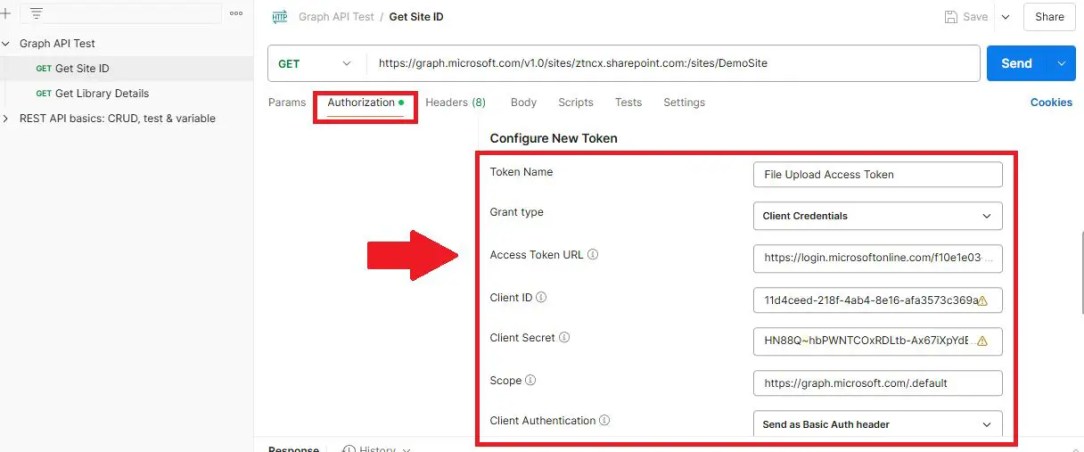
And this is my access token, which I have generated using the above configuration. You don’t worry; you will get detailed steps in the above article.

Step 3: Get Site ID Using Graph from postman tool
The next step is to get your SharePoint Online Site ID using the Graph API from your postman tool, for that we need to use the below Graph API:
Syntax:
https://graph.microsoft.com/v1.0/sites/{YourTenantName}.sharepoint.com:/sites/{YourSiteName}
Example:
https://graph.microsoft.com/v1.0/sites/ztncx.sharepoint.com:/sites/DemoSite
In your Postman tool for the API endpoint configuration, select the method as “GET” and pass the endpoint as shown below; click on the “Send” button.
For successful execution, you should see a “200 OK” response. Then from the Body JSON tab, look for the “id” attribute; here you will see three values separated by a comma; the middle one is the site ID, as shown below:

Note down this site ID in your notepad; this ID is needed for the next steps.
Step 4: Get Document Library ID Using Graph from postman tool
Get your document library id where you want to upload your files. To get your document library ID, we need to use the below Graph API endpoint.
Syntax:
https://graph.microsoft.com/v1.0/sites/{YOUR-SITEID}/Drives
Example:
https://graph.microsoft.com/v1.0/sites/1b51bc95-127a-472c-86b8-045fbaefb7d1/Drives
In the Postman tool, under your collection, create a new “Add request,” and configure the below parameters:
- Method: GET
- Endpoint: As shown below
- Authorization—Auth Type: OAuth 2.0
- Token: Select the token name you just created.

Get SharePoint Document Library ID from Postman tool
Then, click on the “Send” button. If the endpoint gets executed successfully, you should see the “200 OK” response code status.
Then, from the Body tab JSON section, you can see the id parameter, which you can match with your document library name; for instance, the one below is the document library id for my out-of-the-box “Shared Documents” library.

Step 5: Upload Document to SharePoint Online Document Library Using postman
This is my SharePoint document library where I am going to upload a file using the Postman tool.

File upload Graph API Endpoint
Use the below Graph API end point to upload a new file in SharePoint Online document library:
Syntax:
https://graph.microsoft.com/v1.0/drives/YourDocumentLibraryID/root:/YourFileNameWithExtension:/content
Example:
https://graph.microsoft.com/v1.0/drives/b!lbxRG3oSLEeGuARfuu-30YUQPHCWalNAo8DcLMSI0PUXeYEcp3NHSZ_aWJS0yG0S/root:/FileUploadedFromPostman.docx:/content
Add a new request to your Postman collection and name it Upload File to SharePoint, then configure the below parameters:
- Method: PUT
- Endpoint: As shown below
- Authorization—Auth Type: OAuth 2.0
- Token: Select the token name you just created.
- Body: Select Binary type and upload your file


After configuring the Graph API endpoint as shown above, click on the “send” button. If your API gets executed successfully, you will see a “201 Created” response status code. In my demo, I saw it.
Step 6: Test your file from SharePoint
Let’s verify this from my SharePoint document library, whether this file has been created or not.
Yes, I can my new file has been created using the postman tool.

Read Also: Similarly, if you want to create a new item in a SharePoint Online list using the Postman tool and API, refer to my very popular article: In 4 steps access SharePoint online data using postman tool
Step 7 (Optional): Read Your Document Library Content Using the Graph API from Postman tool
To view the contents of your document library, you can use below API endpoint
Syntax:
https://graph.microsoft.com/v1.0/drives/{drive-id}/root/children
Example:
https://graph.microsoft.com/v1.0/drives/b!lbxRG3oSLEeGuARfuu-30YUQPHCWalNAo8DcLMSI0PUXeYEcp3NHSZ_aWJS0yG0S/root/children
In the Postman tool, under your collection, create a new “Add request,” and configure the below parameters:
- Method: GET
- Endpoint: As shown below
- Authorization—Auth Type: OAuth 2.0
- Token: Select the token name you just created.
Click on the “Send” button.
I can see my Graph API executed successfully with the “200 OK” response code and fetched all the contents from my given Document Library as shown below.

Common Troubleshooting Issues and Fixes
While uploading files to SharePoint Online Document Library using Graph API and Postman, you might encounter various errors. Below are some common issues and their solutions:
1. 403 Forbidden – “Access Denied”
Cause: Missing API permissions.
✅ Fix:
- Ensure your app has the necessary Graph API permissions like:
Files.ReadWrite.All(for file uploads)Sites.ReadWrite.All(for document library access)- Grant Admin Consent in Azure AD.
2. 401 Unauthorized – Invalid Token
Cause: Expired or incorrect access token.
✅ Fix:
- Regenerate the token before making the API call.
- Ensure you’re using the correct client credentials (Client ID, Client Secret, and Tenant ID).
- Use
https://graph.microsoft.com/.defaultas the scope when requesting the token.
3. 404 Not Found – Site or Library Not Found
Cause: Incorrect Site ID, Drive ID, or URL.
✅ Fix:
- Verify the correct Site ID using:
- Get the correct Document Library ID using:
4. 413 Request Entity Too Large – File Size Limit Exceeded
Cause: Uploading large files using a single request.
✅ Fix:
- For files less than 4MB, use a single PUT request.
- For files larger than 4MB, use resumable upload sessions (
/createUploadSession).
5. 400 Bad Request – Malformed Request
Cause: Incorrect request body format.
✅ Fix:
- Ensure you’re using proper JSON format in the request body.
- Use the correct endpoint for upload, such as:
6. 403 Access Denied Error: Either scp or roles claim need to be present in the token
✅ Fix:
This is one of the most common issues while working with the latest version of the Graph API and Postman tool. To fix this issue, refer to my previous article where I have explained how to fix this issue step by step: Fixed: “Either scp or roles claim need to be present in the token” Error in Microsoft Graph API
YouTube Video Demo: How to Upload file to SharePoint Using Graph API and Postman
Conclusion
Thus, in this article, we have learned how to upload files in SharePoint Online using the Postman tool and Graph API Endpoint, how to get the Site ID using Graph API, how to retrieve the Document Library ID, how to fetch the child content of a document library, and much more. By following these steps, you can efficiently interact with SharePoint Online using Microsoft Graph API for file management.
Additionally, we explored common troubleshooting issues and their solutions to help resolve errors like 403 Access Denied, 401 Unauthorized, and 404 Not Found. Mastering these techniques will enable you to seamlessly automate file uploads and manage SharePoint content using REST APIs. If you found this guide helpful, feel free to share your thoughts or ask questions in the comments!
Frequently Asked Questions (FAQs)
1. How do I get the Site ID for SharePoint Online using Graph API?
To retrieve the Site ID, use the following API endpoint in Postman:
GET https://graph.microsoft.com/v1.0/sites/{tenant-name}.sharepoint.com:/sites/{site-name}
Replace {tenant-name} with your tenant domain (e.g., contoso.sharepoint.com) and {site-name} with the actual SharePoint site name. The response will include the ID, which you can use for further API calls.
2. How do I get the Document Library ID in SharePoint Online?
To get the Document Library ID, use this API request:
GET https://graph.microsoft.com/v1.0/sites/{site-id}/drives
This will return a list of all document libraries in the given site. Locate the "id" field corresponding to your desired document library.
3. How can I upload a file to SharePoint Online using Graph API?
To upload a file, use this PUT request:
PUT https://graph.microsoft.com/v1.0/drives/{drive-id}/root:/FolderName/FileName.ext:/content
Include the file content in the request body. Replace {drive-id} with the document library ID, FolderName with the target folder, and FileName.ext with the actual file name and extension.
4. Why do I get a “403 Forbidden” error while using Graph API?
A 403 Forbidden error usually means your API request lacks the necessary permissions. Ensure your Azure AD app has the required Graph API permissions, such as:
Sites.ReadWrite.AllFiles.ReadWrite.All
After granting permissions, admin consent must be provided in Azure Portal under API Permissions.
5. How do I fix the “Either scp or roles claim need to be present in the token” error?
This error occurs when your access token lacks the required roles or scp (scope) claims. Ensure you:
- Use the correct OAuth 2.0 client credentials flow.
- Request the token with
https://graph.microsoft.com/.defaultas the scope. - Grant admin consent to your app’s API permissions in Azure.
6. Can I upload large files to SharePoint Online using Graph API?
Yes, for files larger than 4MB, you must use a session-based file upload instead of a single PUT request.
- Create an upload session using:
POSThttps://graph.microsoft.com/v1.0/drives/{drive-id}/root:/Folder/File.ext:/createUploadSession - Upload the file in chunks using PATCH requests until completion.
7. How do I list all files inside a SharePoint document library?
To retrieve all files and folders inside a document library, use:
GET https://graph.microsoft.com/v1.0/drives/{drive-id}/root/children
This will return metadata for all items stored within the library.
8. How do I authenticate Postman to call Graph API?
To authenticate:
- In Postman, go to Authorization and choose OAuth 2.0.
- Select Grant Type: Client Credentials.
- Enter your Client ID and Client Secret from Azure AD.
- Set the scope as
https://graph.microsoft.com/.default. - Generate a new token and use it in your API requests.
9. What permission is required to delete a file from SharePoint Online?
To delete a file using Graph API, your Azure AD app needs the Files.ReadWrite.All permission.
Use this DELETE request:
DELETE https://graph.microsoft.com/v1.0/drives/{drive-id}/items/{file-id}
Ensure your app has the correct access before making this request.
10. How do I create a folder inside a SharePoint document library using Graph API?
To create a folder, use:
POST https://graph.microsoft.com/v1.0/drives/{drive-id}/root/children
With the JSON body:
Replace "NewFolder" with your desired folder name. The folder will be created inside the document library.
About Post Author
