

 By
By 
In this article, we will learn how to create custom site template in SharePoint Online step by step. Custom site templating is very essential while you are managing your tenant sites where you want to maintain a consistent look and feel for your company – whenever you create a new site use the custom site template that you have created, this way we can have the consistent branding across the tenant.
What you will learn from this article?
- What is Site Template in SharePoint Online?
- What is Site Script in SharePoint Online?
- What is Site Template (Site Design) in SharePoint Online?
- How to create the site script and site design in SharePoint Online?
- How to create the custom site template in SharePoint Online?
- How to apply the custom template to the existing site in SharePoint Online?
- How to create SharePoint Online site with the custom template?
- How to update the custom template using the PowerShell script in SharePoint Online?
- How to create, update, delete site script and site template (site design) using the PowerShell script in SharePoint Online?
What is Site Template in SharePoint Online?
In SharePoint Online, a Site Template is a pre-configured layout and design that you can use to quickly create a new site with a specific purpose or set of features. Site Templates provide a starting point for creating sites, saving time and ensuring consistency across your organization. They come with predefined lists, libraries, pages, and other components tailored to particular use cases or business needs.
Types of Site Templates in SharePoint Online
- Team Site
- Designed for collaboration among team members.
- Includes libraries for storing documents, lists for managing information, and features like a shared calendar and task list.
- Often connected to Microsoft 365 groups, enabling integration with other Microsoft 365 tools like Planner, Outlook, and Teams.
- Communication Site
- Intended for broadcasting information to a wider audience.
- Focuses on sharing news, reports, and other content across an organization.
- Features modern web parts, attractive page layouts, and options for audience targeting.
- Document Center
- Optimized for managing large volumes of documents.
- Includes features like version control, document IDs, and workflows to manage document lifecycles.
- Enterprise Wiki
- Used for sharing and updating large amounts of information across an organization.
- Suitable for creating knowledge bases and repositories of information.
- Publishing Site
- Ideal for publishing web content in a structured manner.
- Provides advanced authoring, approval workflows, and page layouts.
- Best suited for intranet or extranet portals.
- Project Site
- Designed to manage and track project activities.
- Includes task lists, calendars, and project-related document libraries.
- Blog
- Allows users to share ideas, observations, and expertise in a blog format.
- Includes post categories, comments, and other blogging features.
How to Use Site Templates
- Create a Site Using a Template
- Navigate to the SharePoint site where you want to create a new site.
- Click on “Create site” and choose between “Team site” or “Communication site.”
- Customize the site with a name, description, and other settings.
- Select a template if available.
- Apply a Site Template to an Existing Site
- Go to the site settings of an existing site.
- Look for the option to apply a site template under “Site Designs” or similar settings.
- Choose the desired template and apply it.
- Customizing Site Templates
- After creating a site using a template, you can further customize it by adding or removing web parts, changing the layout, and modifying site settings.
- Use the SharePoint Designer or modern site design tools to make advanced customizations.
- Saving a Site as a Template
- Once you have customized a site to your liking, you can save it as a template to use for future site creations.
- Go to “Site Settings” -> “Save site as template” (note: this feature may have limitations in SharePoint Online).
Benefits of Using Site Templates
- Consistency: Ensures a consistent structure and appearance across multiple sites.
- Efficiency: Saves time by providing a ready-made structure, reducing the need to build from scratch.
- Standardization: Promotes standard practices and workflows within an organization.
- Customization: Allows for initial customization, which can be further tailored to specific needs.
How many ways we can apply the site provisioning technique in SharePoint Online?
There are many ways we can apply the site provisioning in SharePoint Online – the most popular areas below:
- Apply-PnPProvisioningTemplate
- Site Scripts and Site Designs
We know about the Apply-PnPProvisioningTemplate, here we will discuss the Site Scripts and Site Design technique. Before that, we will understand what is Site Scripts and Site Design in SharePoint Online.
What is Site Script in SharePoint Online?
In simple words, it is a JSON file that consists of a list of instructions or verb or pre-configured list/library, theme, column, content type, etc. The JSON instruction will be executed in sequential order. Each action in a site script is specified by a verb value in the JSON. The few verbs are as below:
- applyTheme
- createSPList
- addSPField
Other available actions include:
- Creating a new list or library (or modifying the default one created with the site)
- Creating site columns, content types, and configuring other list settings
- Set site branding properties like navigation layout, header layout, and header background
- Applying a theme**
- Setting a site logo
- Adding links to quick launch or hub navigation**
- Triggering a Power Automate flow
- Installing a deployed solution from the app catalog
- Setting regional settings for the site**
- Adding principals (users and groups) to SharePoint roles**
- Setting external sharing capability for the site**
Notes:
- Actions marked with ** are automatically blocked for channel sites.
- For libraries and lists, use the PowerShell command Get-SPOSiteScriptFromList to create the site script syntax from an existing SharePoint list.
What is Site Template (Site Design) in SharePoint Online?
Site design is a predefined set of actions/configurations (already created SPO objects like list/library, content type, column, etc. ) that can be used to create new sites with Modern UI in SharePoint Online (Office 365). This can be further used as a site template to create new sites which will maintain a consistent look and feel, and other common sets of configurations.
In previous versions of SharePoint, site templates were called site designs but will be referred to as site templates moving forward.
Few key points about the site script and site design
- Site templates and site scripts are currently only supported by SharePoint Online.
- As of today, the site template experience cannot be disabled.
- Site template version history is not currently available for the new site template experience but will be included in future iterations.
By now we have understood the concept of site script and site design, now we will see how it works practically.
Create site template (site design) in SharePoint Online using the site script – Demo
Below PowerShell script contains end to end scripted process to create the site template in PowerShell script:
####The below script is used to create the site template(previously was known as site design) in the SharePoint online list using the site script.

cls

$PSshell = Get-PSSnapin "Microsoft.SharePoint.PowerShell" -ErrorVariable err -ErrorAction SilentlyContinue
if($PSshell -eq $null)
{
Add-PSSnapin "Microsoft.SharePoint.PowerShell"
}

$fileName = "Site_Template_Creation_using_siteScriptAndPowerShell"

#'yyyyMMddhhmm yyyyMMdd
$enddate = (Get-Date).tostring("yyyyMMddhhmmss")
#$filename = $enddate + '_VMReport.doc'
$logFileName = $fileName +"_"+ $enddate+"_Log.txt"
$invocation = (Get-Variable MyInvocation).Value
$directoryPath = Split-Path $invocation.MyCommand.Path

$directoryPathForLog=$directoryPath+"\"+"LogFiles"
if(!(Test-Path -path $directoryPathForLog))
{
New-Item -ItemType directory -Path $directoryPathForLog
#Write-Host "Please Provide Proper Log Path" -ForegroundColor Red
}
#$logPath = $directoryPath + "\" + $logFileName

$logPath = $directoryPathForLog + "\" + $logFileName

$isLogFileCreated = $False

function Write-Log([string]$logMsg)
{
if(!$isLogFileCreated){
Write-Host "Creating Log File..."
if(!(Test-Path -path $directoryPath))
{
Write-Host "Please Provide Proper Log Path" -ForegroundColor Red
}
else
{
$script:isLogFileCreated = $True
Write-Host "Log File ($logFileName) Created..."
[string]$logMessage = [System.String]::Format("[$(Get-Date)] - {0}", $logMsg)
Add-Content -Path $logPath -Value $logMessage
}
}
else
{
[string]$logMessage = [System.String]::Format("[$(Get-Date)] - {0}", $logMsg)
Add-Content -Path $logPath -Value $logMessage
}
}


#Define Sitescript JSON</pre>
$JSONScript = @"

{
"$schema": "https://developer.microsoft.com/json-schemas/sp/site-design-script-actions.schema.json",
"actions": [
{
"verb": "applyTheme",
"themeName": "Contoso Explorers"
},
{
"verb": "createSPList",
"listName": "Customer Tracking",
"templateType": 100,
"subactions": [
{
"verb": "setDescription",
"description": "List of Customers and Orders"
},
{
"verb": "addSPField",
"fieldType": "Text",
"displayName": "Customer Name",
"isRequired": false,
"addToDefaultView": true
},
{
"verb": "addSPField",
"fieldType": "Number",
"displayName": "Requisition Total",
"addToDefaultView": true,
"isRequired": true
},
{
"verb": "addSPField",
"fieldType": "User",
"displayName": "Contact",
"addToDefaultView": true,
"isRequired": true
},
{
"verb": "addSPField",
"fieldType": "Note",
"displayName": "Meeting Notes",
"isRequired": false
}
]
}
],
"version": 1
}
"@
<pre>#Set Parameters
$AdminCenterURL = "Your Admin Center URL (Example:globalsharepoint2020-admin.sharepoint.com)"

$userName = "YourSPOGlobalAdminUserID@YourSPOTenant.onmicrosoft.com"
$passWord = "YourSPOPassword"
$encPassWord = convertto-securestring -String $passWord -AsPlainText -Force
$cred = new-object -typename System.Management.Automation.PSCredential -argumentlist $userName, $encPassWord

Try
{

#Connect to SharePoint Online
Connect-SPOService -Url $AdminCenterURL -Credential $cred

#$spoThemes=Get-SPOTheme
#$siteScripts=Get-SPOSiteScript
#$siteDesigns=Get-SPOSiteDesign


#Add Site Script
$SiteScript = $JSONScript | Add-SPOSiteScript -Title "GSD Custom Site Script"

#Add Site Design
$WebTemplate = 64" #64 = Team Site, 68 = Communication Site, 1 = Team Site without Group

Add-SPOSiteDesign -Title "GSD Custom Site Template" -WebTemplate $WebTemplate -SiteScripts $SiteScript.ID -Description "GSD Custom Site Template"

Write-Host "Successfully site template has been created." -BackgroundColor Green

}
Catch
{

$ErrorMessage = $_.Exception.Message +"in site template creation using the site script!:"
Write-Host $ErrorMessage -BackgroundColor Red
Write-Log $ErrorMessage

}
Description About the site script and site template (site design):
The above site script creates a site template with the below:
- Applying theme with the Contoso Explorer
- Creating a customer list – Customer Tracking
- Create these columns in the customer tracking list – Customer Name,
Requisition Total, Contact, Meeting Notes
Execute the above script.
Verify that a custom script is added to the organization gallery
Go to any of your modern sites, for this demo here we have:
“globalsharepoint2020.sharepoint.com/sites/SiteScriptTemplateTest”
Create custom site template: SharePoint Online site look and feel before applying site template

Now click on the site gear icon.
Click on the “Apply a site template” from the site settings page.

Now the select a template page will be opened.
By default, a template from the Microsoft tab will be selected where we can see all templates have been published from Microsoft.
Click in the “From your organization” tab where we can see all templates uploaded from your organization (tenant).

We have just published the custom template named – “GSD Custom Site Template” that we can see here.
Now, click on this “GSD Custom Site Template”.

Click on the “Use Template” button.
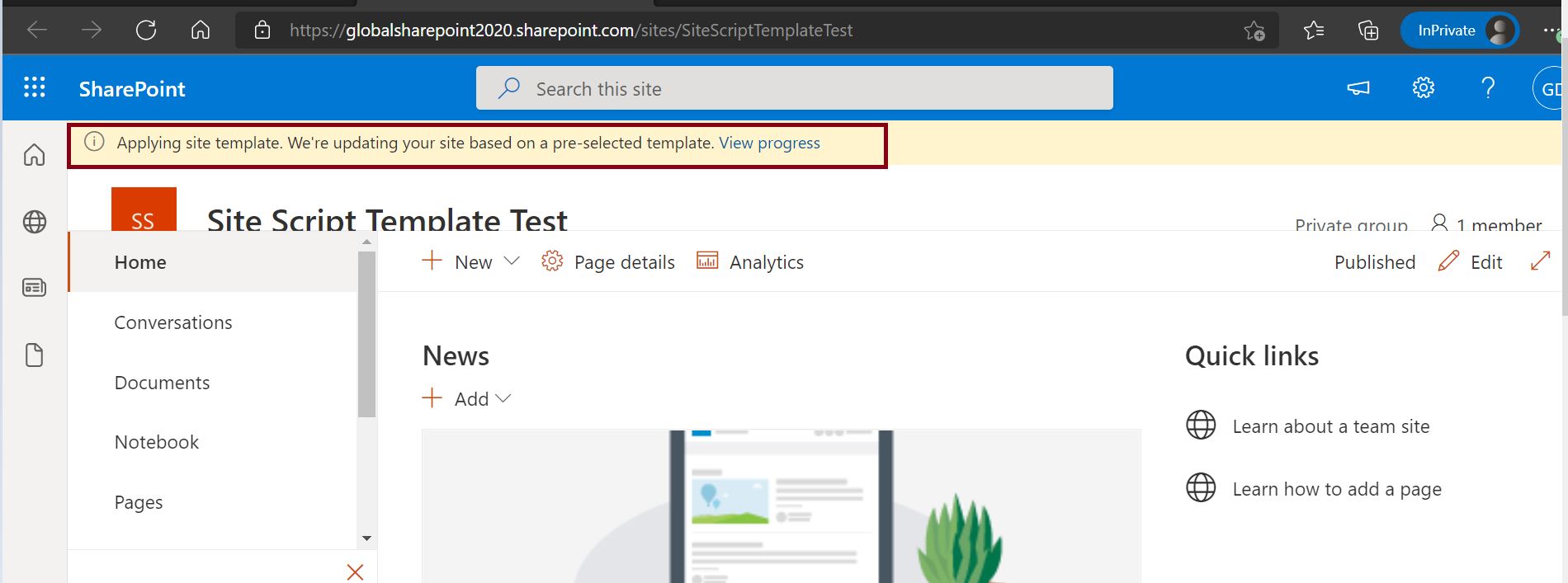

Wait for some time and browse the same site again – we can see the new changes.
Create custom site template: After applying the site template in SharePoint Online
After applying the site template, we can see that the customer tracking list along with its columns have been added as it was part of the template.

Notes:
- Site design template can be applied to the existing site as well as while we create the new site we can select this custom template.
- While we apply the site template in the existing site, the old configuration like list/library, column, content type, etc still will be available on the site.
- As of today, we can create up to 100 site scripts and 100 site designs per tenant.
Site Script, Site Template (Site Design) operation in SharePoint Online using PowerShell – Create custom site template
In this section, we will learn about how to manipulate the like adding, updating, deleting the site template from the tenant.
Few common PowerShell commands for Site Script, Site Template(Site Design):
- Get-SPOSiteDesign – It retrieves all site designs created in your tenant.
- Get-SPOSiteScript – It gives the list of site scripts available to your tenant.
- Set-SPOSiteDesign – It updates the existing site design.
- Set-SPOSiteScript – It updates the site script JSON content.
- Remove-SPOSiteScript – It deletes the given/specific site script.
- Remove-SPOSiteDesign -It removes the given/specific site design ID.
- Grant-SPOSiteDesignRights – It sets permissions to site designs.
- Revoke-SPOSiteDesignRights – It removes site design permissions.
- Invoke-SPOSiteDesign – It applies site design to the existing site.
Site Script, Site Template(Site Design) using PowerShell – Examples
How to get existing site script and Site Designs using the PowerShell Command
Get-SPOSiteScript #It gives all site scripts
Get-SPOSiteDesign #It gives all site designs
How to update the existing site script using the PowerShell Script?
$siteScriptID = "1c69e16c-11fe-4356-bbce-016d20631068"
$siteScriptFile = "C:\Temp\MySiteScript.json"
Set-SPOSiteScript -Identity $siteScriptID -Content (Get-Content $SiteScriptFile -Raw)
How to update the existing site template (site design) using the PowerShell Script?
$siteDesignID = "b0e1a67d-b187-46d8-a4bb-0ddd7c75db69";
Set-SPOSiteDesign -Identity $siteDesignID -SiteScripts "1c69e16c-11fe-4356-bbce-016d20631068", "1c69e16c-11fe-4356-bbce-016d20631069"
How to apply site template (site design) on existing sites in SharePoint Online?
#parameters
$adminCenterURL = "Your Admin Centre URL (Example: globalsharepoint2020-admin.sharepoint.com)"
$userName = "YourSPOGlobalAdminUserID@YourSPOTenant.onmicrosoft.com"
$passWord = "YourSPOPassword"
$siteURL="Your Site URL (Example:globalsharepoint2020.sharepoint.com/sites/SiteScriptTemplateTest)"
$siteDesignID="b0e1a67d-b187-46d8-a4bb-0ddd7c75db69"
$encPassWord = convertto-securestring -String $passWord -AsPlainText -Force
$cred = new-object -typename System.Management.Automation.PSCredential -argumentlist $userName, $encPassWord
#Connect to SharePoint Online
Connect-SPOService -Url $AdminCenterURL -Credential $cred

#Apply Site Design
Invoke-SPOSiteDesign -Identity $siteDesignID -WebUrl $siteURL
How to set site design as default using PowerShell script in SharePoint Online?
$siteDesignID="b0e1a67d-b187-46d8-a4bb-0ddd7c75db69";

Set-SPOSiteDesign -Identity $siteDesignID -IsDefault:$True
How to delete existing site template (site design) using PowerShell script in SharePoint Online?
$siteDesignID="b0e1a67d-b187-46d8-a4bb-0ddd7c75db69";
Remove-SPOSiteDesign -Identity $siteDesignID
How to delete existing site script using PowerShell script in SharePoint Online?
$siteScriptID="1c69e16c-11fe-4356-bbce-016d20631068"
Remove-SPOSiteScript -Identity $siteScriptID
Create custom site template: summary
Thus, in this article, we have learned the below with respect to creating a custom site template in SharePoint Online:
- What is Site Script in SharePoint Online?
- What is Site Template (Site Design) in SharePoint Online?
- How to create the site script and site design in SharePoint Online?
- How to create the custom site template in SharePoint Online?
- How to apply the custom template to the existing site in SharePoint Online?
- How to create SharePoint Online site with the custom template?
- How to update the custom template using the PowerShell script in SharePoint Online?
- How to create, update, delete site script and site template (site design) using the PowerShell script in SharePoint Online?
Using Site Templates in SharePoint Online helps streamline the process of site creation, making it easier for organizations to deploy new sites that meet their specific requirements and maintain a cohesive user experience across their SharePoint environment.
Useful Tool
By looking at the JSON script, it seems it is complicated to create the structure of JSON, isn’t it? cool. 🙂 there is a very good open-source SHAREPOINT SITE DESIGNER tool for JSON creation and for the site script scheme you can refer to this Site design JSON schema.
Reference:
Buy SharePoint Online eBook
Buy the premium version of SharePoint Online & Office 365 administration eBook from here:

About Post Author

Discover more from Global SharePoint
Subscribe to get the latest posts sent to your email.