

 By
By 
In this “ForAll Loop in Copilot Studio” article, we will learn how to work with the ForAll loop in Copilot Studio to iterate each item in the array collection and display it on the chatbot message. And also, we will learn about how to work with formulas in Copilot like conditional, logical, and string comparison, switch case, if condition, converting to upper case of a string, and many more.
In today’s fast-paced business environment, automation has become a game-changer for improving productivity and efficiency. Copilot Studio, a tool designed to supercharge automation workflows, allows businesses to integrate and automate routine tasks across various platforms. One of the most powerful and versatile features in Copilot Studio is the ability to create and use formulas. These formulas enable users to apply custom logic, manipulate data, and automate complex operations without needing extensive coding expertise.
This article delves deep into the use of formulas in Copilot Studio, providing real-time examples and use cases to help users unlock its full potential.
Introduction
Power Fx is a powerful low-code language in the Microsoft Power Platform, designed to handle logic in a declarative, spreadsheet-like manner. While it shares similarities with Excel formulas, it also integrates advanced functionalities for managing data in apps and automating tasks efficiently within Copilot Studio. Below is a detailed guide with additional real-world examples to help you fully utilize Power Fx.
Key Concepts of Power Fx in Copilot Studio
- Declarative Logic: Power Fx allows users to express their desired outcomes without specifying step-by-step procedures. For example, a label’s text can change dynamically based on data without the need for explicit event handling.
- Integration with Dataverse: Power Fx seamlessly integrates with Dataverse, allowing you to work with relational data without worrying about complex joins or SQL queries. It uses simple dot notation to access related records.
- Local and Remote Data Handling: The same Power Fx formula syntax applies whether the data is stored locally (in memory) or fetched from a remote database. The platform automatically delegates tasks like filtering to the server when needed.
Working With Formulas in Copilot Studio or Power Fx in Copilot Studio with Real-Time Examples
To work with formulas in Copilot Studio, we need to create a custom topic. In many ways, we can write formulas in Copilot Topic as given below:
- Use variables in a formula
- Use literal values in a formula
- Use Power Fx to set a variable
- Use a Power Fx formula as a condition
- Additional Formula Types
1. Use Variables in a Formula – Get Conversation ID in Copilot Studio
- Description: Variables store dynamic data that can be used in formulas. You can reference global, system, or topic variables.
- Example:
System.Conversation.Idrefers to a specific conversation ID during interactions.

2. Use Literal Values in a Formula – Check if Blank Condition in Copilot Studio
- Description: Literal values include text strings, numbers, or Boolean values that are entered directly into the formula.
- Example:
Coalesce(Topic.CustomerName, "Guest")
uses a literal string"Guest"as a fallback ifCustomerNameis blank.

3. Use Power Fx to Set a Variable – Convert To Upper Case in Copilot
- Description: You can create and assign values to variables dynamically in Copilot Studio using formulas.
- Example:
Upper(Topic.CustomerName)It converts the customer’s name in uppercase which you can store in new variable.

Convert to upper case in Copilot Studio Formula
4. Use a Power Fx Formula as a Condition: Check if the customer is eligible for a discount.
- Description: Conditional logic formulas can control workflows, based on certain criteria.
Example:
Switch(IsBlank(Topic.BookingDate),
    true,"No Booking Date Provided",
    false, If(Topic.BookingDate > DateAdd(Now(), 14), "Eligible for Discount", "Not Eligible"))
The above formula checks if the booking is at least 14 days in advance, then the customer will be eligible for a discount; otherwise, not.
ForAll Loop in Copilot Studio Formula
In this example, I will show you how to iterate each order from a sample order array collection.
Create a string type variable and assign the below value:
{
"Orders":
[
{
"OrderID": "ORD123",
"Price": 120.00,
"Quantity": 2
},
{
"OrderID": "ORD124",
"Price": 80.00,
"Quantity": 1
},
{
"OrderID": "ORD125",
"Price": 200.00,
"Quantity": 5
},
{
"OrderID": "ORD126",
"Price": 50.00,
"Quantity": 3
}
]
}
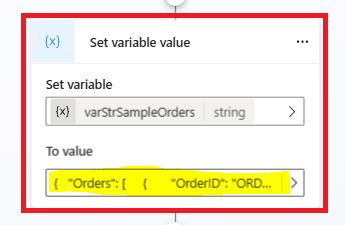
Add a parse value node from the variable management menu.
Pass your string orders variable to parse value field.

Select the data type as “From sample data.” Then, click on “Get schema from sample JSON.“.
Add your sample orders JSON schema.

Click on the “Confirm” button.

Create a variable to save your Parse value output. Once you create a variable and assign it to save as, your data type will be automatically changed to “Record” from the “From sample data” type.
Just to see, now click on the “Edit schema” icon. We can see my sample order schema has been converted to a record.

Next, you can loop through each item from this record output variable.
This is the formula I have used for this demo to read each order from this orders collection:
ForAll(Topic.varRecordParsedOrders.Orders,

    Text(OrderID) & " | Price: $" & Text(Price) & " | Quantity: " & Text(Quantity)

)

Concat function in Copilot Studio
Or, you can use the below formula:
Concat(Topic.varRecordParsedOrders.Orders,

    Text(OrderID)&" | Price: $"&Text(Price)&" | Quantity: "&Text(Quantity),

    " | "

)

In the above example, I have shown this demo by creating a sample static array variable. You can even implement this with your dynamic data source, like by calling Power Automate Flow from Copilot Studio, calling a custom connector from your copilot studio, or even directly using the HTTP Request connector to call a custom API. You can apply the same logic as shown here to retrieve each item from your source data collection dynamically and use those in your Copilot Studio custom topic.
Demo: Formulas in Copilot Studio
To test these formulas, I have created an adaptive card form in my Copilot to pass the data. You can use this adaptive JSON from below:
{

  "type": "AdaptiveCard",

  "$schema": "http://adaptivecards.io/schemas/adaptive-card.json",

  "version": "1.3",

  "body": [

    {

      "type": "TextBlock",

      "text": "Power Fx Formula Tester",

      "weight": "Bolder",

      "size": "ExtraLarge",

      "color": "Accent",

      "horizontalAlignment": "Center",

      "spacing": "Large"

    },

    {

      "type": "TextBlock",

      "text": "Customer Name",

      "weight": "Bolder",

      "spacing": "Small",

      "color": "Default"

    },

    {

      "type": "Input.Text",

      "id": "CustomerName",

      "placeholder": "Enter customer name",

      "style": "text",

      "spacing": "Small"

    },

    {

      "type": "TextBlock",

      "text": "Price",

      "weight": "Bolder",

      "spacing": "Small",

      "color": "Default"

    },

    {

      "type": "Input.Number",

      "id": "Price",

      "placeholder": "Enter price",

      "style": "text",

      "spacing": "Small"

    },

    {

      "type": "TextBlock",

      "text": "Customer Type",

      "weight": "Bolder",

      "spacing": "Small",

      "color": "Default"

    },

    {

      "type": "Input.ChoiceSet",

      "id": "CustomerType",

      "value": "Regular",

      "choices": [

        {

          "title": "Regular",

          "value": "Regular"

        },

        {

          "title": "Premium",

          "value": "Premium"

        }

      ],

      "style": "expanded",

      "spacing": "Small"

    },

    {

      "type": "TextBlock",

      "text": "Booking Date",

      "weight": "Bolder",

      "spacing": "Small",

      "color": "Default"

    },

    {

      "type": "Input.Date",

      "id": "BookingDate",

      "spacing": "Small"

    },

    {

      "type": "TextBlock",

      "text": "Phone Number (10 digits required)",

      "weight": "Bolder",

      "spacing": "Small",

      "color": "Default"

    },

    {

      "type": "Input.Text",

      "id": "PhoneNumber",

      "placeholder": "Enter phone number",

      "style": "tel",

      "spacing": "Small"

    },

    {

      "type": "TextBlock",

      "id": "PhoneValidationMessage",

      "text": "Phone number must be 10 digits.",

      "color": "Attention",

      "isVisible": false,

      "spacing": "Small"

    },

    {

      "type": "ActionSet",

      "actions": [

        {

          "type": "Action.Submit",

          "title": "Submit",

          "style": "positive",

          "spacing": "Medium"

        }

      ],

      "horizontalAlignment": "Center",

      "spacing": "Medium"

    }

  ],

  "style": "emphasis",

  "backgroundImage": {

    "url": "https://example.com/your-background-image.jpg",

    "fillMode": "Cover"

  },

  "minHeight": "500px"

}
The above JSON code, creates the below form:


I have triggered my topic and entered the customer information.

Look at the below screen to see how my Copilot formula translated my customer data entry:
- Converted my customer name to upper case.
- The booking date is less than 14 days, so the customer is not eligible for a discount.
- Using the forAll loop, all items from the Orders array have been retrieved.
- When customer name passed as an empty value, the “Guest” has been displayed.


This time submit the customer details without the name; then, we can see “Guest” has been displayed as a customer name.


Extract SharePoint Online List Column Value Using Copilot Function
For an example, I am reading employee details from my SharePoint Online Employee Leave Management List. Here is my list:

And below is my Copilot Topic Power Action setup:

Convert string to record
Using the Copilot Parse value, I have converted the string output of Power Automate flow to record type.

In the above two actions, I have called Power Automate flow to get employee details where the output came as a string, and then in the parse value action, I have converted the string value to record datatype.
Convert Record Data Type to Table Type
Here, I will use the below formula to convert record data type to Table:
Topic.varRcdApplyLeaveParseValueEmployeeDetails.value

Note:
- Once you convert your Power Automate output to table format like above, you can use this table in your Create Generative Answer custom data source.
Extract column value from SharePoint using Copilot Formula
I have used the below formulas to extract column values. Here, I have used the “First()” Power Fx function to get the first record from the list item collection record.
To get the “Total Leave” column value, I have used the below formula:
First(Topic.varRcdApplyLeaveParseValueEmployeeDetails.value).TotalLeave

Similarly, to extract the “Employee Name” column value, I have used the below formula:
First(Topic.varRcdApplyLeaveParseValueEmployeeDetails.value).EmployeeName.DisplayName

Using this approach, you can extract any column values from SharePoint and use them in your Copilot bot.
Sample JSON for Employee List
I have used the below sample JSON for this demo for my employee leave management list:
{

    "value": [

        {

            "ID": 1,

            "Title": "Leave Request",

            "NumberofDaysLeave": 1,

            "TotalLeave": 30,

            "NumberofRemainingLeave": 30,

            "LeaveStatus": "Submitted",

            "Comment": "Test",

            "FromDate": "2024-10-08",

            "ToDate": "2024-10-10",

            "EmployeeName": {

                "@odata.type": "#Microsoft.Azure.Connectors.SharePoint.SPListExpandedUser",

                "Claims": "i:0#.f|membership|MyAccount@mydomain.onmicrosoft.com",

                "DisplayName": "Lab Admin 2",

                "Email": "MyAccount@mydomain.onmicrosoft.com",

                "Picture": "https://ztncx.sharepoint.com/sites/DemoSite/_layouts/15/UserPhoto.aspx?Size=L&AccountName=MyAccount@MyDomain.onmicrosoft.com",

                "Department": "IT",

                "JobTitle": "SharePoint Developer"

            }

        }

    ]

}
YouTube Video Demo: ForAll & Other Important Functions in Copilot Studio
Summary: ForAll Loop in Copilot Studio – Formulas in Copilot Studio with Real-Time Examples
Thus, in this Create expressions using Power Fx article, we have learnt about how to work with the ForAll loop in Copilot Studio to iterate each item in the array collection and display it on the chatbot message. And also, we learnt about how to work with formulas in Copilot like conditional, logical, and string comparison, switch case, if condition, converting to upper case of a string, and many more.
About Post Author

Discover more from Global SharePoint
Subscribe to get the latest posts sent to your email.
Do you have any post about Data transformations in Copilot Studio? In my scenario, I’m extracting a table via a Connector List Rows from Dataverse, and I want to ask a question to select one of the records using the table as the list variable. The problem is, the question node requires a column named as DisplayName to display the list to the customer (in my case is IVR, so the bot tells the customer the list. Trying to use RenameColumns(Global.Orders,’name’,’DisplayName’) in a set variable node doesn’t work.