

 By
By 
In this “Security Roles in Power Platform” article, we will learn about how to create a custom security role step by step in the Power Platform environment, how to manage a security role in Power Platform, what a security role is in Power Platform, why we need security roles in Power Platform, and many more. So, let’s get started with the article.
Security Roles in Power Platform Admin Center
In the following section, we will understand security roles in Power Platform before we start creating new custom security roles in the Power Platform environment.
Introduction to Security Roles in Power Platform Admin Center
Microsoft Power Platform has transformed how organizations use data and automate processes. In this ecosystem, the Power Platform Admin Center serves as a centralized hub for managing environments, applications, and—crucially—security roles. Security roles play a fundamental role in controlling access, ensuring data privacy, and enforcing organization-wide security policies. By leveraging the right security roles, organizations can streamline access, protect sensitive data, and foster a secure, productive environment.
What are Security Roles in Power Platform?
Security Roles in Power Platform are permission sets that define what actions users can perform and which data they can access. They allow administrators to control platform usage based on the user’s role within an organization. A security role determines whether a user can create, read, write, delete, or customize data across various applications within Power Platform, such as Power BI, Power Apps, Power Automate, and Power Virtual Agents.
With security roles, organizations can align users’ access with their job responsibilities, ensuring that they only access the data and tools they need. This role-based access management improves security and enhances team efficiency by reducing unnecessary data access.
Key Usages and Importance of Security Roles in Power Platform
Security roles in Power Platform are crucial for:
- Data Privacy and Compliance: Limiting access to sensitive data helps meet privacy regulations and organizational policies.
- Data Integrity: Role-based permissions prevent unauthorized modifications, preserving data integrity.
- Granular Access Control: Different departments or teams can be given tailored access levels, ensuring they have the tools they need without compromising security.
- Increased Productivity: Team members can work effectively with appropriate access, boosting productivity while maintaining security controls.
Out-of-the-Box Security Roles in Power Platform
Power Platform offers several predefined security roles that can be assigned directly without customization:
AIB Roles
- Permissions: Likely associated with AI Builder permissions. This role may allow users to create, manage, and utilize AI models within Power Platform applications.
- Common Users: Data scientists, business analysts, and app makers who incorporate AI models into apps and workflows.
AIB SML Roles
- Permissions: This role may be tied to specialized AI Builder (AIB) functionalities, potentially related to specific SML (Standard Machine Learning) operations or advanced AI model configurations.
- Common Users: Advanced AI users or those involved in machine learning model management within Power Platform.
App Deployment Orchestration Role
- Permissions: Likely responsible for managing or overseeing the deployment of applications within Power Platform environments. This role may grant permissions to deploy, configure, and manage apps.
- Common Users: IT administrators, DevOps teams, or app developers responsible for app deployment and orchestration.
App Opener
- Permissions: This role may provide basic access to open and view applications within the environment without advanced permissions for editing or deploying.
- Common Users: End-users, team members who need access to use specific Power Platform applications.
Approvals Administrator
- Permissions: Likely allows for managing approval workflows and configurations, including creating, editing, and monitoring approval processes in Power Automate or other approval-based applications.
- Common Users: Workflow managers, administrative staff responsible for managing business process flows and approvals.
Approvals User
- Permissions: Provides access to participate in approval workflows, such as submitting or responding to approval requests, but may not have administrative control over workflow configurations.
- Common Users: Regular business users, team members involved in approval processes who need to submit or approve requests.
Async Ingestion
- Permissions: Likely used for handling data ingestion tasks asynchronously, allowing users to import large datasets or perform background data processing without interfering with the primary environment.
- Common Users: Data engineers, administrators who manage bulk data imports or automated data processes.
Basic User
- Permissions: Provides standard access to Power Platform applications with limited privileges, typically allowing users to perform basic tasks such as data entry, viewing records, and running applications.
- Common Users: General end-users who need basic access to use apps but do not require editing or administrative permissions.
BizQAApp
- Permissions: Likely a custom role related to a specific application named “BizQAApp.” Permissions may include access to the BizQA application and possibly specific features within it.
- Common Users: Users or testers who work within the BizQA application, possibly for quality assurance (QA) or testing purposes.
Bot Author
- Permissions: Grants permissions to create, configure, and publish bots within Power Virtual Agents or similar bot-building tools on the platform.
- Common Users: Bot developers, app makers responsible for creating automated conversational experiences (e.g., chatbots) within the environment.
Bot Contributor
- Permissions: Allows users to collaborate on bot development, providing permissions to edit and manage existing bots without full authoring rights.
- Common Users: Team members who assist in bot creation and maintenance, such as content writers or support staff contributing to bot dialogs and logic.
Bot Transcript Viewer
- Permissions: Provides access to view bot conversation transcripts, allowing users to review chat history for quality assurance, training, or debugging.
- Common Users: Support staff, QA testers, or bot managers who need to review interactions for insights or improvements.
Bulk Archival Role
- Permissions: Likely allows users to perform bulk archival actions, managing large-scale data archiving tasks within Power Platform environments.
- Common Users: Data managers, compliance officers, or administrators responsible for archiving data in line with organizational policies.
BusinessApplicationPlatformRole
- Permissions: Likely provides access to core platform services within Power Platform, supporting operations across multiple applications.
- Common Users: General users or admins who need base-level permissions to work across various Power Platform environments.
Cards Basic Role
- Permissions: Provides basic permissions for using and interacting with Power Platform Cards, which are often used for displaying adaptive content or data summaries.
- Common Users: End-users who need to view and interact with Cards in Power Apps or other environments.
Cards Role
- Permissions: Likely a more advanced version of the Cards Basic Role, allowing additional permissions to create, manage, or customize Cards within the platform.
- Common Users: App makers, designers who create or manage Cards within Power Platform.
CCI Admin
- Permissions: Likely a role for administering Customer Communication Insights (CCI) or related tools, with access to configure and manage communication insights and settings.
- Common Users: IT administrators, customer service managers responsible for overseeing customer communication analytics.
Customer Voice – Add on
- Permissions: Provides access to Customer Voice add-on features, enabling users to collect feedback, manage surveys, and analyze customer responses.
- Common Users: Customer service teams, feedback managers who work with customer surveys and insights.
Data Sync Framework Role
- Permissions: Allows users to access and manage data synchronization frameworks, facilitating data syncing between different systems or environments.
- Common Users: Data engineers, integration specialists responsible for setting up or managing data sync processes.
Data Sync Service Role
- Permissions: Similar to Data Sync Framework Role but may be specifically focused on managing the synchronization services, ensuring consistent data flow across systems.
- Common Users: IT administrators, data synchronization managers working on integration setups.
Dataflow Maker
- Permissions: Allows users to create and manage dataflows, which are used to transform and move data between different sources within Power Platform.
- Common Users: Data analysts, app makers who create dataflows to prepare data for applications and reporting.
DataLakeFolderEntityContributor
- Permissions: Provides contributor access to folders within a Data Lake, allowing users to create, edit, and manage data stored in the Data Lake.
- Common Users: Data managers, data engineers who manage and organize data within Azure Data Lake or similar storage.
DataLakeWorkspaceAppAccess
- Permissions: Grants access to workspace applications related to Data Lake, potentially allowing integration with data lakes or working within data lake-based apps.
- Common Users: Data analysts, business users who work with data stored in Data Lake and need access to specific workspace applications.
DataProcessingConfigTableAppAccess
- Permissions: Provides access to configure data processing tables within specific applications, likely related to data transformation or preprocessing tasks.
- Common Users: Data specialists, app makers who configure tables for data processing tasks.
Other important roles are as below:
- System Administrator
- Permissions: Full control over all aspects of the platform. This role can manage all configurations, settings, and data across environments.
- Common Users: IT administrators, power users.
- System Customizer
- Permissions: Allows customization of applications and components within the platform but does not have full administrative access to all areas.
- Common Users: Application developers, solution designers.
- Environment Maker
- Permissions: Can create resources such as apps, flows, and connections within a specified environment. However, this role doesn’t grant access to data unless specifically given.
- Common Users: Project managers, team leads who need to develop and test applications.
- Basic User
- Permissions: Limited to accessing personal data or data specifically shared with the user.
- Common Users: Standard business users needing access to view and work with their records.
- Delegate
- Permissions: Provides the ability to act on behalf of another user, such as viewing or editing that user’s records if permissions allow.
- Common Users: Personal assistants or team members acting on behalf of managers.
- Support User
- Permissions: Allows access to troubleshoot issues and provide technical support without modifying configurations.
- Common Users: IT support and helpdesk staff.
How to Create a Custom Security Role in Power Platform
Customizing security roles enables organizations to tailor permissions closely to specific needs. Here’s how to create a custom security role in Power Platform:
Follow the below navigation to create a new role in Power Platform Admin Center:
Login to Power Platform Admin Center.
Environments -> Open your environment -> Settings -> Security roles
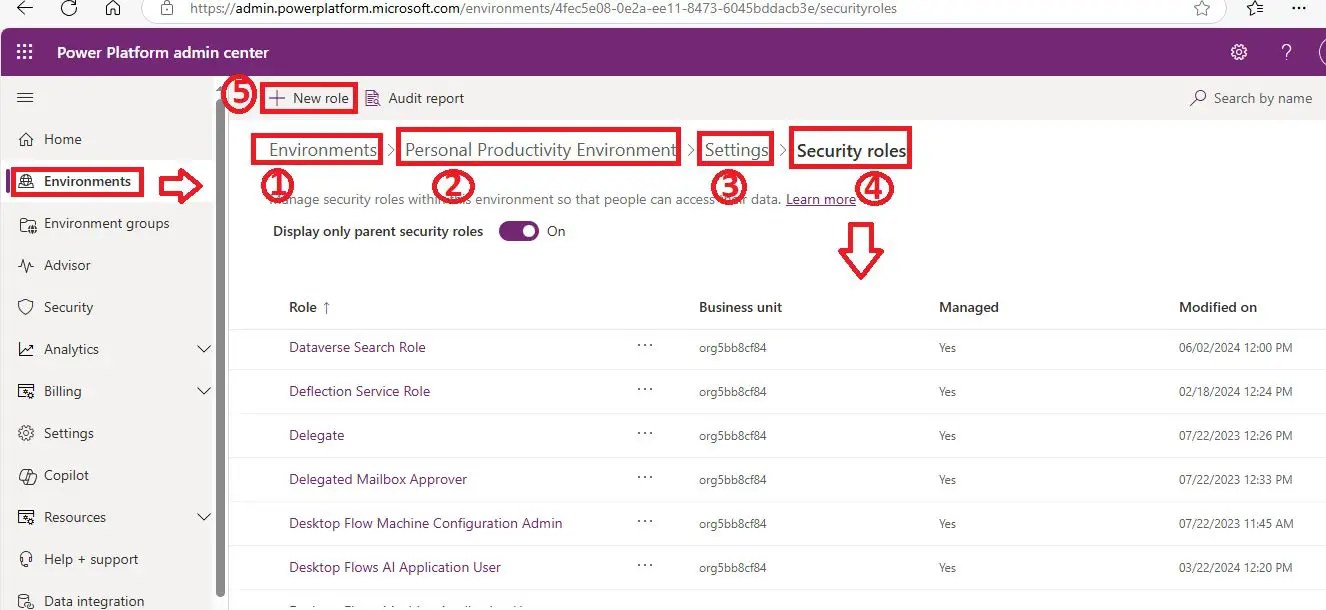
From the security roles screen, click on the “+ New role” link.
When the Create New Role screen opens, pass the below parameters:
- Role Name: Any valid relevant text
- Business Unit: Select your business unit from the dropdown list.
- Member’s privilege inheritance: Select Direct User (Basic) Access Level and Team privileges; the other option is Team privileges only. See the description below for what these are.

Include app opener privileges for running Model-Driven apps, do not uncheck this.
Click on the “Save” button.
Member’s privilege inheritance: When role is assigned to a Team
Team member gets all team privileges by default. Team members can inherit team privileges directly based on access level.
When creating a new security role in the Power Platform and assigning it to a team, the Member’s privilege inheritance setting determines how permissions are granted to team members based on the role assigned to the team. You have two options for this setting:
1. Direct User (Basic) Access Level
- Explanation: When you select Direct User (Basic) access level, team members receive permissions only for records they directly own or have explicit access to, regardless of the team’s overall permissions.
- Implication: Each team member’s privileges are restricted to their individual permissions. This option limits team members to their own access levels, meaning they can’t leverage the full scope of the team’s permissions unless they personally own the records or have been directly granted access.
- Use Case: This option is useful when you want team members to have autonomy over their own records without automatically gaining access to records owned or managed by other team members. It’s suitable for scenarios where team members work independently on their own data, like in sales or personal project management.
2. Team Privileges
- Explanation: When you select Team privileges, all team members inherit the permissions assigned to the team. This means any privileges assigned to the team role are automatically extended to all team members, allowing them to access records that the team can access as a whole.
- Implication: Team members effectively gain a shared access level, which allows them to view, edit, or interact with records based on the team’s overall permissions. This setting centralizes permissions and makes collaboration easier, as team members can work on shared records without needing individual permissions.
- Use Case: This option is ideal for collaborative environments, where team members need to work together on shared data or records. Examples include project teams, customer service teams, or departments that handle collective tasks and data.
Differences between these two: Direct User (Basic) Access Level vs Team Privileges
- Direct User (Basic) Access Level: Team members only have access to their own records or records they are explicitly granted access to. Their access is not influenced by the team’s permissions.
- Team Privileges: Team members inherit the team’s permissions, allowing them to work with all records that the team has access to, promoting collaborative access.
Here’s a table summarizing the differences between Direct User (Basic) Access Level and Team Privileges versus Team Privileges Only in Power Platform, covering technical aspects, recommended scenarios, and considerations for choosing each.
| Feature | Direct User (Basic) Access Level and Team Privileges | Team Privileges Only |
|---|---|---|
| Definition | Combines a user’s individual privileges (Basic access level) with team-level privileges. Users inherit both their personal permissions and the permissions granted to the team. | Assigns only the team’s permissions to all members, regardless of their individual roles. Users have no additional personal permissions outside of the team. |
| Primary Use Case | Suitable when users need both individual access to certain records (Basic level) and shared team-level permissions. | Ideal for team environments where all members require the same level of access, and individual privileges are not necessary. |
| Individual vs. Team Access | Users have both individual (Direct/Basis level) and team access, allowing them to see and interact with records assigned to them and those shared with the team. | Users have team access only, meaning they can interact only with records and resources that the team has access to, not individual permissions. |
| Permission Granularity | More granular, as it combines two levels of access. Allows users to work on team-shared records while retaining personal permissions on records they own. | Less granular, as it enforces uniform access. Users’ permissions are limited strictly to team-level privileges without any individual exceptions. |
| Data Scope | Users can access records based on their personal privileges and extend that access to team records. This scope is broader if personal records are needed. | Users access only team records, creating a narrower scope. Useful in scenarios where a single team context is applied across members without individual records. |
| Administrative Complexity | Higher complexity in managing and tracking permissions, as admins must account for both personal and team-based access levels. | Simpler to manage, as the role applies uniformly to all team members without personal variations. |
| Best for Roles | Sales, Customer Service Representatives, Project Managers who need both personal and shared access (e.g., personal sales records plus shared project data). | Support Teams, Shared Resources Teams, or Content Reviewers who work collectively on shared data and don’t need individual access levels. |
| Security | Allows for a balanced approach between individual and shared data access, which may increase risk if users have higher personal privileges. Best used with caution in data-sensitive environments. | Enhanced security due to uniform access, reducing the risk of accidental data leaks from individual permissions. Good for strict data governance needs. |
| Example Scenario | A sales representative who needs access to personal sales opportunities (Direct User level) but also requires team access to a shared list of regional opportunities. | A content review team that accesses a shared document library but doesn’t need individual access beyond the team’s scope. |
| When to Choose | Choose when users need some individual accountability in addition to team permissions, where they must handle records personally but also collaborate on shared data. | Choose when the goal is to promote unified access and control for the team, with consistent permissions across all members, simplifying management. |
| Impact on User Experience | More flexible but may create confusion for users due to mixed access levels. Users need to distinguish between personal and team records. | Streamlined user experience, as all records and permissions are team-based. Reduces confusion and enhances collaborative workflows. |
Key Takeaways:
- Direct User (Basic) Access Level and Team Privileges: Offers both personal and team-level access. Best for roles requiring individual records alongside team records, such as sales or project-based roles where personal accountability is critical.
- Team Privileges Only: Provides only team-level access, suitable for roles that operate entirely within a shared context without needing individual access levels, such as support or review teams.
Selecting the right option depends on the balance between collaboration needs, data security, and the level of individual responsibility required in the role. Choosing between these options depends on whether you want team members to operate independently or collaborate closely on shared data.
Once we create the custom security role, we can see the role details and all tables associated with it as shown below:

Using the manage security role screen, we can manage the role for a given security role, like copy security role, rename security role, delete role, etc.
Managing Security Roles: Best Practices
Effective management of security roles is essential for maintaining both security and usability within Power Platform. Here are some best practices:
- Least Privilege Principle: Assign only the permissions necessary for a user to perform their role. Avoid granting excessive access.
- Regular Role Reviews: Regularly review roles and permissions to ensure they align with current organizational needs.
- Utilize Default Roles: Where possible, use out-of-the-box roles to simplify management and avoid over-customization.
- Document Custom Roles: Keep documentation on custom roles, detailing permissions and purpose for easy reference and continuity.
These best practices help maintain a secure environment, reducing the risk of unauthorized access or accidental data breaches.
Practical Applications of Security Roles in Different Use Cases
Examples of security roles applied in real-world scenarios:
- Finance Team: Custom roles with access restricted to financial data ensure confidentiality and compliance.
- Sales Team: Roles granting customer data access support efficient customer management without full admin control.
- IT Department: IT teams use system customizer roles to manage configurations without access to sensitive business data.
By applying security roles effectively, organizations create a secure, efficient digital workspace tailored to each department’s needs.
YouTube Video Demo: Create Security Role in Power Platform
Conclusion: Optimizing Security Roles in Power Platform for Enhanced Productivity and Security
Thus, in this article, we have learnt about what a security role is in a Power Platform environment and how to create a custom security role in Power Platform.
Security roles in Power Platform play a critical role in managing access and permissions, ensuring that users have the right level of access to perform their tasks while maintaining data security. By understanding and configuring out-of-the-box roles or creating custom roles with specific permissions, administrators can tailor access based on job roles, team requirements, and organizational needs. The option to control Member’s privilege inheritance—whether through Direct User (Basic) access level or Team privileges—adds further flexibility, allowing organizations to balance individual accountability with team collaboration. Properly configured security roles contribute to a secure, efficient, and collaborative Power Platform environment.
FAQs on Security Roles in Power Platform
1. What is the purpose of security roles in Power Platform?
- Answer: Security roles in Power Platform define the permissions and access levels for users. They control who can view, edit, create, or delete data and customize applications, helping to maintain security and ensuring that users only access data and functionalities they need for their roles.
2. What are out-of-the-box security roles in Power Platform?
- Answer: Out-of-the-box roles are predefined security roles provided by Power Platform, such as System Administrator, System Customizer, Basic User, Approvals Administrator, and others. These roles offer standard permissions for common job functions, allowing administrators to assign roles quickly without creating custom configurations.
3. Can I create custom security roles in Power Platform?
- Answer: Yes, administrators can create custom security roles tailored to specific needs. Custom roles allow you to define precise access and permission settings, ensuring users have the right level of access aligned with their responsibilities.
4. What is the difference between ‘Direct User (Basic) access level’ and ‘Team privileges’?
- Answer: When assigning a role to a team, Direct User (Basic) access level restricts members to their individual permissions, while Team privileges extend the team’s permissions to all members, allowing for shared access to data and records the team can access.
5. Who typically gets the ‘System Administrator’ role?
- Answer: The System Administrator role is usually assigned to IT administrators or power users responsible for managing configurations, settings, and data across the environment. This role has full control over all platform aspects, including customization and data management.
6. What is the ‘System Customizer’ role, and who uses it?
- Answer: The System Customizer role allows users to modify applications and components but does not grant full control over all settings. It’s typically assigned to application developers or solution designers who need to customize apps without having complete administrative access.
7. How can I assign a security role to a user in Power Platform?
- Answer: In the Power Platform Admin Center, navigate to Environments > Settings > Security roles. Select the desired role and assign it to users or teams. You can also manage permissions and view audit logs to track changes.
8. Can one user have multiple security roles in Power Platform?
- Answer: Yes, a user can be assigned multiple security roles. Power Platform will combine the permissions from each assigned role, granting the highest level of access allowed across the roles.
9. What happens if I remove a security role from a user?
- Answer: When a security role is removed from a user, they lose all permissions associated with that role. This may restrict their access to certain data and features depending on the permissions in their remaining roles (if any).
10. How do security roles enhance collaboration in Power Platform?
- Answer: By configuring roles and permissions properly, teams can collaborate efficiently on shared data and resources. For example, setting Team privileges on a role allows all team members to access shared records, facilitating collaboration while maintaining secure access controls.
About Post Author
