

 By
By 
In this article, we will learn about what is Image Maps in HTML and SharePoint Online step by step.
Image Maps in HTML and SharePoint Online: Enhancing Interactivity and Navigation
Image maps in HTML are a powerful feature that allows developers to define clickable areas within an image, providing an interactive experience for users. When used in SharePoint Online, image maps can enhance navigation and usability, making it easier for users to access information and perform tasks. This article explores what image maps are, how to create them in HTML, and how to integrate them into SharePoint Online.
What is an Image Map?
An image map is an HTML element that allows different areas of an image to be clickable, each linking to a different destination or triggering a different action. This is achieved using the <map> and <area> tags in HTML. Each <area> tag defines a shape (rectangle, circle, or polygon) and associates it with a specific part of the image, creating interactive regions.
Creating an Image Map in HTML
To create an image map in HTML, follow these steps:
- Prepare Your Image:
- Select or create an image that will serve as the base for your image map.
- Define the Image and Map Tags:
- Use the
<img>tag to display the image. - Use the
<map>tag to define the image map, and the<area>tags to specify the clickable regions.
- Use the
Here is a simple example:
<!DOCTYPE html> <html> <head> <title>Image Map Example</title> </head> <body> <img src="example.jpg" usemap="#image-map" alt="Example Image"> <map name="image-map"> <area shape="rect" coords="34,44,270,350" href="http://example.com/link1" alt="Link 1"> <area shape="circle" coords="500,500,100" href="http://example.com/link2" alt="Link 2"> <area shape="poly" coords="172,333,192,397,298,424,346,460,392,431,405,391,345,363,279,348" href="http://example.com/link3" alt="Link 3"> </map> </body> </html>
- The
usemap="#image-map"attribute in the<img>tag links the image to the map. - The
shape,coords,href, andaltattributes in the<area>tags define the interactive regions and their actions.
Integrating Image Maps into SharePoint Online
To integrate an image map into a SharePoint Online site, you can use the Embed web part or a custom HTML web part. Here’s how you can do it:
Using the Embed Web Part
- Edit the SharePoint Page:
- Navigate to the page where you want to add the image map.
- Click on the Edit button to enter edit mode.
- Add the Embed Web Part:
- Click on the + icon to add a new web part.
- Select the Embed web part from the list.
- Insert HTML Code:
- In the Embed web part, select the option to embed code.
- Paste your image map HTML code into the embed code box.
- Save and Publish:
- Click on Republish or Save as draft to save your changes.
Using a Custom HTML Web Part
- Edit the SharePoint Page:
- Navigate to the page where you want to add the image map.
- Click on the Edit button to enter edit mode.
- Add a Script Editor Web Part (if available):
- Click on the + icon to add a new web part.
- Search for Script Editor or Embed web part.
- Insert HTML Code:
- Paste your image map HTML code into the web part.
- Save and Publish:
- Click on Republish or Save as draft to save your changes.
Benefits of Using Image Maps in SharePoint Online
- Enhanced Navigation: Image maps allow users to navigate to different parts of the site or external resources directly from a single image, making navigation more intuitive.
- Improved User Experience: Interactive images can make the site more engaging and visually appealing.
- Custom Interactions: Image maps enable custom interactions that can guide users to specific content or actions based on the regions of the image they click.
Best Practices for Using Image Maps
- Optimize Images: Ensure that images are optimized for web use to reduce loading times.
- Accessible Design: Use the
altattribute to provide descriptive text for each clickable area, improving accessibility for users with disabilities. - Responsive Design: Ensure that the image map works well on different screen sizes and devices by using responsive design techniques.
What is Image Maps in HTML?
In simple words, an image map is a clickable area from a given image – we can create multiple clickable areas for a single image.
An Image without the Image Maps
Below is an example of an Image where the Image Map is not implemented – this is a normal image.

Wherever you click on this image it will link to the actual image URL:
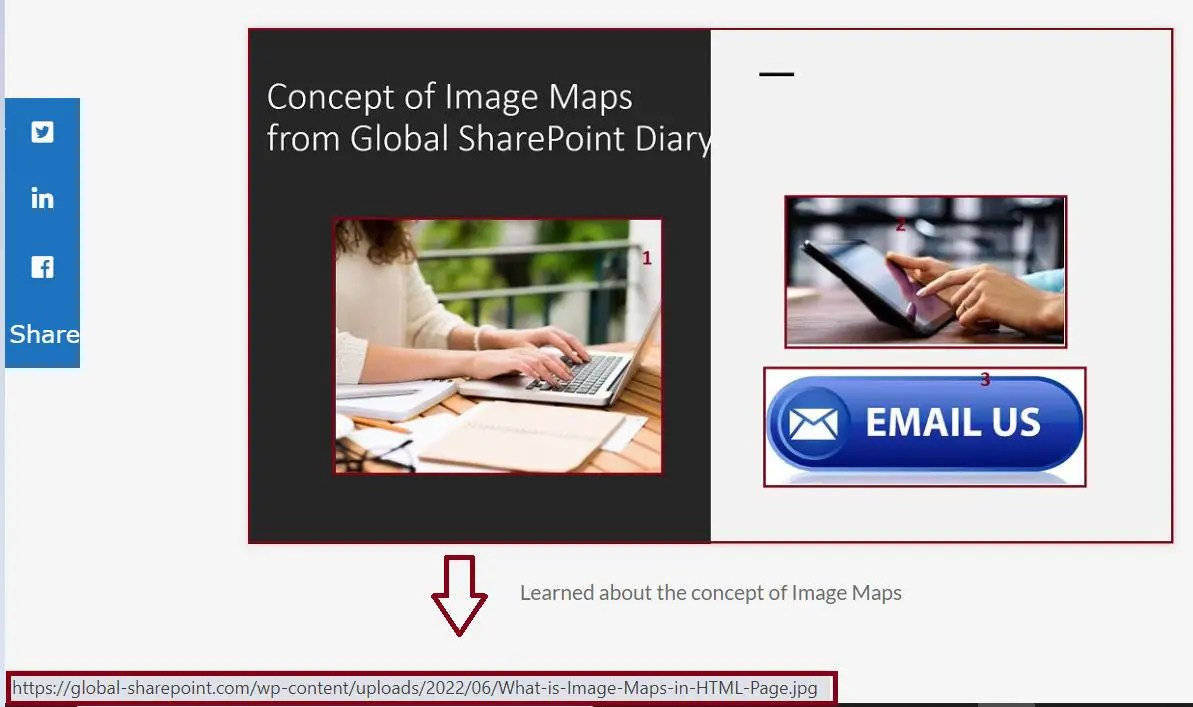
Now, let’s look at the below image which is different than the previous one – basically, it is the same image but we can click on the different regions of the image to navigate to different locations.
An image with the Image Maps
The below image has been customized with the Image Maps, we can click on the different three areas to navigate to the different locations.

For this demo, let’s hover over the first, second, and third selected image area so we can see the different navigation for the same image.
Image Map example with the rectangle area 1:
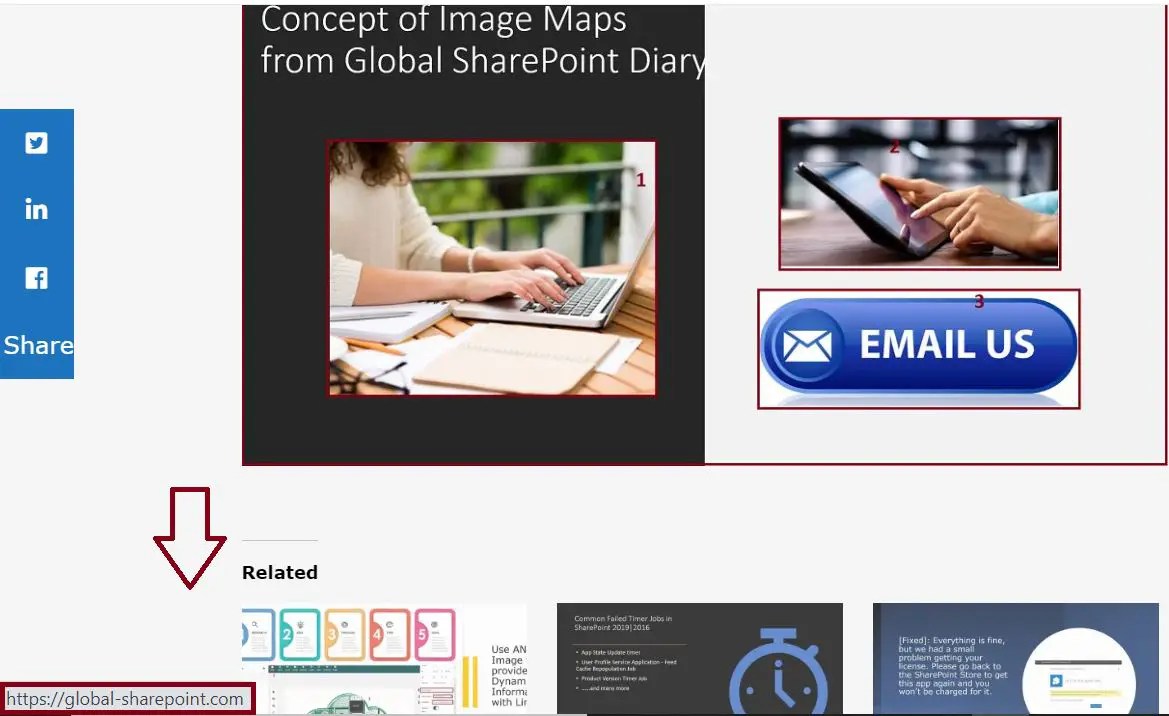
Image Map example with the rectangle area 2:
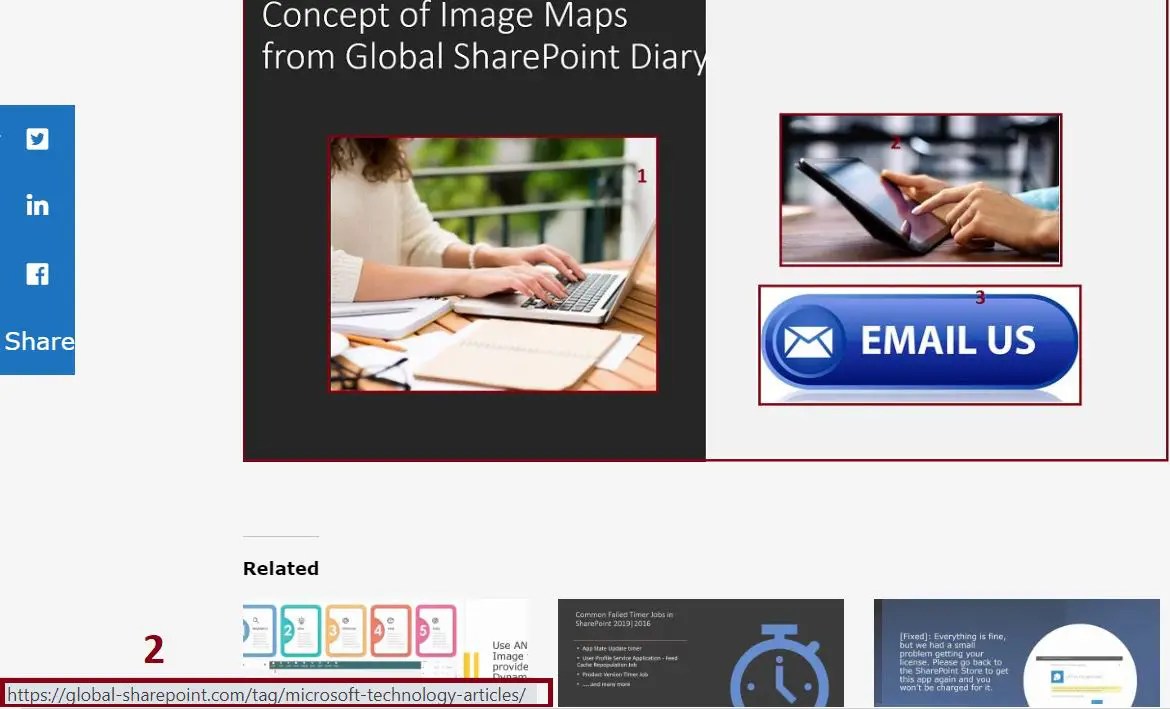
Image Map example with the circle area 3:

In the above three examples, we have seen that if we click on the different areas of the images we can navigate to the different locations from the same image – this is the basic concept of Image Imap on the HTML page.
How Image Map is implemented in the HTML?
Below is the code for the above the image Maps:
<img src="https://global-sharepoint.com/wp-content/uploads/2022/06/What-is-Image-Maps-in-HTML-Page.jpg" usemap="#image-map" />
<map name="image-map">
<area alt="Submit Article in Global SharePoint Diary" coords="34,44,270,350" shape="rect" href="https://global-sharepoint.com/" target="_blank" /> <area alt="Read Articles from Global SharePoint Diary" coords="290,192,333,250" shape="rect" href="https://global-sharepoint.com/tag/microsoft-technology-articles/" target="_blank" />
<area alt="Contact to Global SharePoint Diary" coords="337,300,44" shape="circle" href="https://global-sharepoint.com/contactemail/" target="_blank" /> </map>
Here the challenge is to find the exact “coords” for the rectangle, circle, or any other shapes.
Supported shapes for the Image Map in HTML
- rect – it defines a rectangular region of the selected image.
- circle – it defines a circular region of the selected image.
- poly – it defines a polygonal region of the selected image.
- default – it defines the entire region of the selected image.
Now, let’s move on to the Image Map implementation in SharePoint Online.
Image Map in SharePoint Online
The way we saw the Image Map implementation using the HTML coding we can very quickly create and display the multiple-image maps inside the SharePoint Online Page using the Image Map web part.
In this, there are two steps:
- Image Maps – Image Map builder
- Image Map – Image Map web part to display the image.
Using the Image Maps builder we can create multiple hotspot areas along with the navigation for the given image, then we can add that customized image to SharePoint Page using the Image Map web part.
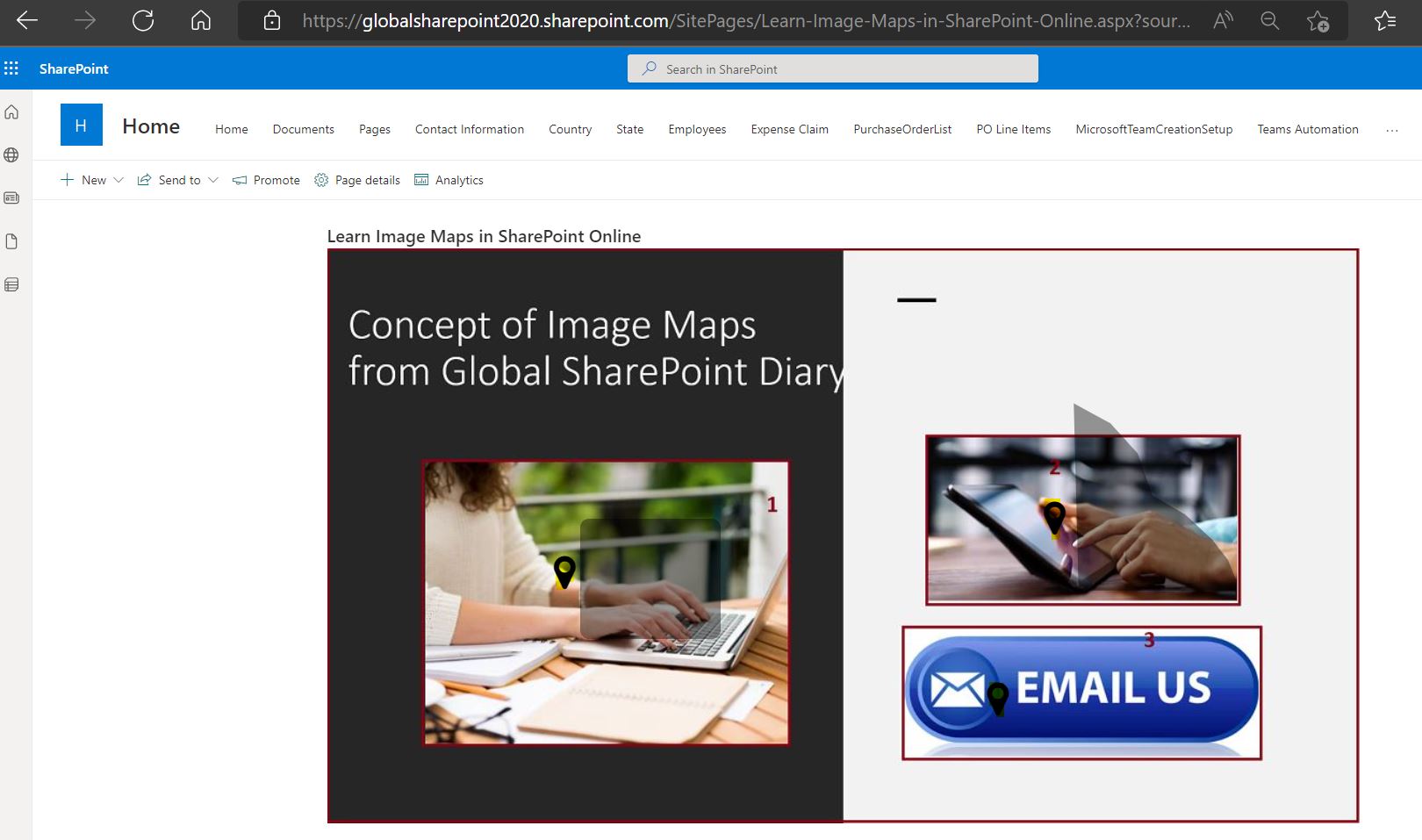
Demo – Image Maps in SharePoint Online Page
Note:
- In the above image, we can see three hotspots in the three different areas – each hotspot will navigate to a different link, and implement it, just taking a few clicks (which takes a couple of minutes time), in a real-time SharePoint world we can leverage the use of layout pages with the Image Maps modern solution (Image Map web part).
How Image Maps App and Image Map web part works in SharePoint Online Page, refer to our detailed article – Use ANY Image to provide Dynamic Information with Links.
Summary: What we have learned from this article
Image maps in HTML offer a versatile way to enhance interactivity and navigation within SharePoint Online sites. By understanding how to create and integrate image maps, SharePoint administrators and designers can provide users with a more engaging and user-friendly experience. Whether used for site navigation, interactive diagrams, or educational content, image maps are a valuable tool in the SharePoint toolkit.
Thus, in this article, we have learned the below with respect to Image Maps learning:
- What is Image Maps in HTML?
- What is Image Maps in SharePoint Online?
- How to use the Image Map web part in SharePoint Online?
- What is an image map used for?
- How to create an image map with clickable regions?
See Also
About Post Author
