

 By
By 
In this “How to get Tenant ID” article, we will learn how we can get a Tenant ID using the SharePoint Online App Principal (“appprincipals.aspx” ) page. Using the client ID and Client secret we can generate the Tenant ID from the postman tool – but that process is complicated, in this article In 4 steps access SharePoint online data using the postman tool has explained how we can generate Tenant ID using the postman tool.
Another easier way, we have explained how we can quickly get the Tenant ID from the Azure Portal and Azure PowerShell.
In this article, we will learn quicker than the previous two approaches how we can get the tenant ID from the SharePoint Online page itself step by step. In order to configure the app-only authentication, we must follow the below two steps. Before that, let’s understand what a tenant a tenant is in Microsoft 365.
What is Tenant in Microsoft 365?
In Microsoft 365, a tenant refers to a dedicated instance of the Microsoft 365 services that an organization subscribes to. A tenant is essentially the environment that encompasses all the organization’s users, settings, and resources, isolated and secure from other organizations’ tenants. Each tenant is identified by a unique domain and is managed independently.
Key Components of a Microsoft 365 Tenant
- Domain
- A unique domain name that identifies the organization within Microsoft 365 (e.g.,
yourcompany.onmicrosoft.com). - Custom domains (e.g.,
yourcompany.com) can be added and verified for use with email, SharePoint, and other services.
- A unique domain name that identifies the organization within Microsoft 365 (e.g.,
- Users and Groups
- All user accounts within the organization are managed in the tenant.
- Groups, including Microsoft 365 groups, security groups, and distribution lists, help organize users and manage permissions.
- Licenses and Subscriptions
- The tenant includes details of all the Microsoft 365 licenses and subscriptions the organization has purchased.
- Licenses are assigned to user accounts to provide access to services like Office 365, Exchange Online, SharePoint Online, and Teams.
- Admin Center
- A central management portal where administrators can manage users, licenses, billing, and service settings.
- Specialized admin centers are available for specific services, such as the Exchange admin center, SharePoint admin center, and Teams admin center.
- Service Settings
- Configuration settings for various Microsoft 365 services, including security and compliance, data governance, and service-specific settings (e.g., email settings for Exchange Online).
- Applications
- Access to a wide range of applications and services, such as Office apps (Word, Excel, PowerPoint), Exchange Online, SharePoint Online, OneDrive for Business, Microsoft Teams, and more.
Key Features and Benefits of a Microsoft 365 Tenant
- Isolation and Security
- Each tenant is isolated from others, ensuring data privacy and security.
- Organizations have full control over their data and how it is accessed and managed.
- Scalability
- Tenants can scale to accommodate organizations of all sizes, from small businesses to large enterprises.
- Easily add or remove users and adjust subscriptions as the organization grows or changes.
- Centralized Management
- The Microsoft 365 admin center provides a unified interface for managing all aspects of the tenant.
- Simplifies administrative tasks, such as adding users, assigning licenses, and configuring services.
- Integrated Services
- Seamless integration between various Microsoft 365 services, enhancing productivity and collaboration.
- Single sign-on (SSO) and identity management through Azure Active Directory (Azure AD).
- Compliance and Governance
- Built-in tools for compliance, data governance, and information protection.
- Features like eDiscovery, data loss prevention (DLP), and audit logs help organizations meet regulatory requirements.
Setting Up a Microsoft 365 Tenant
- Sign Up for Microsoft 365
- Visit the Microsoft 365 website and choose a subscription plan.
- Complete the sign-up process, which includes setting up the initial administrator account and domain.
- Configure the Tenant
- Access the Microsoft 365 admin center to configure settings, add users, and assign licenses.
- Verify custom domains if needed and configure DNS settings.
- Deploy and Manage Services
- Set up and configure key services like Exchange Online, SharePoint Online, and Microsoft Teams.
- Use the respective admin centers for detailed configuration and management.
- Implement Security and Compliance Policies
- Configure security settings, such as multi-factor authentication (MFA), conditional access, and threat protection.
- Set up compliance policies, data governance rules, and information protection measures.
A Microsoft 365 tenant is a foundational element for any organization using Microsoft 365 services. It provides a secure, isolated environment to manage users, resources, and applications, offering scalability, centralized management, and integrated services to enhance productivity and collaboration. Understanding and effectively managing your tenant is crucial for leveraging the full potential of Microsoft 365.
Step 1: Register your app on the SharePoint site
Go to this page:
"YourSharePointCollectionURL/_layouts/15/appregnew.aspx"
Example:
"globalsharepoint2020.sharepoint.com/sites/CustomSearchRND/_layouts/15/appregnew.aspx"

Click on the create button and Note down the above information:
The app identifier has been successfully created.
Client Id: c9a55e05-7b67-4873-97f3-1ce135121c35
Client Secret: 8T2E0dlaOZ4UuRH9bzKEvl8rB9YMQR7SmIIZhUAXDg0=
Title: Test App Registration
App Domain: localhost
Redirect URI: https://localhost
Step 2: Grant permission to your app – How to get Tenant ID
Go to this page:
"YourSharePointCollectionURL/_layouts/15/appinv.aspx"
Example:
"globalsharepoint2020.sharepoint.com/sites/CustomSearchRND/_layouts/15/appinv.aspx"
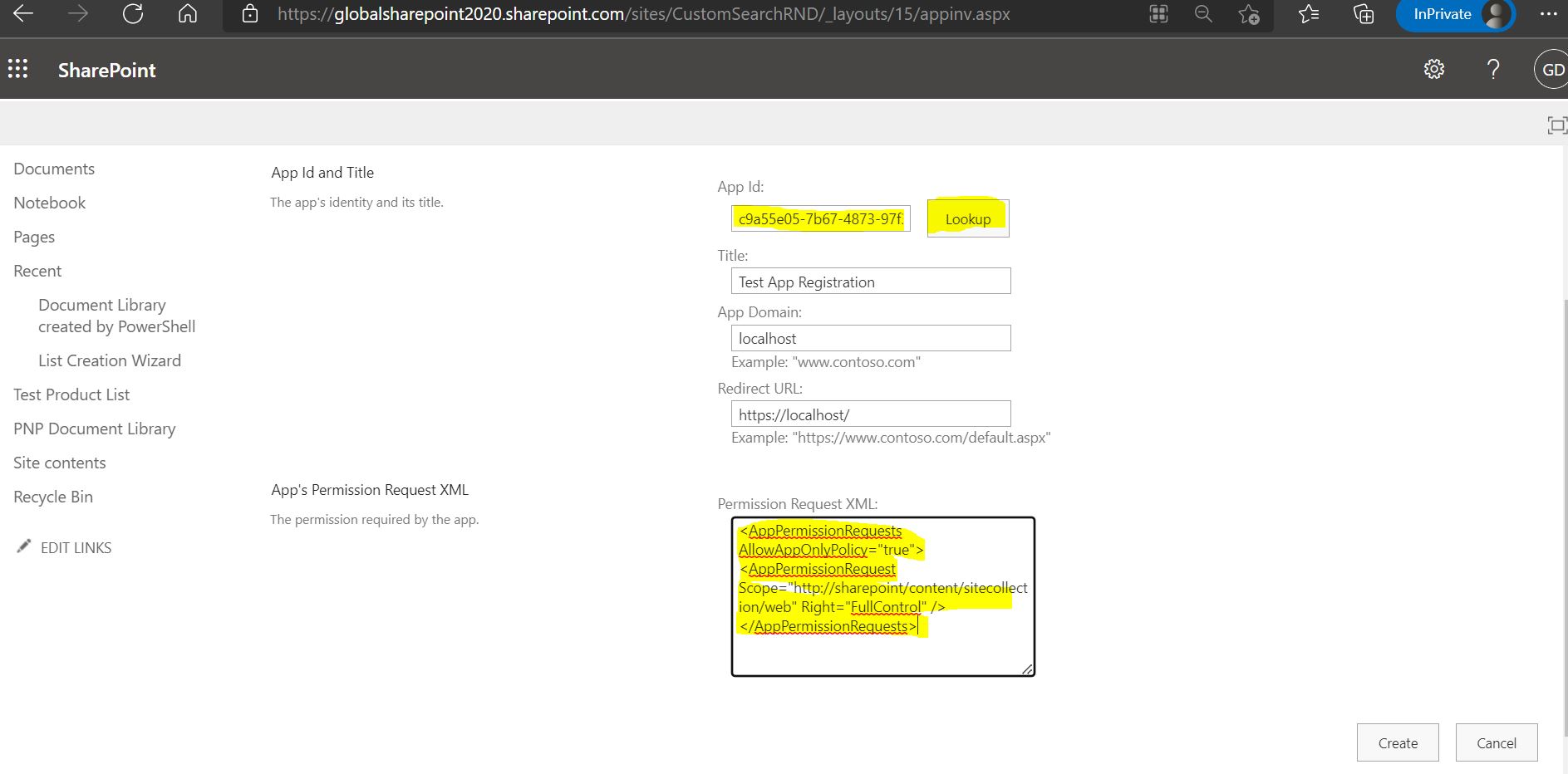
Permission Request XML for SharePoint Online AppEnter the Client ID noted from the previous step and click on the “Lookup” button.
Then, inside the permission request XML box enter the below XML:
<AppPermissionRequests AllowAppOnlyPolicy="true">
<AppPermissionRequest Scope="http://sharepoint/content/sitecollection/web" Right="FullControl" />
</AppPermissionRequests>
Then, click on the create button.
On the next, page we will get the below confirmation message:

Click on the Trust
Do you trust Test App Registration?

Let it have full control of this site.

Let it share its permissions with other users.

Let it access basic information about the users of this site.
Step 3: Get Tenant ID from SharePoint Online App Permissions Page (appprincipals.aspx)
Go to the page link :
"YourSharePointCollectionURL/_layouts/15/appprincipals.aspx"
Example:
"globalsharepoint2020.sharepoint.com/sites/CustomSearchRND/_layouts/15/appprincipals.aspx"

Here we can see the two pieces of information:
- App Display Name
- App Identifier
In-App, in the Identifier section, after the @ symbol, whatever we can see is, the Tenant ID, and before the @ symbol, is the client id.
Note:
- Generally, to get the Tenant ID, we use the above two steps 1 & 2 and pass the client id and client secret in the postman tool as a parameter (it has a certain process which is quite complicated).
Summary: How to Get Tenant ID
Thus, in this article, we have learned, how we can get a Tenant ID by using the SharePoint Online App Principals page (appprincipals.aspx).
See Also: Tenant ID Using Postman Tool
You may also read the below two articles, to get the Tenant ID using the postman tool, Azure Portal and Azure PowerShell:
- In 4 steps access SharePoint online data using postman tool
- How to get Tenant ID using Azure PowerShell?
- Find your Microsoft 365 tenant ID
Buy SharePoint Online eBook
Buy the premium version of SharePoint Online & Office 365 administration eBook from here:

About Post Author

Discover more from Global SharePoint
Subscribe to get the latest posts sent to your email.