

 By
By 
In this article, we will learn about how to use a custom data source for generative answers or how to create Generative Answers with Custom Data source. In my previous articles, I have shown what are generative answers and what are the various other data sources we can have inside the generative answers. In this article, I will show how to work with custom data, and that should be passed on to the generative answers node as a custom data source.
How to Use a Custom Data Source for Generative Answers?
In this section, I will explain how to use a custom data source for generative answers in Copilot Studio step by step.
Let’s understand this better, what I mean here. Below is my “Create generative answers” node, which I have added in my Copilot topic.
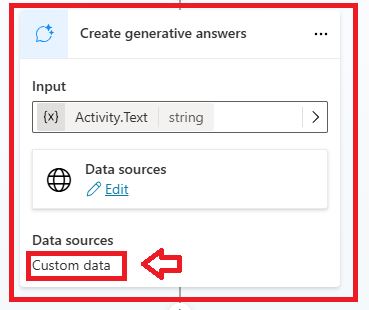
In this “Create generative answers” node, the data sources could be many, like a public web site, a SharePoint Online site, a SharePoint server site, a data verse, Power Automate connectors, and many more. You can find this whole list of data sources in this article: Overview of Knowledge Source in Copilot Studio – Detailed Analysis
Apart from the above data sources, we do have sources with the custom data; that custom data could be the output of your Power Automate flow, the output HTTP API call, or any table-formatted business data that comes from your programming languages. So, this is the concept of a custom data source in Copilot to create generative answers.
In the above screenshot, I have shown the custom data that came from the Power Automate flow. Now I will show we can use the custom data with the static text, and then I will show how to pass the dynamic data into the create generative answers node as custom data. So, let’s get started one by one.
Use Static Data in Create Generative Answers Node
To add the “Create Generative Answers” node, follow the below navigation:
Click on the add new node -> Advanced -> click on the Generative Answers.

To pass the activity text as input into the create generative answers node, follow the below navigation:
Click on the right arrow from the input box, then from the system menu, click on “Activity.text.”.

To configure the custom data source, follow the below steps.
Click on the “Data sources” edit link. Then expand the classic data menu.

Then configure the below JSON as shown below:
[

 {

  Content: "This is a sample piece of text that was provided for testing purposes, to be replaced with content of your choice",

  ContentLocation: "https://contoso.com/p1.htm",

  Title: "Contoso Sample"

 },

 {

  Content: "This is a second bit of sample text that can be replaced with content of your choice",

  ContentLocation: "https://fabrikam.com/p2.htm"

 },

 {

  Content: "This is a third bit of sample text that can be replaced with content of your choice",

  Title: "Adventure Works Cycles Sample"

 }

]

Then, my create generative answers node configuration will look like below:

Now, let’s test the “Create generative answers” node with the static custom data.
Create Generative Answers with Static Custom Data Demo
To test this Create Generative Answers with static custom data, I have just passed this text “Adventure Works Cycles Sample” in the chatbot, and the create generative answers node processed this text and answered it from the custom data source text.

Dynamic Custom Data in Create Generative Answers Copilot Studio
In this section, I will show how to pass dynamic data in the create generative answers node in Copilot Studio. Here I will pass the dynamic custom data output from Power Automate flow to the Copilot studio, where the Generative AI will frame an answer out of the output of the dynamic flow output.
Already I have created a flow for this; if you don’t know how to create and run flow from Copilot, I would recommend referring to this article: How to Create and Run a Flow from Copilot Studio Step by Step?
Here is my flow:

In this flow, I am just passing the below sample text inside the compose action.
[
{
Content: "This is a sample piece of text that was provided for testing purposes, to be replaced with content of your choice",
ContentLocation: "https://contoso.com/p1.htm",
Title: "Contoso Sample"
},
{
Content: "This is a second bit of sample text that can be replaced with content of your choice",
ContentLocation: "https://fabrikam.com/p2.htm"
},
{
Content: "This is a third bit of sample text that can be replaced with content of your choice",
Title: "Adventure Works Cycles Sample"
}
]

Then, parse the output of the compose action using the Parse JSON action.
Inside the Parse JSON action, passed the below schema, you can generate from sample JSON as well for the above JSON text.
{

    "type": "array",

    "items": {

        "type": "object",

        "properties": {

            "Content": {

                "type": "string"

            },

            "ContentLocation": {

                "type": "string"

            },

            "Title": {

                "type": "string"

            }

        },

        "required": [

            "Content"

        ]

    }

}
For the content parameter in Parse JSON, pass the output of the compose action.

Then in the “Respond to Copilot” action, create a text-type output variable something like “CustomProcessedData” and pass the “Body(‘Parse_JSON’) as an output value.

Respond to Copilot in Power Flow configurationNote:
- You must save the flow and publish it before you go to Copilot Studio to configure it.
That’s it. We are done with the flow creation part. Now let’s move on to Copilot and learn how to call and run this flow from Coplit Studio.
How to Run a Flow from Copilot Studio?
As shown in the below navigation, select your flow:

Note:
- In Copilot Studio, the flow will be treated as an action, and it should be added to a Copilot Topic.
After adding the flow action, this will look like below:

In the above, I have stored the output of the flow in a string variable named “varStrCustomProcessedData“.
Add a “Parse value” node from the “Variable Management” menu.
For the Parse value, pass the output variable flow action from the previous step. And create another variable (“VarTableParsedData”) to store the output of the “parse value” node; the data type should be table.

Click on the “Edit schema” pencil icon.
Then, enter the below schema:
kind: Table

properties:

  Content: String

  ContentLocation: String

  Title: String

Then, finally, add the Create Generative Answers node from the advanced menu, where in the “Input” box pass the “Activity.Text” from the “System” variable section.
Click on the “Edit data sources” link, go to the classic data, and there you will find a find a custom data box. There we need to pass the output of the “Parse value” (“VarTableParsedData”) node, which must be in table data type format.

That’s it. We are done with the Copilot Generative Answers node configuration. Now let’s test this copilot.
In the test chatbot panel, I have just typed this text, “Please give me the details of Adventure Works Cycles Sample,” and the copilot was immediately given the answer, which came from the Power Automate flow execution as an output.

Now, let’s see the flow run history or status.
Yes, it did run now.


Video Demo: How to Use a Custom Data Source for Generative Answers?
Below is the step-by-step demo of this above article:
Summary: Create Generative Answers with Custom Data source
Thus, in this article, we have learned how to create generative answers with data sources from the Power Automate flow output in Copilot Studio.
YouTube Video on Copilot Studio Full Tutorial End to End
A Complete Showdown on Copilot Learning, a best ever complete walkthrough on Copilot:
About Post Author
