

 By
By 
In this blog, we will learn about how to get Document Library ID and Document Library metadata using SharePoint API very quickly. The API is very simple to use. Before getting into the demo, let us understand what is document library in SharePoint Online.
What is Document Library in SharePoint Online?
Quickly get document library ID using SharePoint API (Document Library in SharePoint)
API Format:
https://yoursposite/_api/v2.1/drives
Example:
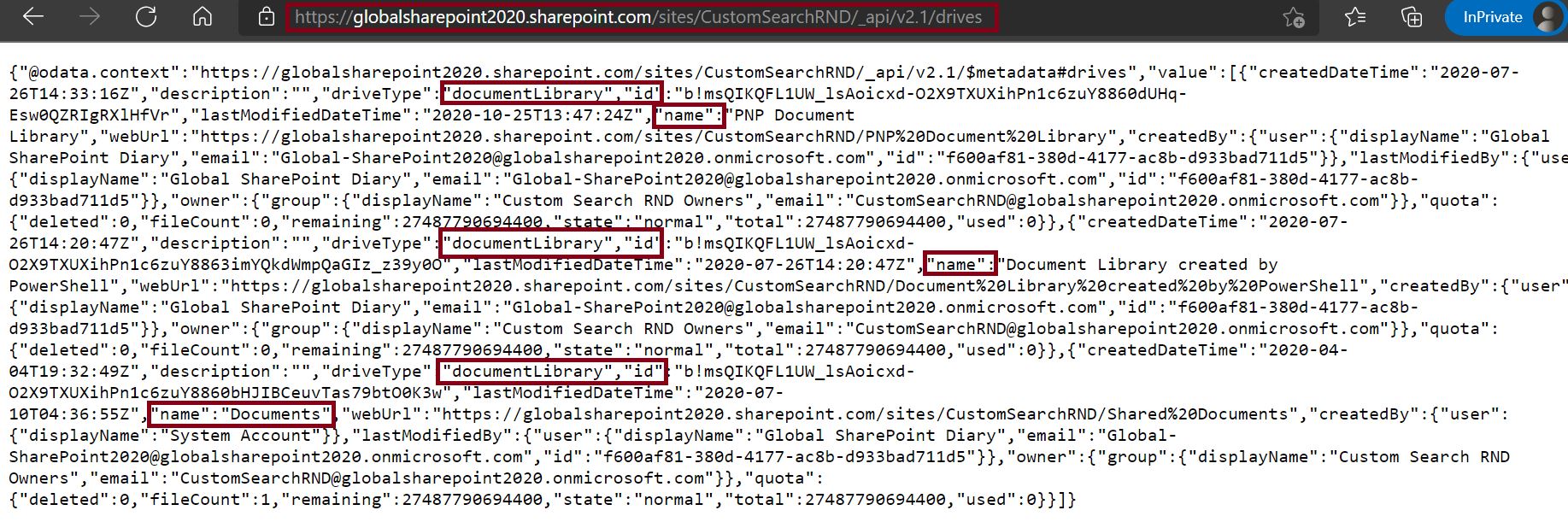
globalsharepoint2020.sharepoint.com/sites/CustomSearchRND/_api/v2.1/drives
The above API will return all custom document library metadata details from the given site.
{"@odata.context":"globalsharepoint2020.sharepoint.com/sites/CustomSearchRND/_api/v2.1/$metadata#drives","value":[{"createdDateTime":"2020-07-26T14:33:16Z","description":"","driveType":"documentLibrary","id":"b!msQIKQFL1UW_lsAoicxd-O2X9TXUXihPn1c6zuY8860dUHq-Esw0QZRIgRXlHfVr","lastModifiedDateTime":"2020-10-25T13:47:24Z","name":"PNP Document Library","webUrl":"globalsharepoint2020.sharepoint.com/sites/CustomSearchRND/PNP%20Document%20Library","createdBy":{"user":{"displayName":"Global SharePoint Diary","email":"Global-SharePoint2020@globalsharepoint2020.onmicrosoft.com","id":"f600af81-380d-4177-ac8b-d933bad711d5"}},"lastModifiedBy":{"user":{"displayName":"Global SharePoint Diary","email":"Global-SharePoint2020@globalsharepoint2020.onmicrosoft.com","id":"f600af81-380d-4177-ac8b-d933bad711d5"}},"owner":{"group":{"displayName":"Custom Search RND Owners","email":"CustomSearchRND@globalsharepoint2020.onmicrosoft.com"}},"quota":{"deleted":0,"fileCount":0,"remaining":27487790694400,"state":"normal","total":27487790694400,"used":0}},{"createdDateTime":"2020-07-26T14:20:47Z","description":"","driveType":"documentLibrary","id":"b!msQIKQFL1UW_lsAoicxd-O2X9TXUXihPn1c6zuY8863imYQkdWmpQaGIz_z39y0O","lastModifiedDateTime":"2020-07-26T14:20:47Z","name":"Document Library created by PowerShell","webUrl":"globalsharepoint2020.sharepoint.com/sites/CustomSearchRND/Document%20Library%20created%20by%20PowerShell","createdBy":{"user":{"displayName":"Global SharePoint Diary","email":"Global-SharePoint2020@globalsharepoint2020.onmicrosoft.com","id":"f600af81-380d-4177-ac8b-d933bad711d5"}},"owner":{"group":{"displayName":"Custom Search RND Owners","email":"CustomSearchRND@globalsharepoint2020.onmicrosoft.com"}},"quota":{"deleted":0,"fileCount":0,"remaining":27487790694400,"state":"normal","total":27487790694400,"used":0}},{"createdDateTime":"2020-04-04T19:32:49Z","description":"","driveType":"documentLibrary","id":"b!msQIKQFL1UW_lsAoicxd-O2X9TXUXihPn1c6zuY8860bHJIBCeuvTas79btO0K3w","lastModifiedDateTime":"2020-07-10T04:36:55Z","name":"Documents","webUrl":"globalsharepoint2020.sharepoint.com/sites/CustomSearchRND/Shared%20Documents","createdBy":{"user":{"displayName":"System Account"}},"lastModifiedBy":{"user":{"displayName":"Global SharePoint Diary","email":"Global-SharePoint2020@globalsharepoint2020.onmicrosoft.com","id":"f600af81-380d-4177-ac8b-d933bad711d5"}},"owner":{"group":{"displayName":"Custom Search RND Owners","email":"CustomSearchRND@globalsharepoint2020.onmicrosoft.com"}},"quota":{"deleted":0,"fileCount":1,"remaining":27487790694400,"state":"normal","total":27487790694400,"used":0}}]}
If we use the below API (just removing the ‘s’ from ‘drives’), we will get only the default out-of-the-box document library (“Documents”) metadata details.
https://yoursposite/_api/v2.1/drive
Example:
globalsharepoint2020.sharepoint.com/sites/CustomSearchRND/_api/v2.1/drive
{"@odata.context":"globalsharepoint2020.sharepoint.com/sites/CustomSearchRND/_api/v2.1/$metadata#drives/$entity","createdDateTime":"2020-04-04T19:32:49Z","description":"","driveType":"documentLibrary","id":"b!msQIKQFL1UW_lsAoicxd-O2X9TXUXihPn1c6zuY8860bHJIBCeuvTas79btO0K3w","lastModifiedDateTime":"2020-07-10T04:36:55Z","name":"Documents","webUrl":"globalsharepoint2020.sharepoint.com/sites/CustomSearchRND/Shared%20Documents","createdBy":{"user":{"displayName":"System Account"}},"lastModifiedBy":{"user":{"displayName":"Global SharePoint Diary","email":"Global-SharePoint2020@globalsharepoint2020.onmicrosoft.com","id":"f600af81-380d-4177-ac8b-d933bad711d5"}},"owner":{"group":{"displayName":"Custom Search RND Owners","email":"CustomSearchRND@globalsharepoint2020.onmicrosoft.com"}},"quota":{"deleted":0,"fileCount":1,"remaining":27487785303593,"state":"normal","total":27487790694400,"used":5390807}}

Get Document library metadata details using SharePoint API
Get Document library GUID ID from the document library settings page in SharePoint (Document library id SharePoint)
Another way, without the API we can get the document library GUID ID, from the document library settings page in SharePoint. Once we open the document library settings page, we can see the below URL where after “?List=” is the GUID ID of the document library but that comes in decoded format, we need to encode it.
globalsharepoint2020.sharepoint.com/sites/CustomSearchRND/_layouts/15/listedit.aspx?List=%7Bbe7a501d-cc12-4134-9448-8115e51df56b%7D
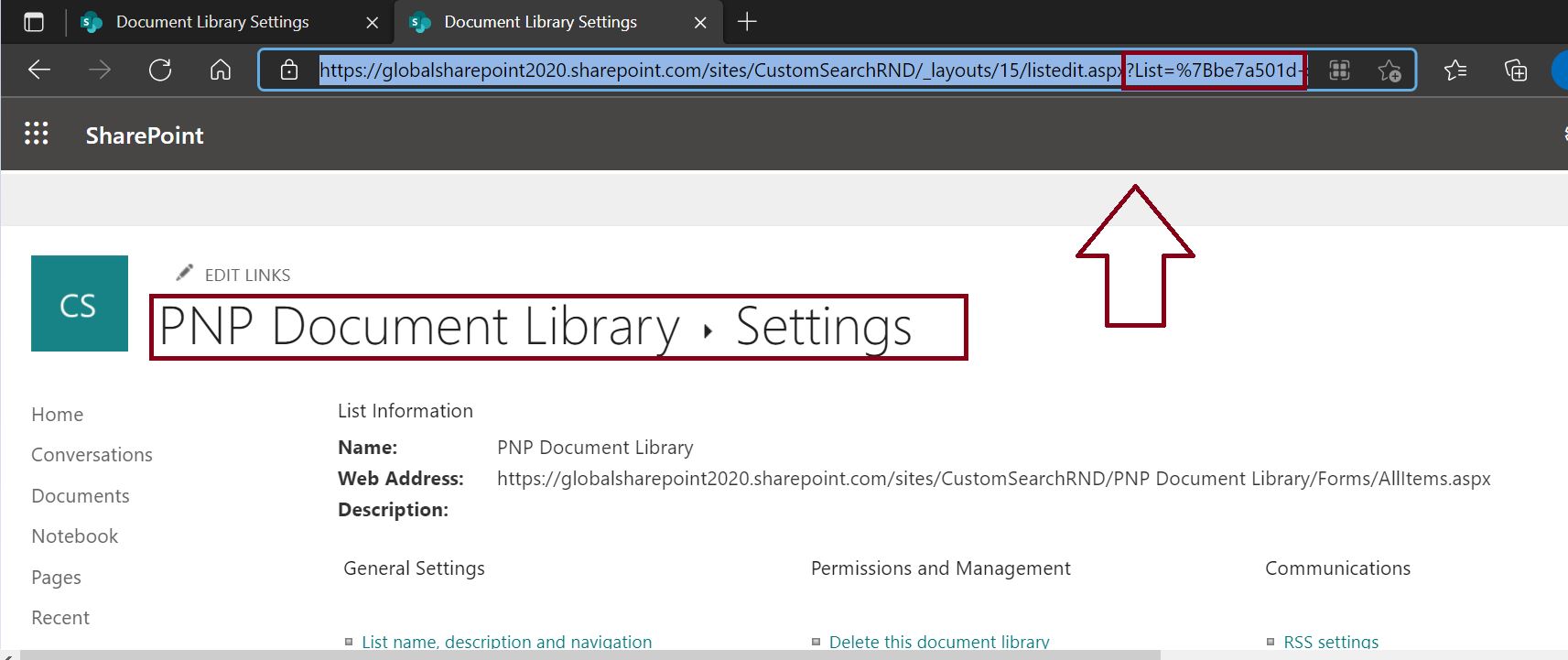
Now, using the URL Decode Online tool, we can decode the above-highlighted text which is nothing but the GUID ID of the document library.

Note:
- After decoding, whatever we can see inside the curly bracket is the GUID ID of the document library.
Summary: Get Document Library ID SharePoint
Thus, in this blog, we have learned the below with respect to SharePoint document library API:
- How to get document library GUID ID using the SharePoint Online API?
- How to get document library metadata details using the SharePoint Online API?
Reference: Document library in SharePoint
For more more on Microsoft Graph REST API refer to the below Microsoft Article:
Read Also: SharePoint Online Tutorials
You may also like the below SharePoint Online Tutorials:
- PowerApps hide show fields
- Conditionally show or hide columns in a SharePoint list
- SharePoint Online conditional row formatting based on a LOOKUP column value using JSON
- Power Automate[Detailed]: set item level permissions in SharePoint online step by step with HTTP request
- Show or hide columns in a list or library form
About Post Author
