

 By
By 
In this “Microsoft Loop App” article, we will learn about what is a Microsoft Loop App, how to access the Loop app, and how to get started with the Microsoft Loop app. In the demo, I will show how to use this loop app to create pages, ideas, components, etc.
Introduction
In the ever-evolving landscape of digital workplaces, the demand for efficient, integrated tools that foster collaboration and enhance productivity is at an all-time high. Microsoft, a leader in the tech industry, has responded to this demand with the launch of the Microsoft Loop app, a tool designed to revolutionize the way teams work together. In this article, we will explore what Microsoft Loop is, delve into its key features, and discuss its benefits, use cases, and potential challenges, providing a comprehensive guide for those looking to incorporate this innovative tool into their workflow.
What is Microsoft Loop?
Microsoft Loop is a collaborative workspace app that integrates seamlessly with the Microsoft 365 ecosystem. At its core, Loop is designed to facilitate real-time collaboration, enabling teams to work together more efficiently by allowing them to create, share, and manage dynamic content across various Microsoft applications. Whether you’re working in Teams, Outlook, Word, or other Microsoft 365 apps, Loop components ensure that your content remains consistent, up-to-date, and accessible to all team members.
The concept of Microsoft Loop is built around the idea of “components” – modular pieces of content that can be embedded and updated in multiple locations simultaneously. This dynamic and fluid approach to content creation and management sets Loop apart from traditional document-based tools, positioning it as a direct competitor to popular collaboration platforms like Notion, Asana, and Trello.
Unlike these tools, Microsoft Loop is not just a standalone app but an integrated part of the Microsoft 365 environment, making it easier for organizations already using Microsoft products to adopt and benefit from its features.
Key Features of Microsoft Loop
Microsoft Loop is packed with features designed to enhance collaboration and streamline workflow management. Here, we’ll explore its key features in detail:
Loop Components
At the heart of Microsoft Loop are its components—dynamic, shareable elements that can be updated in real-time across various Microsoft 365 apps. These components could be as simple as a task list, a table, or even a paragraph of text. The real power of Loop Components lies in their ability to remain synchronized across different platforms. For example, if a task list component is embedded in both a Teams chat and an Outlook email, any updates made in one location will automatically reflect in the other. This ensures that all team members are always on the same page, regardless of where they access the content.
This feature is particularly useful for teams working in a fast-paced environment where information changes frequently. It eliminates the need for manual updates across multiple platforms, reducing the risk of errors and saving valuable time.
Loop Pages
Loop Pages serve as flexible canvases where teams can organize and share their thoughts, ideas, and content. Unlike traditional documents, Loop Pages are not confined to a linear structure. Instead, they allow for the free arrangement of various Loop Components and other content types, making them ideal for brainstorming sessions, project planning, and collaborative editing.
For instance, a Loop Page could start as a simple idea board during a brainstorming session and gradually evolve into a detailed project plan with embedded task lists, timelines, and notes. The ability to add and rearrange content dynamically allows teams to adapt the page to their evolving needs, making Loop Pages a versatile tool for a wide range of use cases.
Loop Workspaces
Loop Workspaces are shared spaces where teams can group and organize their Loop Pages and Components. Workspaces provide an overview of everything related to a specific project or initiative, allowing team members to track progress, share updates, and collaborate more effectively. This feature is particularly beneficial for large projects that involve multiple teams or departments, as it centralizes all related content and ensures that everyone has access to the information they need.
The integration of Loop Workspaces with other Microsoft services, such as Teams and SharePoint, further enhances its utility. For example, a project workspace could be linked to a corresponding Teams channel, allowing team members to discuss the project, share files, and update Loop Components without leaving the Teams environment.
Benefits of Microsoft Loop
Microsoft Loop offers several key benefits that can significantly improve team collaboration and productivity:
Enhanced Collaboration and Real-Time Editing
One of the most significant advantages of Microsoft Loop is its ability to facilitate real-time collaboration. Whether your team is working on a document, a project plan, or a simple task list, Loop ensures that everyone can contribute simultaneously, with all changes visible to others in real-time. This reduces the friction often associated with traditional collaboration methods, where multiple versions of a document may be circulated, leading to confusion and inefficiencies.
Seamless Integration with Microsoft 365
Another major benefit of Microsoft Loop is its seamless integration with the Microsoft 365 ecosystem. For organizations already using tools like Teams, Outlook, and SharePoint, adopting Loop is a natural progression. The app’s components work across these platforms, ensuring that content remains consistent and accessible, no matter where it is created or viewed. This integration also means that Loop can easily fit into existing workflows, minimizing the learning curve for teams.
Improved Productivity and Flexibility for Remote Teams
In a world where remote and hybrid work models are becoming the norm, tools like Microsoft Loop are invaluable. The app’s ability to provide a centralized platform for collaboration, combined with its real-time editing features, ensures that remote teams can work together just as effectively as if they were in the same room. This flexibility not only boosts productivity but also fosters a more inclusive work environment, where team members can contribute regardless of their location.
How to Get Started with Microsoft Loop
Getting started with Microsoft Loop is straightforward, especially for users familiar with Microsoft 365 apps. Here’s a step-by-step guide to help you set up your first workspace and start leveraging Loop’s powerful features:
Step 1: Accessing Microsoft Loop
To begin using Microsoft Loop, you’ll first need to access the app through your Microsoft 365 account. Loop is typically available via the Office app launcher, where you’ll find it alongside other Microsoft 365 tools like Teams and Outlook.
Step 2: Creating a Loop Workspace
Once you’re in the Loop app, the first step is to create a workspace. Workspaces are central to organizing your projects, allowing you to group related pages and components together. To create a workspace, simply click on the ‘New Workspace’ button, name your workspace, and start adding relevant Loop Pages and Components.
Step 3: Adding Loop Pages and Components
After setting up your workspace, you can start creating Loop Pages and adding Components. Loop Pages can be created from scratch or based on templates, depending on your needs. To add Components, simply drag and drop them onto your page, and start customizing them to fit your project requirements.
Step 4: Integrating with Other Microsoft 365 Tools
One of the most powerful aspects of Microsoft Loop is its integration with other Microsoft 365 tools. To fully leverage this, consider how you can incorporate Loop into your existing workflows. For example, you might want to embed Loop Components into Teams chats or Outlook emails to keep everyone updated.
Best Practices for Maximizing Loop’s Potential
To get the most out of Microsoft Loop, it’s important to establish some best practices:
- Encourage consistent use: Ensure all team members are using Loop consistently to keep information centralized and up-to-date.
- Leverage templates: Use Loop’s templates for common tasks like meeting notes or project planning to save time and maintain consistency.
- Regularly update and review workspaces: Make it a habit to regularly update and review your Loop Workspaces to keep projects on track.
Use Cases and Success Stories
Microsoft Loop is already making waves across various industries, offering teams a powerful tool to enhance their collaboration efforts. Let’s explore some use cases and success stories:
Use Case 1: Project Management in Tech Companies
Tech companies, known for their fast-paced environments, can greatly benefit from Loop’s real-time collaboration features. For instance, a product development team might use Loop to manage the entire lifecycle of a new software release. From brainstorming features to tracking progress and collecting feedback, Loop can serve as a central hub, ensuring everyone stays aligned.
Use Case 2: Marketing Campaigns in Advertising Agencies
Advertising agencies often juggle multiple campaigns simultaneously, requiring seamless coordination among creative teams, account managers, and clients. Microsoft Loop can streamline this process by providing a shared workspace where all campaign-related content, from creative briefs to timelines and task lists, can be managed collaboratively.
Success Story: A Multinational Corporation’s Adoption of Microsoft Loop
A global manufacturing company recently adopted Microsoft Loop to improve its cross-functional team collaboration. Before Loop, the company struggled with siloed communication and inefficient project management across its international offices. By integrating Loop into their Microsoft 365 environment, the company was able to centralize project documentation, reduce email clutter, and enhance real-time collaboration among its teams, resulting in a 20% increase in project delivery speed.
Challenges and Considerations
While Microsoft Loop offers many advantages, it’s not without its challenges. Some users may find the app’s dynamic nature overwhelming at first, especially if they are accustomed to more traditional document-based tools. Additionally, while Loop’s integration with Microsoft 365 is a strength, it also means that organizations heavily invested in other ecosystems (like Google Workspace) may find it less appealing.
There are also considerations around data security and compliance, particularly for industries that handle sensitive information. As with any collaboration tool, it’s important to ensure that your organization’s data policies are compatible with Loop’s features and integrations.
Finally, as Microsoft Loop continues to evolve, users should stay informed about new updates and features that could impact their workflows. Being proactive in adapting to these changes will be key to maximizing the app’s potential.
Demo: Microsoft Loop App: Detailed Step-by-Step Walkthrough
Let’s follow the below section for the demo.
How Do I Access the Microsoft Loop app?
Click on the Microsoft 365 app launcher from any of your Microsoft 365 apps where you are, then click on the “Loop” app; if you don’t see it, you search from the “Find Microsoft 365 apps” search box. Or, directly, you can access it using the Loop URL: https://loop.cloud.microsoft , you need to login in Loop using your Microsoft 365 account.

In the loop home page, basically we can see three sections:
- Workspace: The default workspace is “Getting Started.”.
- Recent components and pages
- Ideas

How Do I Use the Microsoft Loop app? A Detailed Walkthrough
In this section, we will learn how to use Microsoft Loop app.
Workspaces
A workspace in the Microsoft Loop app is a shared digital environment where teams can organize and collaborate on all aspects of a project. It acts as a central hub, grouping together related Loop Pages and Components, making it easier for team members to access, update, and track the progress of their work in real-time. Workspaces are designed to streamline collaboration by providing a unified view of all project-related content, ensuring that everyone involved has the information they need in one easily accessible place. This feature is particularly useful for managing complex projects that involve multiple teams or departments.
Once you click on the default workspace, it will take you to the workspace screen:
From where you can share your workspace with your colleagues, you can see the various ways to share your workspace.

Click on the three dots from the right topmost corner to see the various setting options, as shown below, like shared location, rename and style, print & PDF export, version history, recap, delete, and many more.

To create a new workspace, click on the “+ New workspace” link.

In the next screen, enter the name of your workspace.
Here you can invite members to this workspace, or you can skip for now and do it later.

Click on the “Continue” button.
Describe your workspace and the need for it.

Click on the “Create” button.
The new workspace has been created successfully with an untitled page. You need to name your page.
Then, you can add the cover to this page. You can select any templates shown below for your requirement, as shown below:

New workspace created successfully in Loop
Next, I am going to explain about pages in the Loop workspace.
What is a page-in-loop app workspace?
A page in a Microsoft Loop workspace is a flexible canvas where teams can create, organize, and collaborate on various types of content related to their projects. Unlike traditional documents, Loop Pages are dynamic and can host a variety of Loop Components, such as task lists, tables, or text, which can be rearranged and updated in real-time.
These pages are designed to evolve with the project, allowing users to add and modify content as needed, making them ideal for brainstorming, planning, and documenting ideas. Loop Pages are essential for structuring and visualizing the workflow within a workspace, enabling more effective team collaboration and communication.
How to create a page in loop app workspace?
To create a page, click on the “+” icon from your workspace, then click on the “New page.”

You can even add a new link, which could be an external website.
Once you click on the “New Page” create link, your untitled page will be created. From there, you can select any of the templates, or you can design your page by yourself, like by adding a cover, an icon, etc.

In this demo, I have selected the “Meeting Notes” template where you can maintain meeting details.
Next, I will move on to the component in the Microsoft Loop App workspace.
What is component in Microsoft Loop app?
A component in the Microsoft Loop app is a dynamic, modular piece of content that can be created, shared, and updated across different Microsoft 365 apps like Teams, Outlook, and Word. These components can take various forms, such as task lists, tables, or text blocks, and they are designed to stay synchronized no matter where they are used.
For example, if a task list component is embedded in both a Teams chat and an Outlook email, any changes made in one location will automatically update in the other. This real-time synchronization ensures that all team members have access to the most current information, making components a powerful tool for enhancing collaboration and productivity across multiple platforms.
How to create a component in Loop?
From your loop app, click on the “Ideas,” then click on the “+” icon.

Then, like pages, an untitled idea will be created. From there, you can select any of the templates, or you can design your idea by yourself, like by adding a cover, an icon, etc.

In this demo, I have used the “Team Decision” template where you and your team can maintain team discussion-related stuff about the ideas.
You can add this idea to your workspace as well. Click on the “Add to workspace” link, then select your workspace where you want to add this idea.

My idea page has been added to my Loop workspace.

Click on the “Create Loop Component” link to create a component from your idea.
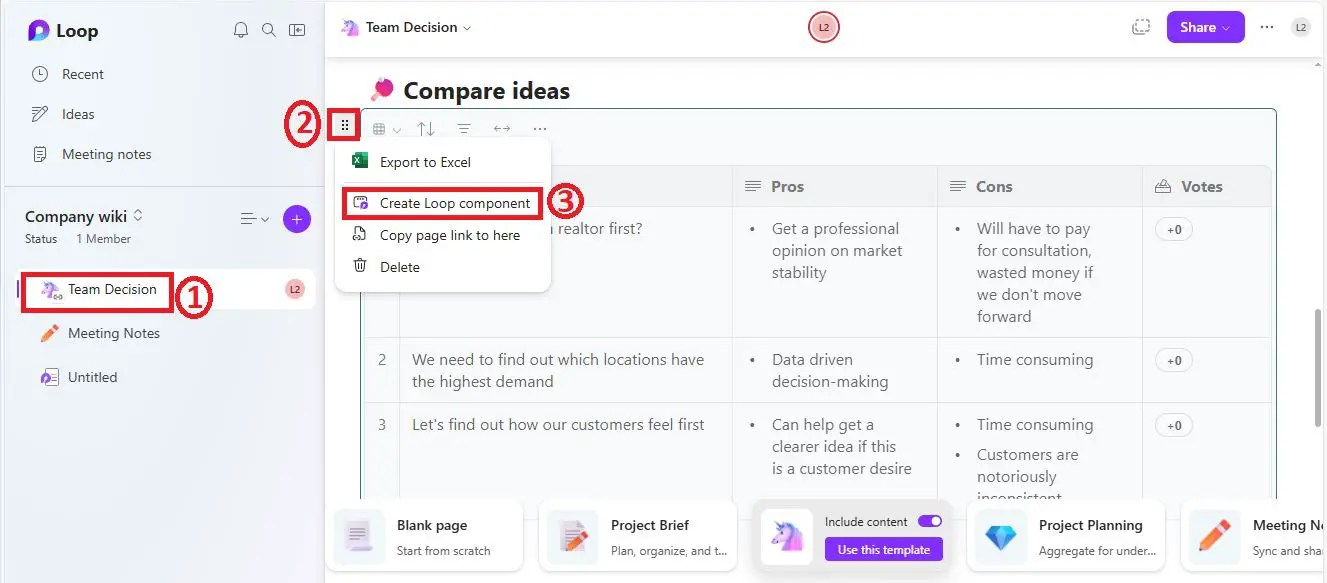
Below is my loop component that has been created.

You can click on the “Copy component” link to copy your component.

Notes:
- Once you copy your component, you can paste this component in your Outlook.
- Then, if you or your colleagues who receive this component email, the changes what they do in the email, that will be synced automatically in this Loop component. This is really an awesome feature.
- You can share this component with other users or your team mates.
- You can add a new item to the component or delete and update an existing item from this component table.
Conclusion
Thus, in this article, we have learnt what is Loop App in Microsoft 365, how to access Loop App, and how to get started with Loop App, like creating workspaces, pages, components, etc.
Microsoft Loop is poised to be a game-changer in the realm of collaboration and productivity. With its dynamic components, flexible pages, and integrated workspaces, Loop offers a powerful solution for teams looking to enhance their collaboration efforts in a digital-first world. Whether you’re managing a complex project, brainstorming new ideas, or simply keeping your team aligned, Microsoft Loop provides the tools you need to succeed.
As organizations continue to navigate the challenges of remote and hybrid work, the adoption of tools like Microsoft Loop will likely become increasingly important. By integrating Loop into your workflow, you can unlock new levels of efficiency, creativity, and collaboration, ensuring your team stays ahead in today’s competitive business landscape.
YouTube Video Demo: Microsoft Loop App
See Also
You may also like the below article:
About Post Author
