

 By
By 
In this “Create Generative Answers with HTTP Request” article, we will learn how to pass HTTP Request API call Output to Create Generative Answers in Copilot Studio. In today’s fast-paced digital world, leveraging AI to create intelligent and dynamic responses is becoming increasingly important. Microsoft Copilot Studio, with its robust capabilities, provides a platform for integrating various data sources to enhance AI-driven interactions.
One of the most powerful features in Copilot Studio is the ability to use HTTP requests to fetch data from external APIs and utilize that data to create generative answers. This article will guide you through the process of passing HTTP request output to generate responses in Copilot Studio. We’ll explore how to configure HTTP requests, handle the data, and seamlessly integrate the output into generative answers.
Setting Up HTTP Requests in Copilot Studio
First, let us understand what an HTTP request is in Copilot Studio and what it offers.
Understanding HTTP Requests
HTTP requests are the foundation of web communication, allowing applications to interact with external APIs to fetch or send data. In Copilot Studio, you can configure HTTP requests to access data from third-party services, databases, or internal systems.
Creating a New HTTP Request Action
To start, navigate to the “Data” or “Connections” section in Copilot Studio. Here, you can create a new HTTP request action. This action will be responsible for calling the external API and retrieving the necessary data.
Configuring the HTTP Request
- Endpoint URL: Enter the API endpoint URL. For example, if you’re fetching user data from an external service, the URL might look like
https://api.example.com/users. - HTTP Method: Choose the appropriate HTTP method (GET, POST, PUT, DELETE) based on the API’s requirements. For fetching data, GET is commonly used. I would recommend referring to this article for more understanding about the HTTP method: SharePoint Online REST API: GET vs POST vs PUT vs DELETE vs PATCH
- Headers: Add necessary headers, including authentication keys. For example, if your API requires an API key, you might include a header like
Ocp-Apim-Subscription-Key: YOUR_API_KEY. - Query Parameters: If the API requires query parameters, such as filters or search criteria, you can add them here. This allows you to customize the data retrieval based on specific conditions.
Testing the HTTP Request
Before integrating the output, it’s essential to test the HTTP request. Copilot Studio provides testing tools to send a sample request and view the response. This step ensures that the configuration is correct and that you’re receiving the expected data.
Processing HTTP Request Output
Let’s understand how HTTP requests are processed in Copilot:
Parsing the Response
Once the HTTP request is configured and tested, the next step is to parse the response. The response from the API is usually in JSON format, containing various data fields. Copilot Studio allows you to extract specific data from the response and store it in variables.
For example, if the response includes user information, you might extract fields like name, email, and phone and store them in corresponding variables.
Handling Different Data Types
When processing the response, it’s crucial to handle different data types appropriately. For instance, if the response contains nested JSON objects, you may need to navigate through these objects to extract the desired data.
Consider a response that includes a nested address object:
json
{

"id": 1,

"name": "Leanne Graham",

"address": {

"street": "Kulas Light",

"city": "Gwenborough"

}

}
To access the street and city, you would reference address.street and address.city respectively.
Error Handling
Error handling is a critical aspect of working with HTTP requests. APIs can fail for various reasons, such as invalid authentication, network issues, or server errors. Implementing robust error handling ensures that your application can gracefully handle these scenarios and provide meaningful feedback to users.
Creating Generative Answers in Copilot Studio
In this section, we will understand about the Create Generative Answers in Copilot Studio.
Introduction to Generative Answers
Generative answers refer to responses generated dynamically based on the input data. In Copilot Studio, you can use the output from HTTP requests to create intelligent and context-aware responses.
Integrating Data into Generative Answers
To integrate the HTTP request output into generative answers, you need to map the data to the response template. For instance, if you fetched user data, you could create a template that generates a personalized greeting:
csharp
Hello {name}, your email is {email} and your phone number is {phone}.
Here, {name}, {email}, and {phone} are placeholders that will be replaced with the actual data from the HTTP response.
Using Variables and Placeholders
Copilot Studio allows you to define variables and placeholders that can be dynamically populated with data. This feature is especially useful for creating personalized responses based on real-time data. For example, if you’re building a customer support bot, you could use variables to include the user’s name and account details in the responses.
Advanced Customization
For more advanced scenarios, you can customize the response generation logic. This might include conditional statements, loops, or even custom functions to manipulate the data before generating the response. For example, you might want to format dates or numbers in a specific way or apply business logic to filter the data.
Best Practices for Creating Generative Answers
Following are the best practices while you work on the generative answers in Copilot:
Focus on Clarity and Relevance
When creating generative answers, it’s essential to focus on clarity and relevance. The responses should be easy to understand and directly address the user’s query. Avoid overwhelming the user with unnecessary information.
Maintain Consistency in Responses
Consistency is key to providing a seamless user experience. Ensure that the responses follow a consistent format and tone. This helps build trust with the users and enhances the overall experience.
Handle Edge Cases Gracefully
In real-world applications, there will always be edge cases or unexpected scenarios. It’s crucial to account for these situations and handle them gracefully. For example, if the API response is empty or contains an error, provide a helpful message to the user.
Test and Iterate
Testing is an integral part of developing generative answers. Continuously test the responses in various scenarios to ensure they are accurate and relevant. Gather feedback from users and iterate on the design to improve the quality of the responses.
Demo: How to Create Generative Answers with HTTP Request in Copilot Studio?
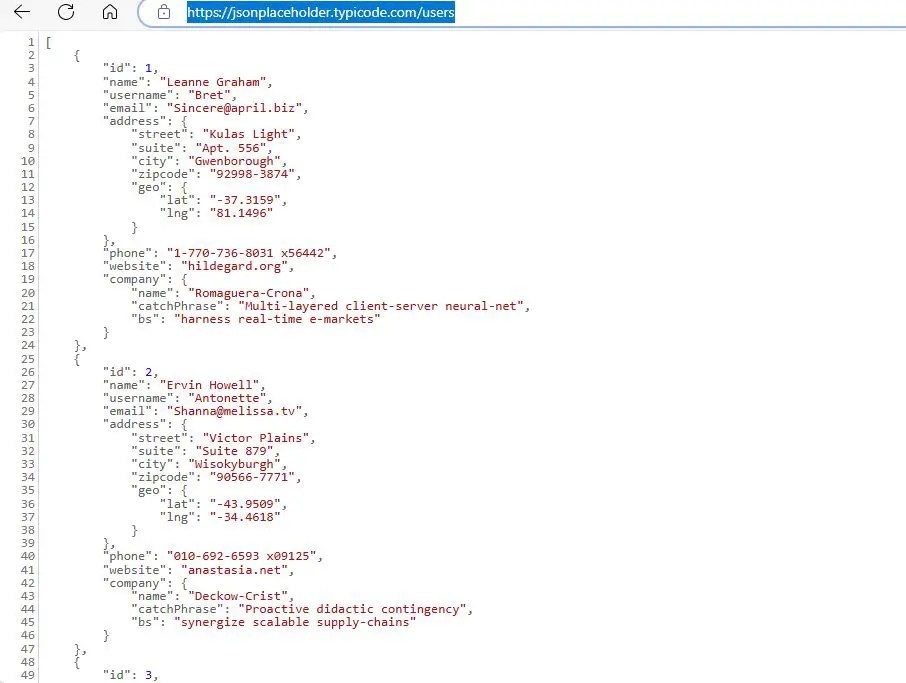
Before getting into the demo, you must have a sample API ready. Below is my sample API, which I will use for this demo:
jsonplaceholder.typicode.com/users
Below is a screenshot of the API output:
Note:
- This API doesn’t need any authentication or API key as it is an open source, public API.
Now, let’s move on to the Copilot Studio, where you can create a new copilot or open your existing copilot. Next, create a new topic or open any of your existing topics.
For this demo, I have used my existing Copilot and Topic (Conversational Boosting). Below is the topic where I have integrated the HTTP Request and Create Generative Answers nodes.
You will get the HTTP Request and Create Generative Answers action from here, Advanced -> Send HTTP Request.


In the HTTP request action node, pass the following parameters:
- URL: Your API URL
- Method: Get
- Response Data type: Any
- Save response as: Create a new variable to store the output of the HTTP request action.
Now, let’s go to the header part of this HTTP Request configuration:
Click on “Edit” from the headers and body section; the HTTP Request properties pane opens.


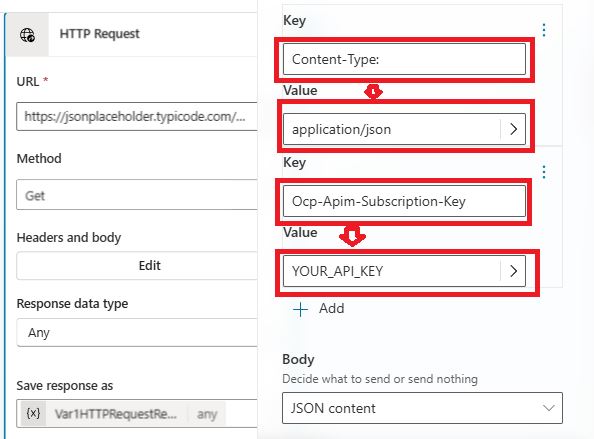
For the headers, add the below parameter:
Content-Type: "application/json"
If your API has a key and needs to be authenticated before accessing, then you need to add one more key for the authentication and add the key as below:
Ocp-Apim-Subscription-Key: "YOUR_API_KEY"

The key value pair looks like below:
Note:
- There are many ways an API can be authenticated, not only using the above method.
The last configuration is to pass the JSON content in the body section.

From the Body section, for the decide what to send or send nothing, select JSON Content. Then, in the box, enter the JSON schema of your API output. You can generate JSON schemas using many online tools available. I have used this tool for this demo: Free Online JSON to JSON Schema Converter
Next, you may add a message node and display the output of the API call to see how it comes; this is optional.
The next crucial step is to parse the output of the API call.
From the “Variable management” menu, add a “parse value” node.
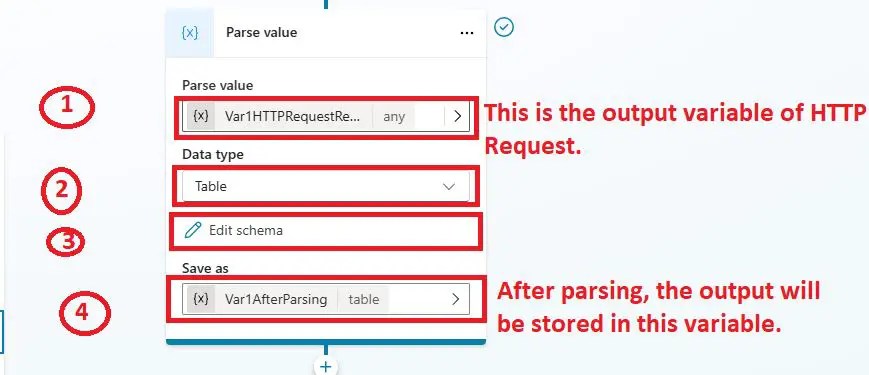
Pass the following parameters in the Parse value node:
- Parse value: Output variable of HTTP Request action
- Data type: Table
- Edit Schema: Click on the Edit schema to configure the schema; configure by selecting the data type as “from sample data.” See below how it is done.
- Save as: Create a new variable; after parsing, the output will be stored here, and this should be passed on to the “Create Generative Answers” node.
Edit Schema configuration:
Select the data type as “From sample data”.

Click on the “Get schema from sample JSON” link.
Copy your entire API output and paste it into the below box.

Click on the “Confirm” button.

Then, once you save your topic, the data type will automatically be changed to table, and the error that we were seeing in the save as variable ‘Missing required property value type’ will be gone.
Click on the Edit schema link to see the parse value node for the table data type for my API, which looks like below:

Next, you may add a message node and display the output of the parsed value to see how it comes; this is optional.
The next step is to configure the “Create Generative Answers” with the parsed value output variable.
From your “Create Generative Answers” node, click on the properties menu, click on the classic data, click on the custom data box, and then, under the Formula tab, enter the below formula.

For my demo API, this is the formula:
ForAll(

    Topic.Var1AfterParsing,

    {

        Content:

            Text(id)&", "&

            name&", "&

            username&", "&

            email&", "&

            address.street &", "&

            address.suite &", "&

            address.city &", "&

            address.zipcode &", "&

            phone&", "&

            website&", "&

            company.name,

        ContentLocation: Blank()

    }

)
Note:
- The above formula is not fixed for all API’s; it varies API to API.

We are done with the topic configuration with API data; now let’s test this Copilot.
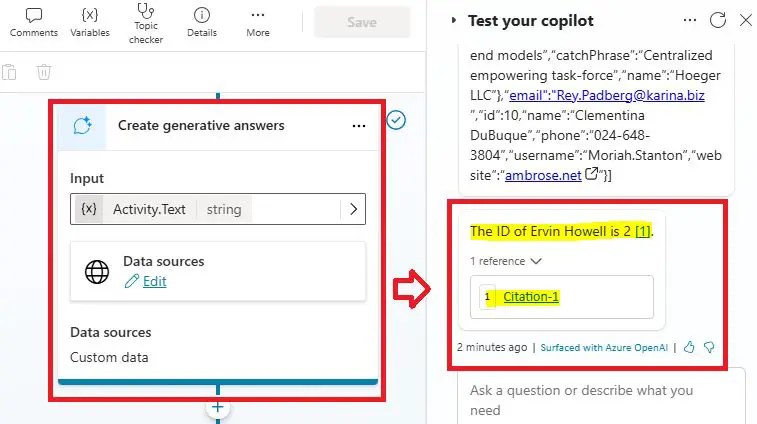
I just asked my Copilot the below highlighted question:
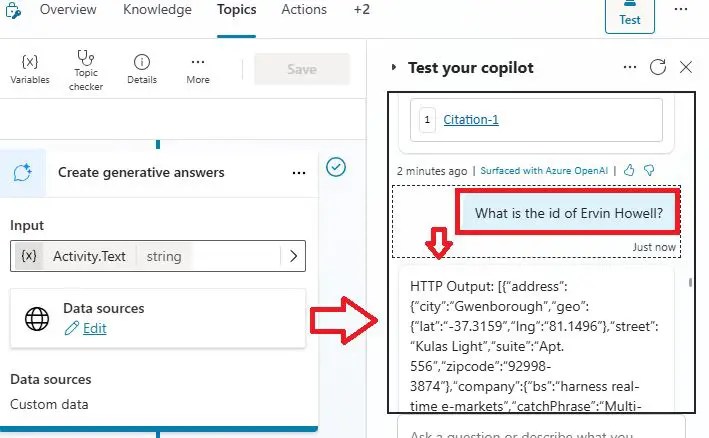
The answer I got as below:
YouTube Video Demo: How to use HTTP Request in Create Generative Answers in Copilot Studio?
Conclusion: Create Generative Answers with HTTP Request in Copilot Studio
Thus, in this article, we have learnt how to work with the HTTP request and Create Generative Answers node in Microsoft Copilot, and we have also learnt how to parse the complex data structure in Copilot using the Parse value node.
Integrating HTTP request output into generative answers in Copilot Studio is a powerful way to create dynamic and personalized interactions. By setting up HTTP requests, processing the response data, and seamlessly integrating it into generative answers, you can build sophisticated applications that provide valuable information to users. Whether you’re developing a chatbot, a customer support system, or an AI-powered assistant, these techniques will enable you to leverage external data sources and create intelligent responses.
In summary, the key steps include configuring the HTTP request, parsing the response, handling errors, and mapping the data to generate meaningful answers. By following best practices and continuously testing and refining the responses, you can create a robust and engaging user experience.
See Also: Microsoft Copilot Article
You may also like this article: How to Use a Custom Data Source for Generative Answers?
About Post Author

Discover more from Global SharePoint
Subscribe to get the latest posts sent to your email.