

 By
By 
In my previous article, I discussed what topics are in Copilot Studio. In this article, I will show you how to create custom topic in Copilot Studio.
Why do we need to create custom topic in Copilot Studio?
There are many business scenarios where out-of-the box topics do not address the real-time business problem, so in order to handle the focused business problem, we need to create a focused custom topic scope for the specific business problem.
Real-Time Business Use Cases for Custom Topics in Microsoft Copilot Studio
Creating custom topics in Microsoft Copilot Studio can significantly enhance its utility by addressing specific business problems that out-of-the-box topics may not fully cover. Here are some real-time business use cases where custom topics can provide substantial benefits:
1. Customer Support Analysis
Problem: Understanding and resolving customer complaints effectively.
Custom Topic Use Case:
- Customer Feedback Categorization: Create custom topics to categorize customer feedback into themes such as product quality, delivery issues, or service satisfaction. This helps in identifying patterns and prioritizing areas for improvement.
- Sentiment Analysis: Develop custom topics for positive, neutral, and negative feedback. This aids in monitoring customer sentiment and proactively addressing issues.
2. Healthcare Management
Problem: Enhancing patient care and operational efficiency in healthcare facilities.
Custom Topic Use Case:
- Patient Records Management: Custom topics can be created for different types of medical conditions, treatments, and patient follow-up schedules. This ensures that healthcare providers have quick access to relevant patient information.
- Clinical Trial Data Analysis: For research institutions, custom topics can categorize clinical trial data by study type, outcomes, and patient demographics, streamlining the analysis process.
3. Financial Services
Problem: Managing complex financial data and regulatory compliance.
Custom Topic Use Case:
- Risk Assessment: Develop custom topics for different types of financial risks such as credit risk, market risk, and operational risk. This enables more precise risk management and mitigation strategies.
- Regulatory Compliance: Custom topics can help track compliance requirements specific to different jurisdictions and financial products, ensuring that all regulatory guidelines are met efficiently.
4. Retail and E-Commerce
Problem: Optimizing inventory management and personalized marketing.
Custom Topic Use Case:
- Inventory Optimization: Create custom topics for inventory data such as stock levels, turnover rates, and supplier performance. This helps in maintaining optimal inventory levels and reducing stockouts or overstock situations.
- Customer Segmentation: Develop custom topics to segment customers based on purchasing behavior, preferences, and demographics. This facilitates targeted marketing campaigns and personalized recommendations.
5. Human Resources
Problem: Streamlining recruitment processes and employee performance management.
Custom Topic Use Case:
- Candidate Screening: Custom topics can categorize candidate profiles based on skills, experience, and job requirements. This helps HR teams in efficiently screening and shortlisting candidates.
- Employee Performance Reviews: Create custom topics for performance metrics, feedback, and development plans. This ensures a structured and comprehensive approach to employee performance management.
6. Manufacturing
Problem: Improving production efficiency and quality control.
Custom Topic Use Case:
- Production Data Analysis: Develop custom topics for different stages of the production process, such as raw materials, assembly, and quality checks. This helps in identifying bottlenecks and improving production efficiency.
- Quality Control: Custom topics can categorize quality control data by defect types, causes, and resolutions. This aids in monitoring product quality and implementing corrective actions promptly.
7. Legal Services
Problem: Managing case information and legal research efficiently.
Custom Topic Use Case:
- Case Management: Create custom topics for different types of cases, legal precedents, and relevant statutes. This ensures that legal professionals have quick access to pertinent information for case preparation.
- Contract Analysis: Custom topics can categorize contract clauses by type, such as confidentiality, indemnity, and termination clauses. This helps in reviewing and drafting contracts more efficiently.
8. Marketing and Advertising
Problem: Creating targeted marketing strategies and measuring campaign effectiveness.
Custom Topic Use Case:
- Campaign Analysis: Develop custom topics for different marketing channels, campaign objectives, and audience segments. This helps in analyzing campaign performance and optimizing marketing strategies.
- Content Creation: Custom topics can help categorize content by theme, tone, and target audience. This ensures that the marketing content is relevant and engaging for the intended audience.
9. Supply Chain Management
Problem: Enhancing visibility and efficiency in the supply chain.
Custom Topic Use Case:
- Logistics Optimization: Create custom topics for different aspects of logistics, such as transportation modes, delivery schedules, and route planning. This helps in optimizing logistics operations and reducing costs.
- Supplier Performance Monitoring: Custom topics can categorize supplier data by performance metrics, compliance, and risk factors. This aids in managing supplier relationships and ensuring a reliable supply chain.
10. Project Management
Problem: Ensuring successful project execution and delivery.
Custom Topic Use Case:
- Task Management: Develop custom topics for different project tasks, milestones, and deadlines. This helps in tracking project progress and ensuring timely completion.
- Resource Allocation: Custom topics can categorize resources by type, availability, and utilization. This ensures optimal resource allocation and prevents overloading or underutilization of resources.
How do we create a custom topic in Copilot Studio?
By now, we have learned about the use case for creating custom topics in Copilot Studio. Now let’s learn how to create custom topics in Copilot Studio. To create a new custom topic, let’s go to my demo Copilot.
Click on the “Topics” menu, then click on the “+ Add a topic” menu.
There, we can see two ways we can add a topic:
- From blank
- Create from description with Copilot

We will learn both the options to create or add a topic to my copilot.
Add a Topic from a Blank Template
Click on the “From Blank” link from the “Add a Topic” menu.
Then, an empty trigger will be added. In this approach, you need to develop topic flow logic on your own. Here, after creating the topic, what I did was rename the topic name to “Topic With Blank: Customer Feedback,” then added a couple of phrases with respect to the customer feedback service chatbot with the positive and negative texts.

Next, I will incorporate a message node to confirm the activation of my custom customer feedback service.
Click on the “+” icon below the trigger node. Then, click on the “Send a message” node to add the topic.
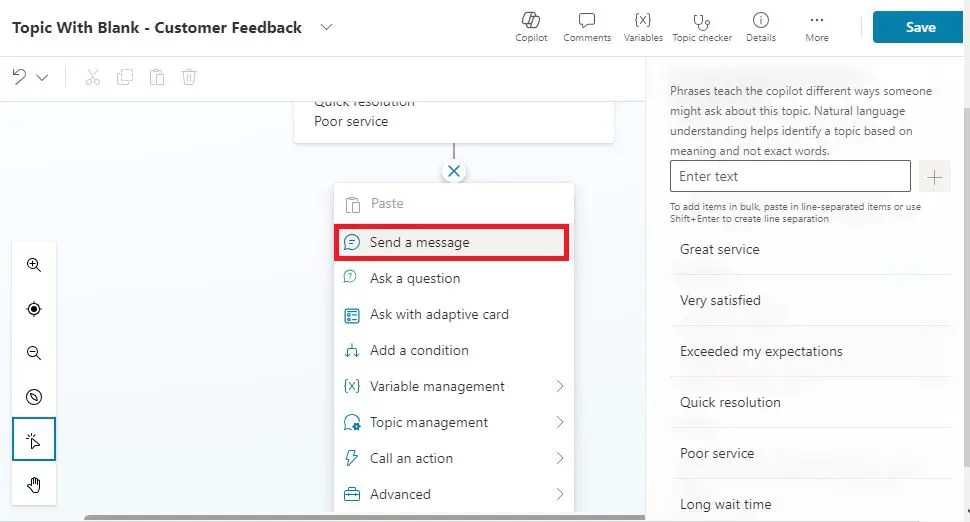

Inside the message node textbox, I have added this text: “Hi, I am ensuring that your customer feedback topic is triggered.” This is just to test that my custom topic has been triggered.
Now, let’s type something into the chatbot. I have typed this text: “I am very satisfied with your service.” Then my custom topic got triggered and I replied, “Hi, I am ensuring that your customer feedback topic is triggered.”

The above demo is to ensure that my custom topic is triggered based on the text or phrase I ask in the chatbot. You can extend the functionality as per your business needs. This is just a sample of how to create a custom topic with a blank template and trigger it. The next approach, “Create from description with Copilot,” is more interesting as it is dynamic.
Create from description with Copilot
To create a topic from a description with the Copilot method, follow the below steps:
Click on the Topics menu.
Click on the “Create from description with Copilot” link from the “+ Add a topic” dropdown list menu.

Then, on the screen, pass the following parameters:
- Name your topic: Here, you need to pass the name of your topic.
- Create a topic to: Describe your topic here in a few sentences. Or select an example from the list of given examples if that fits your needs.

For this demo, I will select “Let someone order a pizza, choosing from common types and how many they want to order,” as I am creating this topic for the pizza order service.
Select your desired example or pass the description.

Click on the “Create” button, and that’s it.
We can see the topic building status message.

After a few seconds, we can see that the new “Pizza Order Service Topic” has been created with the automated trigger phrases and basic setup.

You can extend this topic logic based on your business needs, where you can add many more nodes, connect your topic with external data sources through the HTTP connector, Power Automate, connection, and knowledge base, and then make your topic more dynamic.
Topic created with description: Pizza Order Service Topic Demo
In the topic test panel window, I just typed “Help me to order me a pizza.” Then my Pizza Order service topic got triggered and started asking questions one after another automatically based on the topic flow design. Please see the below screen:

Out of these two topic creation methods, which one is recommended?
From my personal experience, I would say if you are clear about your chatbot flow chart and an expert in working with the Copilot topic nodes, go with the manually created topic option, i.e., “Add a topic from blank,” otherwise, go with the second option, “Create from description,” which is more dynamic, easy to create, and takes less time; hence, I would recommend this approach.
Create Custom Topic in Copilot Studio video demo
Conclusion: Create Custom Topic in Copilot Studio
Hence, in this article, we have learned about how to create a custom topic in Copilot Studio in both ways. 1) Create with the blank template, and 2) Create from the description with Copilot.
Creating custom topics in Microsoft Copilot Studio allows businesses to tailor the AI’s capabilities to their specific needs, ensuring more relevant and effective solutions. By addressing unique business problems with focused topic scopes, organizations can enhance productivity, improve decision-making, and achieve better outcomes across various domains. Whether it’s customer support, healthcare management, financial services, or any other field, custom topics provide a powerful tool to leverage AI’s full potential. I would recommend you read this article from Microsoft about the topics in Copilot Studio: Topics in Copilot Studio
What is Next?
In the next article, I will write about how to integrate Generative AI in Copilot Studio with the real-time business scenario demo. Until then, stay tuned and keep learning Copilot.🙂
YouTube Video on Copilot Studio Full Tutorial End to End
A Complete Showdown on Copilot Learning, a best ever complete walkthrough on Copilot:
About Post Author

Discover more from Global SharePoint
Subscribe to get the latest posts sent to your email.