

 By
By 
In this article, we’ll explore the Microsoft Copilot Studio Code Interpreter feature and see how it transforms AI agents into powerful execution engines. You’ll learn what the Code Interpreter is, how it works with Copilot Studio file processing, and how to configure and use it effectively. We’ll also demonstrate how Copilot Studio can generate and run Python code automatically to perform data analysis and create rich outputs such as bar charts, pie charts, and reports, followed by a live demo walkthrough using real-world scenarios.
What Is the Copilot Studio Code Interpreter?
The Copilot Studio Code Interpreter is a new AI-powered feature that enables your Copilot agent to dynamically generate and execute code — primarily Python — during conversations. Instead of just responding with text, your agent can now:
- Generate Python code automatically
- Execute code securely in real time
- Process uploaded files such as CSV, TXT, and PDF
- Perform calculations and data transformations
- Create charts, graphs, and structured reports
This turns Copilot Studio from a conversational AI tool into a fully functional AI execution engine.
Why the Code Interpreter Is a Game-Changer for Copilot Studio
Before this update, Copilot Studio agents were limited to predefined actions, connectors, and Power Automate flows. With the Code Interpreter, your agent gains the ability to:
- Solve complex data problems instantly
- Work with real-world datasets
- Automate analysis without external scripts
- Respond with computed, accurate results
This dramatically reduces dependency on manual coding, external tools, or custom APIs.
Supported File Processing Capabilities
With the Copilot Studio Code Interpreter, users can upload files directly into conversations. The agent can then analyze and process those files using generated code.
Supported file types include:
- CSV files for data analysis
- TXT files for text processing
- PDF files for data extraction
- Images for basic analysis and interpretation
File size and type limits apply, ensuring secure and efficient processing.
Generating and Running Python Code in Copilot Studio
One of the most powerful aspects of the Code Interpreter is its ability to generate Python code automatically based on user prompts.
For example, your agent can:
- Read a CSV file
- Clean and transform data
- Perform calculations
- Generate visual charts
- Summarize insights in plain English
All of this happens seamlessly within Copilot Studio, without requiring users to write code themselves.
Real-Time Charts, Graphs, and Reports
The Copilot Studio Code Interpreter can generate:
- Bar charts
- Line graphs
- Pie charts
- Tabular summaries
- Analytical reports
These visuals are created dynamically based on the uploaded data, making the feature extremely valuable for business reporting, analytics, and decision-making scenarios.
Use Cases for Copilot Studio Code Interpreter
1. Business Data Analysis
Analyze sales data, financial metrics, or operational KPIs directly inside Copilot Studio.
2. File-Based Automation
Let users upload files and instantly get insights without Power Automate flows.
3. Reporting and Visualization
Generate professional charts and summaries for leadership dashboards.
4. Developer Productivity
Prototype logic, calculations, and transformations faster using AI-generated code.
Security and Governance Considerations
Microsoft applies strict security boundaries to the Code Interpreter environment:
- Controlled execution sandbox
- File type and size restrictions
- Tenant-level governance
- Compliance with Microsoft 365 security standards
This ensures that AI code execution remains safe and enterprise-ready.
How Code Interpreter Fits into the Power Platform Ecosystem
The Copilot Studio Code Interpreter works seamlessly alongside:
- Power Automate
- Power Apps
- Microsoft 365 Copilot
- SharePoint Online
- Microsoft Teams
This creates a unified AI automation ecosystem where conversational agents can analyze data, execute logic, and deliver results in real time.
How to Enable Copilot Studio Code Interpreter?
To enable the Code Interpreter feature in Copilot Studio, you need to go to your agent settings, then from the “Generative AI” section, you need to go to the File Processing Capabilities section. There you will see a toggle “Code Interpreter.” By default, this will be in disabled mode; you need to enable this toggle.

Copilot Studio Code Interpreter: Live Demo and Practical Walkthrough
After enabling the Code Interpreter feature for your agent, upload a sample file that has sample relevant business data. For example, here I have uploaded a financial sample Excel file for this demo. Then I am passing the prompt something like “Generate a pie chart for the attached financial sample Excel.”

Then once I send the prompt, I can see a nice-looking pie chart generated by my agent automatically.

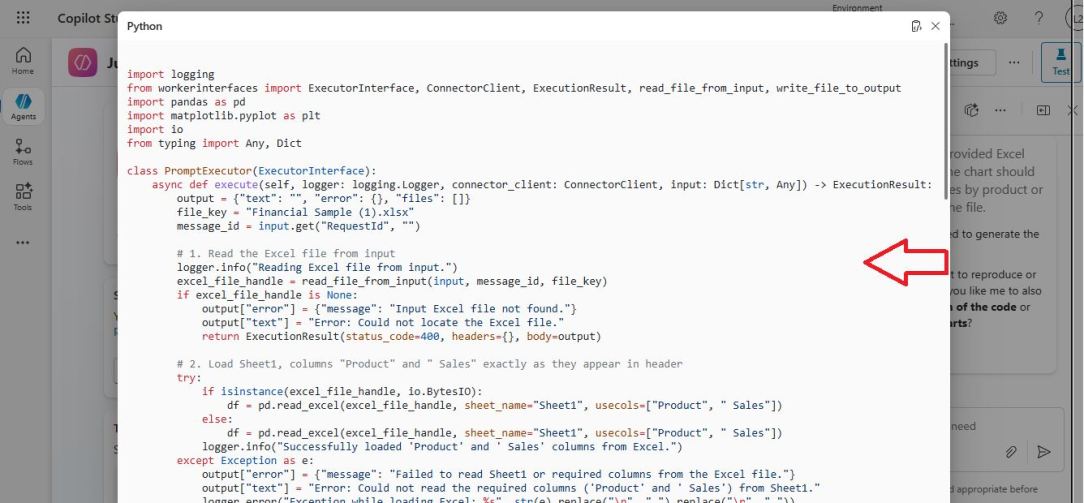
Then once I clicked on the “Code” option, I could see the Python code used for this pie chart generation. You can use this code in your project; however, you need to verify this AI-generated code in your project.
Note:
- If you are a Python developer and looking for a job change, you may refer to my Python Interview Success article, which contains 50+ premium interview questions and answers.
YouTube Video Demo: Copilot Studio Code Interpreter
In the accompanying video tutorial, you’ll see a full live demo of Copilot Studio Code Interpreter — including file upload, Python code generation, execution, and chart creation in real time.
Benefits of Using Copilot Studio Code Interpreter
- No manual coding required
- Faster automation development
- Smarter AI-driven insights
- Reduced reliance on external tools
- Improved user experience
This feature significantly enhances the intelligence and usefulness of Copilot Studio agents.
Final Thoughts
Thus, in this article, we learned how the Copilot Studio Code Interpreter enables AI agents to go beyond conversations by allowing Copilot Studio to write and run code, handle advanced file processing, perform intelligent data analysis, and generate Python code automatically for reports and visualizations.
This feature is one of the most impactful updates in Microsoft Copilot Studio, unlocking a new level of intelligent automation and analytics for developers, business analysts, and Power Platform architects. By mastering the Code Interpreter, you can build smarter, faster, and more capable AI agents with minimal effort and maximum impact.
Want more Copilot Studio deep dives, live demos, and real-world use cases? Subscribe to my channel and explore the full Copilot Studio tutorial series on the Copilot Studio Playlist.
Reference Article
See Also
About Post Author

Discover more from Global SharePoint
Subscribe to get the latest posts sent to your email.