

 By
By 
In this “Call Custom Prompt in Copilot Studio”article, we will learn how to call a Power Automate AI Builder custom prompt in Copilot Studio or how to use your prompt actions in Copilot Studio. Before that, we will understand what an AI Builder custom prompt is.
What is Custom Prompt in Power Automate AI Builder?
A Custom Prompt in Power Automate’s AI Builder allows you to create specific instructions or questions that an AI model can respond to during an automated workflow. Essentially, it lets you tailor the AI’s behavior to fit your particular needs, whether it’s summarizing a document, extracting key information from an email, or providing a response based on certain conditions. By setting up a custom prompt, you guide the AI on exactly what to focus on, ensuring that the output aligns with the task you want to accomplish.
For example, if you’re processing customer feedback and want the AI to categorize comments into “positive” or “negative,” you could create a custom prompt that instructs the AI to analyze the sentiment of each comment. This prompt can be integrated into a Power Automate flow, so whenever new feedback is received, the AI automatically classifies it according to your custom instructions. This makes your workflows smarter and more responsive to specific business needs.
For more details about AI Builder in Power Automate, I recommend going through the article: AI Hub in Power Automate: Power of Prompts, AI Models and Document Automation
Call Custom Prompt in Copilot Studio
Calling Custom Prompt in Copilot Studio is a two-step process; first we need to create a custom prompt in Power Automate, then we need to call the custom prompt from Copilot Studio.
Create a Custom Prompt in Power Automate
Before going to call a custom prompt in Copilot Studio, we should have a custom prompt ready. If you don’t have one, create a new custom prompt using the Power Automate AI Builder tool.
This is my custom prompt, which I have created for a given text predicting the sentiment analysis.

For your easiness, I have above prompt text here:
“Evaluate the sentiment of the given input text , taking into account its emotional tone, subtle language cues, and cultural or contextual factors. Classify the tone of the text into the categories ‘positive’, ‘negative’, or ‘neutral’. Look for sarcasm, emoticons, or specialized terminology that could affect the sentiment reading. In cases of mixed emotions, identify the most dominant sentiment. Analyze neutral phrases that may have positive or negative undertones, and gauge the message’s urgency or significance. Your response may only be one word and should capitalize the first letter. Do NOT add any other explanations.”
Basically, this prompt will analyse the user-given text and generate user sentiment like positive, negative, neutral, etc.
Call a Custom Prompt in Copilot Studio
I have my custom prompt ready. I want to call this custom prompt from my custom Copilot for this demo.
Now, let’s move on to Copilot Studio to call the custom prompt that I have created in the above step.
From my custom Copilot, I have created a custom topic, and below is the complete setup of that custom topic:



Topic configuration explanation:
Step 1: Trigger: This got added automatically when I have described my topic while I have created the topic.
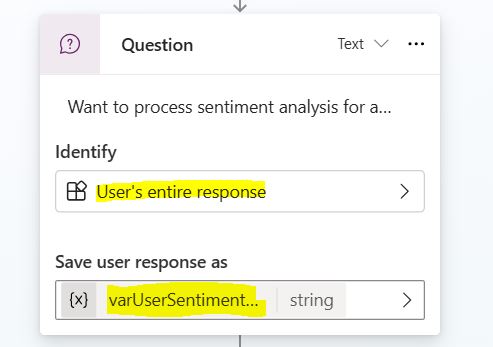
Step 2: I have added a question node and stored the user’s entire responses in a string variable.
Step 3: Then, I have added my custom prompt, where I have passed the input text from the question node’s user responses output, and then I have stored the output of the custom prompt in a variable.
To add your custom prompt, which I created using the Power Automate AI Builder, click on the add node icon, then click on the “Call an action.” Then, select your custom prompt which you will see under the “Basic actions” tab.

Below are the configurations of the custom prompt:
- I have renamed my prompt action to look more user-friendly.
- I am passing the input parameter from the Question node output variable.
- Then, I am storing the custom prompt output in a variable that I will pass in the next message node to see the result.

Then, add a message node to display the output of the custom prompt. I have passed the message text something like “The prediction output for the given text “InputTextVariable” is “CustomPromptOutputVariable.”.

Troubleshooting Error: User (C2) connections must use Azure Active Directory Authentication
After adding your custom prompt action to your custom Copilot, you may get this error: “User (C2) connections must use Azure Active Directory Authentication.”

To fix this issue, change your authentication type from “Authenticate manually” to “Authenticate with Microsoft Entra ID authentication in Teams and Power App,” as shown below:

This may not be the ideal solution for why it is not working with the authenticate manually approach, but you can continue working with switching this authenticate type. I will continue to explore on this why the custom prompt does not support in Copilot with the manual authentication type. Until then, follow this article and my blog to get more updates on this and many more troubleshooting techniques.
Demo: Sentiment Analysis Prompt Text Example
You can pass the below text for the sentiment analysis prediction prompt text: Here are some example texts you can use to test sentiment analysis predictions:
Positive Sentiment:
- “I love how user-friendly the new app update is! It has made my work so much easier.”
- “The customer service was excellent, and I had a great experience overall!”
- “I’m very satisfied with the fast delivery and the quality of the product.”
Negative Sentiment:
- “I’m extremely disappointed with the product; it broke within a week of use.”
- “The service was terrible, and I wouldn’t recommend it to anyone.”
- “The app keeps crashing, and it’s been very frustrating trying to use it.”
Neutral Sentiment:
- “The product arrived on time, and it performs as expected.”
- “I’ve been using the service for a month, and it’s okay. Nothing special.”
- “The app has some useful features, but it could be improved.”
These examples should help you test how well the sentiment analysis model is predicting emotions behind the text.
In my demo Copilot, I have passed the below text as input, then Copilot sentiment analysis AI processed and generated the prediction emotion as “positive,” as shown below:
“I love how user-friendly the new app update is! It has made my work so much easier.”

Similarly, you can pass various statement feedback text, and then the Copilot will process your text and give user sentiment feedback either as positive, negative, or neutral.
By now, we have called the AI Builder custom prompt directly from my custom Copilot topic. Now, if we want to call this custom prompt via Power Automate flow, I mean, first we will call the custom prompt from Power Automate flow, then we will call that flow from Copilot. It is simple, as we call a flow from Copilot.
Call Custom Prompt from Copilot via Power Automate Flow
This is my Power Automate flow, which I have created from Copilot (you can see the Skills Copilot trigger icon).
In this flow, I have added a “Create text with GPT using a prompt” AI Builder action and passed the prediction output to Copilot. This is the same as the way we create a flow and run from Copilot.

In the above flow, I have used the Power Automate AI Builder “Create text with GPT using a prompt” action.
Now, let’s call this Power Automate flow from Copilot. It is the same process, the way we add a flow to Copilot or add custom a prompt directly in Copilot.
Click on the add a new node icon, go to “Call an action” menu. Then, you can see all your flows and custom prompts.

Select your flow where you have called your custom prompt. Then, your flow will be added as action to Copilot.
Pass an input parameter to your flow. That’s it. See the below screenshot:

Generic Use Cases For Sentiment Analysis Prompts in Copilot
Here are some generic use cases for Sentiment Analysis prompts in Copilot:
1. Customer Feedback Analysis
Copilot can analyze customer reviews, support tickets, or survey responses to determine whether the feedback is positive, negative, or neutral. This allows businesses to gauge overall customer satisfaction and address issues quickly.
2. Social Media Monitoring
Sentiment analysis can be used to track brand mentions on social media platforms like Twitter, Instagram, or Facebook. Copilot analyzes the tone of these mentions, helping companies understand public perception and respond to negative comments in real time.
3. Email Triage for Customer Support
When a customer sends an email to support, sentiment analysis can help prioritize urgent or negative messages for faster resolution. Copilot can automatically categorize these emails based on sentiment, ensuring high-priority cases are handled promptly.
4. Product Launch Feedback
After a new product launch, businesses can use Copilot to analyze customer opinions from forums, feedback forms, or product reviews. Sentiment analysis helps in understanding how well the product is received and highlights areas for improvement.
5. Employee Feedback Surveys
Organizations can use sentiment analysis to process employee feedback and identify potential issues, like dissatisfaction or disengagement. This enables HR departments to proactively address concerns and improve workplace culture.
6. Market Research
Companies conducting market research can analyze survey responses to identify trends in consumer sentiment. Copilot’s sentiment analysis helps summarize the overall mood of respondents towards products or services, giving a deeper understanding of the market.
7. Content Performance Monitoring
Content creators can use sentiment analysis to gauge audience reactions to blogs, articles, or videos. By analyzing comments and engagement data, they can better understand how their content resonates with viewers or readers.
These use cases demonstrate how sentiment analysis in Copilot can enhance decision-making by extracting meaningful insights from unstructured data like text.
YouTube Video Demo: Call Custom Prompt from Copilot Studio
Summary: How to Use Your Prompt Actions in Copilot Studio
Thus, in this article, we have learnt how to create a custom prompt in Power Automate using the AI Builder tool, then how to call a custom prompt from the Copilot Studio custom topic and test for user feedback sentiment analysis. And also, we have learnt how to create a Power Automate flow from Copilot and call the custom prompt inside the AI Builder “Create text with GPT using a prompt” action, then pass the output of “Create text with GPT using a prompt” to the Copilot custom topic.
About Post Author

Discover more from Global SharePoint
Subscribe to get the latest posts sent to your email.