

 By
By 
In this “Auto Populate Dropdown in Copilot Studio” article, we will learn about how to auto populate dropdown lists or choice column values dynamically from the third-party API using the Power Automate custom connector in the Copilot Studio Adaptive card.
Auto Populate Dropdown in Copilot Studio Dynamically
In this article demo, three ways I’ll show how to auto-populate or load choice column or dropdown list values automatically from third-party API calls using the Power Automate custom connector. In this article, I’ll show the following methods:
- Create a sample currency data array and load the currencies to the adaptive card choice column dynamically.
- Call the custom connector (Third Party Currency API) from Copilot Studio and load the currencies in a separate choice or dropdown list column.
- Integrate the dynamic currency choice column with the Currency Conversion App or Adaptive card.
Auto Populate or Load Adaptive Card Choice Column with Sample Data Array
This is my custom copilot and custom topic, along with the trigger phrases.
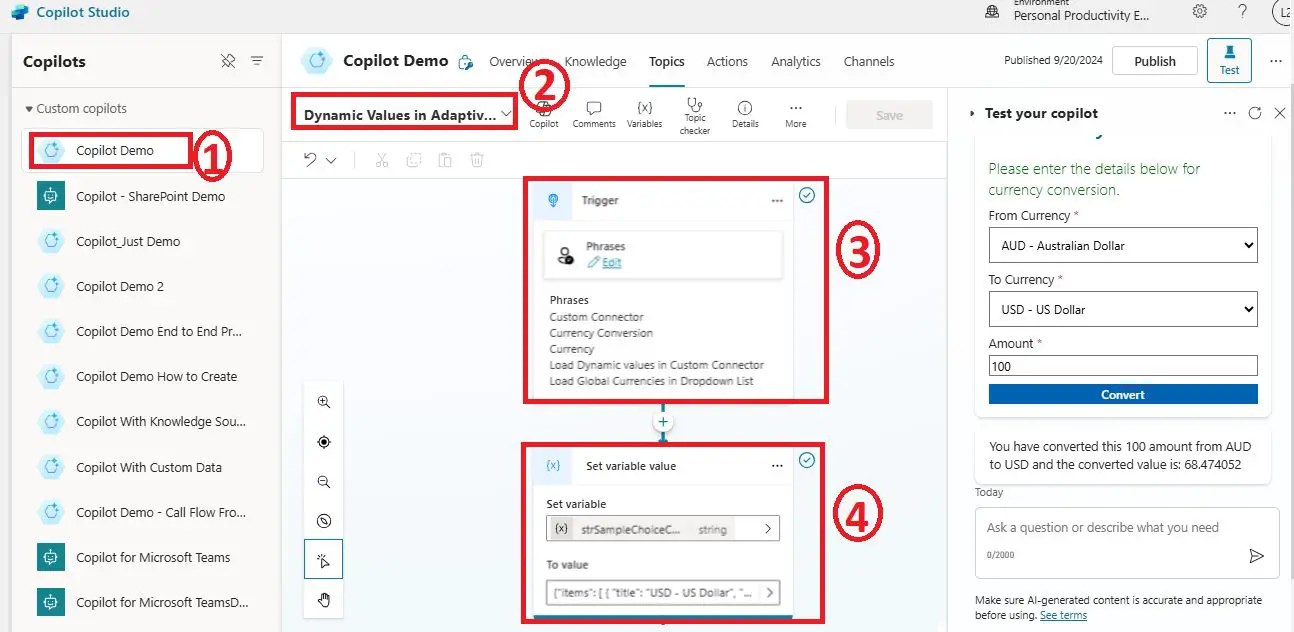
Create a string type variable assign the below text:
{
"items": [
{
"title": "USD - US Dollar",
"value": "USD"
},
{
"title": "EUR - Euro",
"value": "EUR"
},
{
"title": "GBP - British Pound",
"value": "GBP"
},
{
"title": "JPY - Japanese Yen",
"value": "JPY"
},
{
"title": "AUD - Australian Dollar",
"value": "AUD"
},
{
"title": "CAD - Canadian Dollar",
"value": "CAD"
},
{
"title": "INR - Indian Rupee",
"value": "INR"
}
]
}
Add a Parse value node
From the variable management, add a parse value node.
For the “Parse value” pass the above string variable.
Select the data type as “From sample data“, then, add the above JSON as a sample JSON for the schema update.

Save the output in a different variable. Once you save this, your parse value data type will automatically be changed to “Record.” Now, you can apply the forall loop in Copilot to reach each value from this record array. I did the same and added the result to a message node.
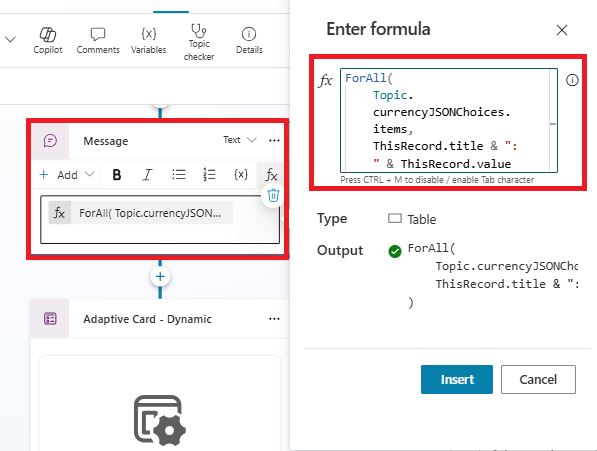
The above ForAll formula is shown below:
ForAll(

    Topic.currencyJSONChoices.items,

    ThisRecord.title & ": " & ThisRecord.value

)
Now, load this formula into your adaptive card choices section.
Add an adaptive card and replace the output of the JSON with your custom JSON. Then, from the adaptive card “Properties” menu, open the JSON in Edit formula mode.

{

  type: "AdaptiveCard",

  '$schema': "http://adaptivecards.io/schemas/adaptive-card.json",

  version: "1.3",

  body: [

    {

      type: "TextBlock",

      text: "Load Global Currencies With Sample Data",

      weight: "Bolder",

      size: "ExtraLarge",

      color: "Accent",

      horizontalAlignment: "Center",

      spacing: "Large"

    },

    {

      type: "Input.ChoiceSet",

      id: "currencySelection",

      style: "compact",

      choices: ForAll(

    Topic.currencyJSONChoices.items,

    {title:ThisRecord.title, value:ThisRecord.value

}

)

    }

  ],

  actions: [

    {

      type: "Action.Submit",

      title: "Submit",

      data: {

        outputType: "currencySelection"

      },

      style: "positive"

    }

  ],

  style: "default",

  minHeight: "300px"

}
At run time, we will see the choice column like below:

{

  "type": "AdaptiveCard",

  "body": [

    {

      "type": "TextBlock",

      "text": "Currency Conversion",

      "weight": "Bolder",

      "size": "ExtraLarge",

      "color": "Accent",

      "horizontalAlignment": "center",

      "spacing": "Large"

    },

    {

      "type": "TextBlock",

      "text": "Please enter the details below for currency conversion.",

      "wrap": true,

      "size": "Medium",

      "weight": "Lighter",

      "color": "Good",

      "spacing": "Medium"

    },

    {

      "type": "Input.ChoiceSet",

      "id": "fromCurrency",

      "label": "From Currency",

      "placeholder": "Select a currency",

      "isRequired": true,

      "style": "compact",

      "errorMessage": "Please select a 'From Currency'.",

      "choices": [

        {

          "title": "USD - United States Dollar",

          "value": "USD"

        },

        {

          "title": "EUR - Euro",

          "value": "EUR"

        }


      ]

    },

    {

      "type": "Input.ChoiceSet",

      "id": "toCurrency",

      "label": "To Currency",

      "style": "compact",

      "placeholder": "Select a currency",

      "isRequired": true,

      "errorMessage": "Please select a 'To Currency'.",

      "choices": [

        {

          "title": "USD - United States Dollar",

          "value": "USD"

        },

        {

          "title": "EUR - Euro",

          "value": "EUR"

        }


      ]

    },

    {

      "type": "Input.Number",

      "id": "amount",

      "label": "Amount",

      "placeholder": "Enter the amount to convert (e.g., 100.50)",

      "isRequired": true,

      "errorMessage": "Please enter an amount greater than 0.",

      "min": 0.01

    },

    {

      "type": "TextBlock",

      "id": "errorMessage",

      "text": "",

      "color": "attention",

      "weight": "Bolder",

      "isVisible": false,

      "horizontalAlignment": "Center"

    }

  ],

  "actions": [

    {

      "type": "Action.Submit",

      "title": "Convert",

      "data": {

        "fromCurrency": "{{fromCurrency}}",

        "toCurrency": "{{toCurrency}}",

        "amount": "{{amount}}"

      }

    }

  ],

  "$schema": "http://adaptivecards.io/schemas/adaptive-card.json",

  "version": "1.3"

}
The above Adaptive card generates below design:

Auto Populate Choice Column values Using API Call in Copilot Adaptive Card
In the next method, we will see how to auto-populate choice column values using the API call method. For this method, I have created a custom connector in my Power Platform environment from the Currency Beacon website. I will call the custom connector from Copilot Studio Topic, then populate choice column values dynamically, which will be live data.
This is the Get Currencies API output from the Currency Beacon Website:

This is my custom connector which I have created in Power Platform Environment.

I will call this “Get Global Currencies” action from this custom connector in my Copilot. Add your custom connector from the “call an action” then “connector” menu. The detailed demo you can watch from the video version of this article mentioned at the at the bottom of this article.

Here, I am just passing the currency type as “fiat,” which is mentioned in the Currency Beacon API documentation.
The result output will be stored in a variable; we need to parse this result output value into a record type.
Add a “Parse value” node from the variable management menu. Pass the above “get global currencies” variable for the parse value.

Select the data type as “From sample data” and click on the “Get schema from sample JSON” link. And, add your API sample JSON output.

In the above box, I have added get currency output from Currency Beacon API. You will get it from your API output.
Once you add this, store the output in another variable, then save it. The moment you save it, automatically the data type will be changed to “Record.”
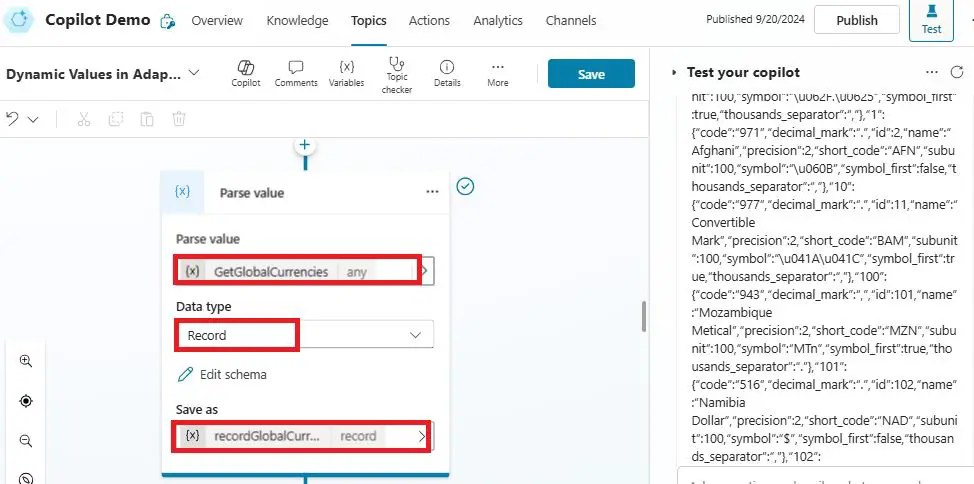
Now, you can apply the ForAll loop or function to read each currency from this record collection. Below is my auto-populate choices adaptive card dynamically using the third-party API call.

The above adaptive card dynamic currency values formula is given below:
ForAll(

    Topic.recordGlobalCurrencyChoices.response,

    {title: short_code & " - " & name, value: short_code}

)
The entire JSON code is here:
{

  type: "AdaptiveCard",

  '$schema': "http://adaptivecards.io/schemas/adaptive-card.json",

  version: "1.3",

  body: [

    {

      type: "TextBlock",

      text: "Dynamically Load Global Currencies Using API",

      weight: "Bolder",

      size: "ExtraLarge",

      color: "Accent",

      horizontalAlignment: "Center",

      spacing: "Large"

    },

    {

      type: "Input.ChoiceSet",

      id: "currencySelection",

      style: "compact",

      choices: ForAll(

    Topic.recordGlobalCurrencyChoices.response,

    {title: short_code & " - " & name, value: short_code}

)

    }

  ],

  actions: [

    {

      type: "Action.Submit",

      title: "Submit",

      data: {

        outputType: "currencySelection"

      },

      style: "positive"

    }

  ],

  style: "default",

  minHeight: "300px"

}

Integrate Dynamic Currency Choices with Your Currency Conversion App
In my previous article, I have shown how to convert an amount from a source currency to a “to” currency where I have populated the from and to currency choice value with static configuration. Now, you can integrate this logic with your live application where you have static currencies in the choice and make it dynamic.
I have done the same; I have integrated the dynamic choice column with my currency conversion app in Copilot Studio.
Here is my currency conversion Adaptive Card app.

At runtime, we can see the currency conversion app as like below:

Now, in this adaptive card, from currency and to currency values are not static; these are dynamic, coming from the API call.

For the complete demo and detailed walkthrough, watch out my YouTube video.
YouTube Video Demo: Auto Populate Choice Values in Copilot
Summary: Auto Populate Dropdown in Copilot Studio Dynamically
Thus, in this article, we have learnt about how to auto-populate or load choice column values in the Copilot Adaptive card dynamically using the third API call from the Power Automate custom connector and Copilot Studio Topic.
And also, we have learnt how to call a custom connector from Copilot Studio and how to parse the API output to a record type value.
I hope you liked this article and learnt something new today. For more interesting videos and articles on Microsoft Copilot Studio, GenAI, Power Platform, and SharePoint Online and many more, please consider subscribing to my YouTube channel and my site. Thank you. 🙂
About Post Author
