

 By
By 
In this “Ask Me with Adaptive Card in Copilot Studio” article, we will learn how to use the “Ask Me with Adaptive Card in Copilot Studio” for user input and save the data in SharePoint Online by integrating Power Automate Flow in Copilot Studio.
In today’s world of automation and advanced AI, building interactive and intuitive interfaces is key to streamlining processes. If you’re working with Copilot Studio, leveraging Adaptive Cards can significantly enhance user interactions. This article provides a detailed guide on how to use Adaptive Cards in Copilot Studio, covering everything from the basics to advanced implementations.
What Are Adaptive Cards?
Adaptive Cards are open framework card formats designed to enable developers to present flexible, visually rich, and interactive content within various apps and services. Originating from Microsoft’s initiative, they allow for a unified way to display interactive information, making them a perfect fit for enhancing user interfaces within platforms like Copilot Studio.
An Adaptive Card is essentially a JSON payload that defines the structure and behavior of a card. These cards can render natively across different host apps, adjusting to the look and feel of the host environment.
Key Benefits of Adaptive Cards:
- Cross-platform functionality: Adaptive Cards work across a wide range of apps.
- Customizable layout: Create cards with different content types such as text, images, input fields, and buttons.
- Interactive elements: Users can interact with the card directly through buttons and input fields.
Why Use Adaptive Cards in Copilot Studio?
Copilot Studio offers an intuitive way to integrate AI-driven automation into your workflows. By using Adaptive Cards in Copilot Studio, you can provide a more user-friendly interface for asking questions, collecting input, and guiding users through a process. The cards make it easy for users to interact with Copilot Studio without needing to manually write commands or follow a complex interface.
Here are the main reasons why Adaptive Cards are a powerful tool in Copilot Studio:
- Improved user interaction: Adaptive Cards simplify the way users provide input or make decisions, leading to a smoother user experience.
- Streamlined workflow: By automating responses and actions based on user input, Adaptive Cards enhance the automation power of Copilot Studio.
- Enhanced functionality: These cards can be used for collecting feedback, surveys, approvals, or even onboarding new users to a process.
Setting Up Adaptive Cards in Copilot Studio
Before you can start building Adaptive Cards in Copilot Studio, you need to have the basic framework set up. Follow the steps below to get started:
Step 1: Login to Copilot Studio
Login to Copilot Studio. This tool provides the backend that will process the logic behind your Adaptive Cards. Bottom of this article, I will show the live demo of how to work with the adaptive card in Copilot Studio.
Step 2: Create an Adaptive Card Schema
Every Adaptive Card is structured in JSON format. Here’s a simple example schema:
{
"type": "AdaptiveCard",
"body": [
{
"type": "TextBlock",
"text": "Welcome to Copilot Studio!"
},
{
"type": "Input.Text",
"id": "username",
"placeholder": "Enter your username"
},
{
"type": "Input.Text",
"id": "email",
"placeholder": "Enter your email"
}
],
"actions": [
{
"type": "Action.Submit",
"title": "Submit"
}
],
"$schema": "http://adaptivecards.io/schemas/adaptive-card.json",
"version": "1.2"
}
Step 3: Integrate Adaptive Cards with Copilot Studio
Once you’ve created the JSON schema, integrate it with Copilot Studio. This is typically done by defining how the card interacts with the Copilot Studio backend to process the inputs and trigger workflows.
Common Use Cases for Adaptive Cards in Copilot Studio
Adaptive Cards in Copilot Studio can be used across various scenarios. Here are a few common use cases:
- User onboarding: Use Adaptive Cards to gather user information and guide them through the setup process.
- Approval workflows: Automate approval requests by sending Adaptive Cards for quick decision-making.
- Surveys and feedback collection: Create interactive surveys to collect feedback and analyze responses in real-time.
- Task management: Create cards that allow users to create, edit, or delete tasks directly from Copilot Studio.
How to Create a Simple Adaptive Card in Copilot Studio
Let’s walk through the creation of a simple Adaptive Card within Copilot Studio. This example will ask the user for their name and email and then submit that information.
Step 1: Create the JSON Payload
Here’s the JSON for a basic Adaptive Card:
{
"type": "AdaptiveCard",
"body": [
{
"type": "TextBlock",
"text": "Please enter your details"
},
{
"type": "Input.Text",
"id": "name",
"placeholder": "Enter your name"
},
{
"type": "Input.Text",
"id": "email",
"placeholder": "Enter your email"
}
],
"actions": [
{
"type": "Action.Submit",
"title": "Submit"
}
],
"$schema": "http://adaptivecards.io/schemas/adaptive-card.json",
"version": "1.2"
}
Step 2: Define Actions in Copilot Studio
In Copilot Studio, define how to handle the card submission. This may include sending the user’s information to a database or triggering a workflow based on the input.
Step 3: Test the Card
Once the card is set up and integrated, test it in Copilot Studio. Ensure that the card renders correctly and that the actions perform as expected.
Advanced Features of Adaptive Cards
While creating simple forms is a great starting point, Adaptive Cards offer much more in terms of functionality. Here are some advanced features:
- Conditional Visibility: Show or hide elements based on user inputs.
- Data Binding: Use data from external sources to populate fields dynamically.
- Multi-step forms: Create multi-step processes where each card collects different information.
For example, you can create a dynamic form where some fields only appear when a specific condition is met. Here’s a JSON snippet that demonstrates conditional visibility:
{
"type": "AdaptiveCard",
"body": [
{
"type": "TextBlock",
"text": "Would you like to provide additional details?"
},
{
"type": "Input.Toggle",
"id": "additionalDetails",
"title": "Yes",
"value": "true"
},
{
"type": "Input.Text",
"id": "details",
"placeholder": "Provide details here",
"isVisible": false,
"conditional": {
"id": "additionalDetails",
"operator": "equals",
"value": "true"
}
}
],
"actions": [
{
"type": "Action.Submit",
"title": "Submit"
}
],
"$schema": "http://adaptivecards.io/schemas/adaptive-card.json",
"version": "1.2"
}
Best Practices for Using Adaptive Cards in Copilot Studio
To ensure the best user experience and seamless integration, follow these best practices when using Adaptive Cards in Copilot Studio:
- Keep it simple: Avoid overloading the card with too much information. Focus on key inputs and actions.
- Design for accessibility: Make sure the card is readable and usable by people with different abilities.
- Test across platforms: Since Adaptive Cards are rendered natively in different environments, test your card in various host apps to ensure consistent behavior.
- Use data validation: Always validate user inputs to avoid errors in processing.
Troubleshooting Common Issues
While Adaptive Cards are easy to implement, some common issues may arise. Here are a few tips for troubleshooting:
- Card not rendering: Double-check the JSON structure for errors. Use tools like the Adaptive Card Designer to validate your card.
- Actions not triggering: Ensure that your action handlers in Copilot Studio are correctly set up to respond to card submissions.
- Data not submitting: Verify that the IDs for input fields are unique and properly referenced in your actions.
Demo: Ask Me with Adaptive Card in Copilot Studio and Save Data in SharePoint Online
In the below section, I will show you how to work with adaptive card in Copilot Studio and send the data to SharePoint Online. The use case I have taken here is customer feedback form submission to the SharePoint Online list.
Step 1: Create a Topic and configure the Ask Me with Adaptive Card
Create a sample topic with the sample phrases.

Add the “Ask with adaptive card” node.

Click on the “Properties” menu and replace the default JSON with the below JSON:

{

"$schema": "http://adaptivecards.io/schemas/adaptive-card.json",

"type": "AdaptiveCard",

"version": "1.3",

"body": [

{

"type": "TextBlock",

"text": "Customer Feedback Form",

"weight": "Bolder",

"size": "Medium"

},

{

"type": "TextBlock",

"text": "Please fill in the details below:",

"wrap": true

},

{

"type": "Input.Text",

"id": "customerName",

"placeholder": "Enter your name",

"label": "Customer Name",

"isRequired": true,

"errorMessage": "Customer name is required"

},

{

"type": "Input.Text",

"id": "customerEmail",

"placeholder": "Enter your email",

"label": "Customer Email",

"isRequired": true,

"errorMessage": "A valid email is required",

"style": "email"

},

{

"type": "TextBlock",

"text": "Feedback Description",

"wrap": true

},

{

"type": "Input.Text",

"id": "feedbackDescription",

"placeholder": "Enter your feedback",

"isMultiline": true,

"isRequired": true,

"label": "Feedback",

"errorMessage": "Feedback is required"

}

],

"actions": [

{

"type": "Action.Submit",

"title": "Submit Feedback"

}

]

}
To design your own adaptive card form, refer to the adaptive card designer tool.
The feedback form look like below:

Add a message node and configure the customer name, email ID, and feedback. You will get these details from the adaptive card output variable; you just need to select the required variables, which got created automatically when we created the adaptive card with the JSON.

Now let’s test this Copilot chatbot.


Configure the message node in Copilot Studio
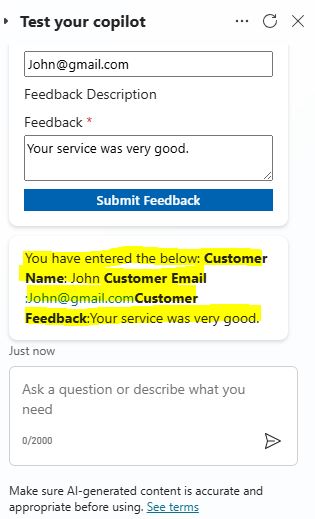
Enter the customer details along with the feedback.

After entering customer feedback, hit the submit feedback button, you can see below what you have entered.
Step 2: Save Data to SharePoint Online List from Ask Me with Adaptive Card
Click on the “Call an action” node, then, click on the “Create a flow” menu.

This is my flow for customer feedback form from Copilot Studio:

The configuration of the above flow is very simple. I just did the below:
- Run a flow from copilot: Created three input parameters: customer name, customer email, and customer feedback.
- Create item: Added a “Create item” in SharePoint Online action and configured the site URL and list name. And passed the customer name, email, and description to the respective columns in the list from the “Run a flow from Copilot” trigger output.
- Compose: In the compose action, I am processing the link to item.
- Respond to Copilot: Created a text-type output parameter that holds the value of the compose action output.
Compose action configuration:
concat('You can find your submitted feedback list item from here:',body('Create_item')?['{Link}'])
Save and publish this flow.
Switch back to your Copilot Topic.
Follow the same navigation: Click on “Call an action,” then select the flow you just created and published.

After adding your flow to Topic, configure the customer name, email, and feedback parameter, which you will get from the output of the “Adaptive Card” JSON.

Then, add a message node and pass the output string variable from the Power Automate flow action to it.

Let’s test this Copilot again.
Once enter the feedback details and submit the feedback form, you will get the below message:
“Additional permissions are required to run this action. To proceed, please select ‘Connect’, and review any missing connections. Once you have made these updates, please select ‘Retry’. You can also ask me anything else to go to a different topic.”

This is for to granting permission to SharePoint Online connection for your flow.
Click on the “Connect” button, this will take you to manage connections page.

Then, you will get the “Create or pick connections” screen.

Click on the submit button.
My Power Automate flow has been connected successfully to Copilot Studio.

You can test it again. Then, you can see the list item URL that you submitted from Copilot that came from the SharePoint Online list.

Customer feedback data saved in SharePoint Online list
If I click on the above item link from the Copilot Studio chatbot, I will be taken to the SharePoint Online list edit form, as shown below:

YouTube Video Demo: How to Create a Customer Feedback Form Using Adaptive Card in Copilot Studio and Save Data in SharePoint Online List
Conclusion
Thus, in this article, we have learnt how to work with adaptive cards in Microsoft Copilot Studio to collect user data and save it in the SharePoint Online list by calling Power Automate Flow from Copilot Studio.
Adaptive Cards in Copilot Studio open up a wide range of possibilities for creating interactive and dynamic user experiences. Whether you’re collecting data, automating workflows, or guiding users through complex processes, Adaptive Cards make it easier and more intuitive. By following the steps outlined in this guide, you’ll be well on your way to building sophisticated, user-friendly interfaces within Copilot Studio.
Start experimenting with Adaptive Cards in Copilot Studio today, and see how they can transform your workflow automation and user interaction strategies!
About Post Author

Discover more from Global SharePoint
Subscribe to get the latest posts sent to your email.