

 By
By 
In this article, we will learn how to add dataverse knowledge to Copilot using the Copilot studio. In my previous article, I have what is a knowledge data source in Copilot Studio and what are the various knowledge data sources we have in Copilot Studio, where I have mentioned Dataverse is one of the knowledge data sources in Copilot Studio.
If you haven’t read the Understanding of Knowledge article yet, I would highly recommend you read that article before going to this article: Overview of Knowledge Source in Copilot Studio – Detailed Analysis
How to add Dataverse knowledge to Copilot using Copilot Studio?
Let us follow the below steps to add dataverse knowledge to Copilot using Copilot Studio:
Add Dataverse knowledge in Copilot
Open any of your existing Copilot, if you don’t have one, and create a new one.
Click on the “Knowledge” menu, then click on the “+ Add knowledge” button.

Then, you will see the “Add available knowledge sources” screen.

Click on “Dataverse (preview): Customise and deploy structured data tables.”.
Then, you can see a list of available Dataverse tables from a Power Platform Environment where you have access.
Note:
- As of July 2024, the dataverse knowledge is in preview mode, so it is showing as preview; once this is globally deployed and publicly available, you won’t see this preview suffix.

Now that you can select your desired tables, please be aware that you can select more than one table.
I have selected a couple of sample Dataverse tables.

Click on the “Next” button.
Now, select the tables one by one from the table selection to preview the data.

I have selected here the “AI Model” table for this demo.
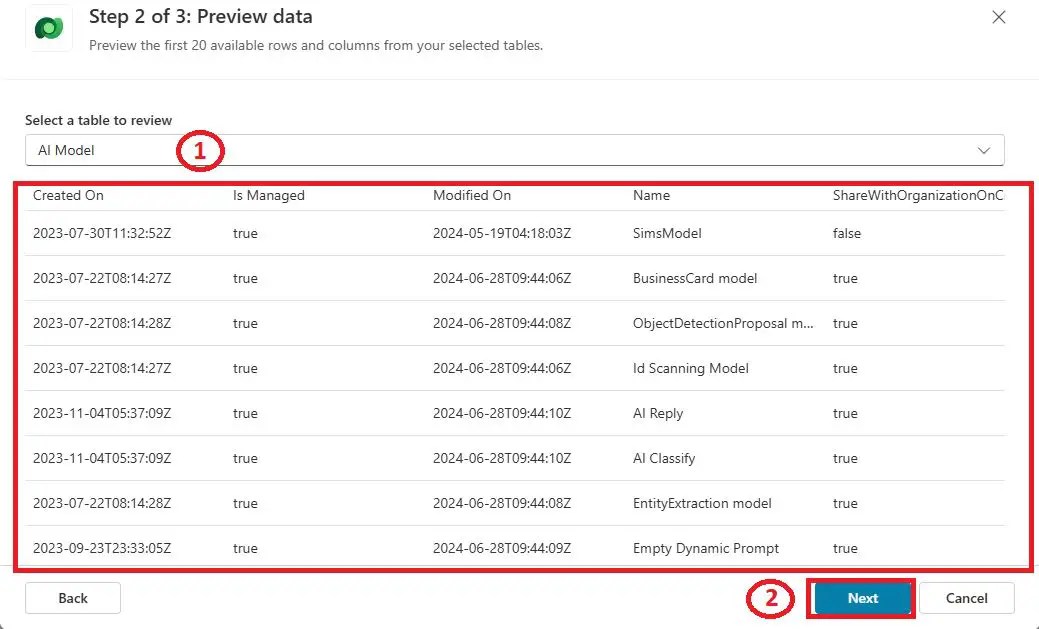
Click on the “Next” button.
On the next screen we can review and finish the knowledge configuration where we need to pass the knowledge name and description; these are auto-created; however, you change these with the proper naming for your use case. Here I have kept the default knowledge name and description, which are auto-generated by the tool.

From this screen, we even can configure the synonyms and glossary for your table data to work your Copilot more efficiently.
Synonyms configuration in Dataverse knowledge
What Are Synonyms?
Synonyms are words that have the same or nearly the same meaning as another word. They can be used interchangeably in many contexts to add variety to writing and speech, making communication more interesting and precise.
Example:
- The words happy and joyful are synonyms. You can say, “She felt happy” or “She felt joyful,” and both sentences convey the same meaning.
Using synonyms helps to avoid repetition and can improve the quality of writing by providing alternatives that might be more appropriate or expressive in different contexts. For instance, instead of repeatedly using the word big, you could use synonyms like large, huge, or gigantic depending on the specific nuance you want to convey.
After each column, you have the option to add synonyms for the column.
Click on the “+ Add synonyms” button to add a synonym.

For example, I am adding the synonyms for “Category” column name. I have added a few synonyms for the “Category” column name, as shown below:

Once you complete adding synonyms, you can see your synonyms name with description next to your column.

Glossary configuration in Dataverse knowledge source
What Is a Glossary?
A glossary is a list of terms and their definitions, typically included at the end of a book or document. It helps readers understand specialized or technical vocabulary used in the text.
Example in Accounting:
- In an accounting textbook, a glossary might include terms like assets (resources owned by a company that have economic value) and liabilities (obligations the company owes to others).
A glossary is especially useful in fields like accounting, where specific terminology is essential for understanding concepts and practices. By providing clear definitions, a glossary ensures that readers can follow the material more effectively.
Similarly, we can add glossary as well to the Dataverse knowledge.
Click on the “Edit” button next to your glossary link.

Glossary configuration in Dataverse knowledge source
Enter your glossary term and description. I have added a few samples.

Once you are done adding your glossary, you can see your glossary and synonyms.

Click on the “Add” button to complete the setup for Dataverse knowledge.
This takes a few seconds to review and finish your setup.

Then, after sometimes, you can see your Dataverse knowledge in the knowledge library.

Note:
- Generally, the status should be ready; for the public website and SharePoint site, the status gets ready immediately, but for Dataverse, it takes a few minutes to a few hours even. Now, it is showing the unknown status, but sometimes it may show an error state, but after a few minutes or hours, this will be changed to a ready state.
After 24 hours of the Dataverse knowledge creation, the status became Ready; please see below:

Demo: How to Add Dataverse knowledge to Copilot using Copilot Studio?
I have just asked Copilot this question: “When was the business card model created?” and I got the answer with the datverse table link reference from where this information came.

Limitation in Adding Dataverse knowledge to Copilot using Copilot Studio
Working on Dataverse knowledge from a dedicated Power Platform environment has limitations. For example, if you have finance-related dataverse tables in Power Platform Environment A and you are working with Copilot development in environment B where finance-related dataverse tables are not available, then you can not get those tables from environment B; in that case, you need to develop your Copilot in environment A to work with the finance-related Dataverse table.
Summary: How to Add Dataverse knowledge to Copilot using Copilot Studio?
Thus, in this article, we have learned how to add Dataverse tables as knowledge in Copilot Generative AI using Copilot Studio. And also, we have learned how to configure synonyms and glossaries for the specific columns in the Dataverse table.
YouTube Video on Copilot Studio Full Tutorial End to End
A Complete Showdown on Copilot Learning, a best ever complete walkthrough on Copilot:
About Post Author

Discover more from Global SharePoint
Subscribe to get the latest posts sent to your email.