

 By
By 
SharePoint Online Filter Lookup Column: Conditionally filter lookup column in SharePoint using specific criteria is very essential for business needs. In this article, we will learn how to conditionally filter a lookup column in SharePoint using specific criteria.
Filtering the lookup column is not possible using JSON (at least as of now Oct 2022), however, we can filter the lookup column value using customizing the SharePoint list form in PowerApps but many clients do not prefer to customize the form in PowerApps, rather they would be happy if we could provide the solution with the out of the box solutions available. Thinking of this, here we will show you a little workaround for how we could filter a lookup column value in SharePoint.
Use Case of SharePoint Online Filter Lookup Column
SharePoint filter lookup dropdown (Conditionally filter lookup column in SharePoint)
Let’s say we have a “Project Status” list that will maintain all ongoing project status, this list has the below columns:
- ProjectName – Lookup type column (Title column from another list ‘Project List’)
- Project Status – Text
- Color – Text
Note:
- Here project status and color column are not relevant, just added them to make the list a little more realistic, generally, these should have been a type of choice column.

Let’s say here the use case is certain types of value shouldn’t be displayed here in this lookup dropdown list, for this example, we will not display “Java” in this dropdown list, however, the real-time requirement would be different but the logic would be the same.
Filter lookup column in SharePoint (SharePoint filter lookup dropdown)
So, how to filter the lookup column in SharePoint? The answer is – we cannot filter the lookup column from the main list (calling list) either using the JSON or out-of-the-box ways, for this filter, we need to handle it in the source list where the data is coming from.
Now, let’s go to the source list for this lookup column – ‘Project List’. Initially, this list has only the ‘Title’ column where we had all projects entry. Now, let’s add two more new columns:
- ProjectStatus – Type Choice (Values: Active|Inactive)
- ActiveProject – Type calculated, and the value would be based on the “ProjectStatus” column value.
ActiveProject calculated column formula:
=IF(ProjectStatus="Active",Title,"")
SharePoint filter lookup dropdown – list columns definition
Below is the columns definition:

SharePoint filter lookup dropdown: Calculated column formula
Use the calculated formula below:

Notes:
- The “ActiveProject” calculated column will only have a value when the “ProjectStatus” is set as “Active” against the “Title” column otherwise it will be blank.
- Ensure the “Single line of Text” is selected from the “the data type returned from this formula is” section – this is the default selection.
A final look at the “Project list” data.
The active project data look like the below:

Now, let’s go to the main list ‘Project Status’ to change the lookup column reference from the “Title” column to the “ActiveProject” column.

After changing the column reference from “Title” to “ActiveProject”, if we click on the add new item “+New” button, we will not see “Java” in the “ProjectName” lookup dropdown list because in the lookup reference source list “Project List” the Java has been set as “Inactive”.

By now, we have learned how to filter the lookup column dropdown in SharePoint, however, still we will have problems while we deal with old data or already saved data.
How do we retain old records in the filter lookup dropdown technique?
In the above screenshot, we see there are values such as “SharePoint”, and “DotNet” in the “ProjectName” column.
Now, let’s make the “DotNet” as “Inactive” in the lookup reference source list.

Then, we will see that the “ProjectName” column value is empty wherever it was “DotNet”.
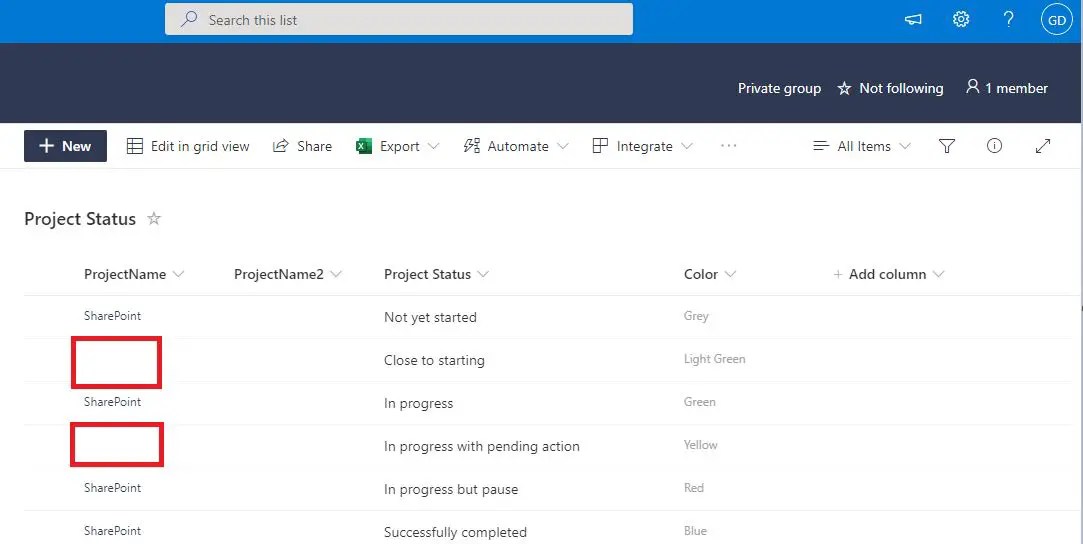
This is the default behavior of SharePoint – as it maintains a parent-child relationship.
Solution: How to overcome this issue?
Create another column single line of Text column (for example, ProjectName2) in the main list (Project Status list).
Hide this new “ProjectName2” new column in the Add/Edit form using the below formula:
=if([$ID], 'true', 'false')
Refer to our previous article on how to hide columns conditionally in a SharePoint Online list using JSON – Conditionally show or hide columns in a SharePoint list.
Create a simple Power Automate – on Add/Edit list item event, which will update the new “ProjectName2” text column with the value of the “ProjectName” lookup column.
Hide the “ProjectName” lookup column in the view and display the new “ProjectName2” text column in the view.
Using this technique, the “ProjectName2” text column always will have a copy of the “ProjectName” lookup column value, so even though the “ProjectName” lookup column loses the reference value, the other “ProjectName2” text column will retain it.
Summary: Filter lookup column SharePoint list
Thus, in this article, we have learned how to filter the lookup column dropdown value.
See Also: SharePoint Online tutorial
You may also like the below SharePoint Online tutorials:
- SharePoint Online conditional row formatting based on a LOOKUP column value using JSON
- SharePoint cascading dropdown in PowerApps
- How to link lists from Microsoft Lists using a lookup column in Power Apps
About Post Author

Discover more from Global SharePoint
Subscribe to get the latest posts sent to your email.